Marking and the gradebook
The gradebook shows every learner on a course against every task, in one table. You can type marks straight into it, fill a whole column at once, ask the AI to mark written answers, read what each learner sent, and download it all as a spreadsheet. Marking one task for a class takes a few minutes.
Before you start
- You need to be a creator on the course.
- The course needs at least one task and at least one learner who has joined. See Add learners and cohorts to add learners one by one or as a cohort.
Open the gradebook
- Open the course in the creator studio.
- In the course menu, under Learners, choose
Completion. The page is titled Gradebook.
Each row is a learner and each column is a task. Columns are in groups by unit, and
each unit's group ends with one column that adds up that unit, then a Course column.
Use Order to sort the columns by Curriculum (the
curriculum is the plan of your course), Start date or
Due date, and use the Filter button to show fewer learners.
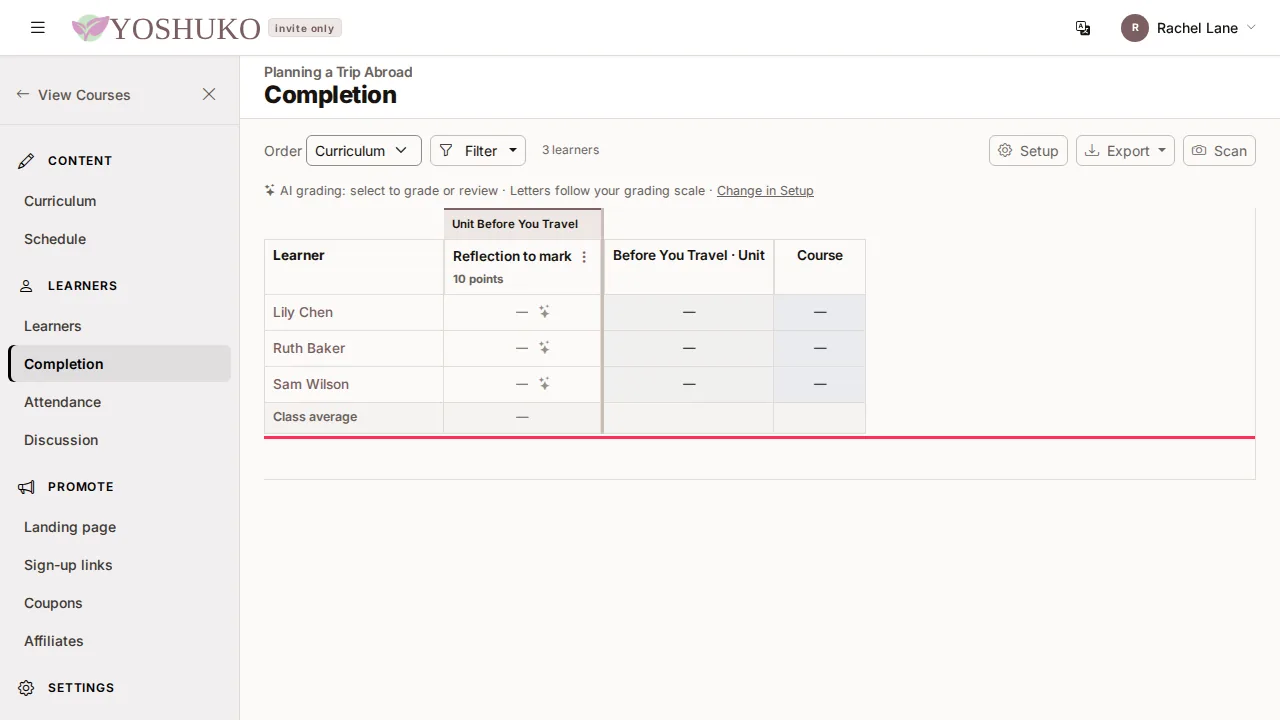
Type a mark into a box
- Click a learner's box for the task and type the points they earned.
-
Press Enter (or click away) to save. The box turns green for a moment when it is saved.
-
Type
EXto excuse the learner. A task they are excused from does not count in their grade. - Clear the box to remove the mark.
- The arrow keys and Enter move between boxes, like a spreadsheet.
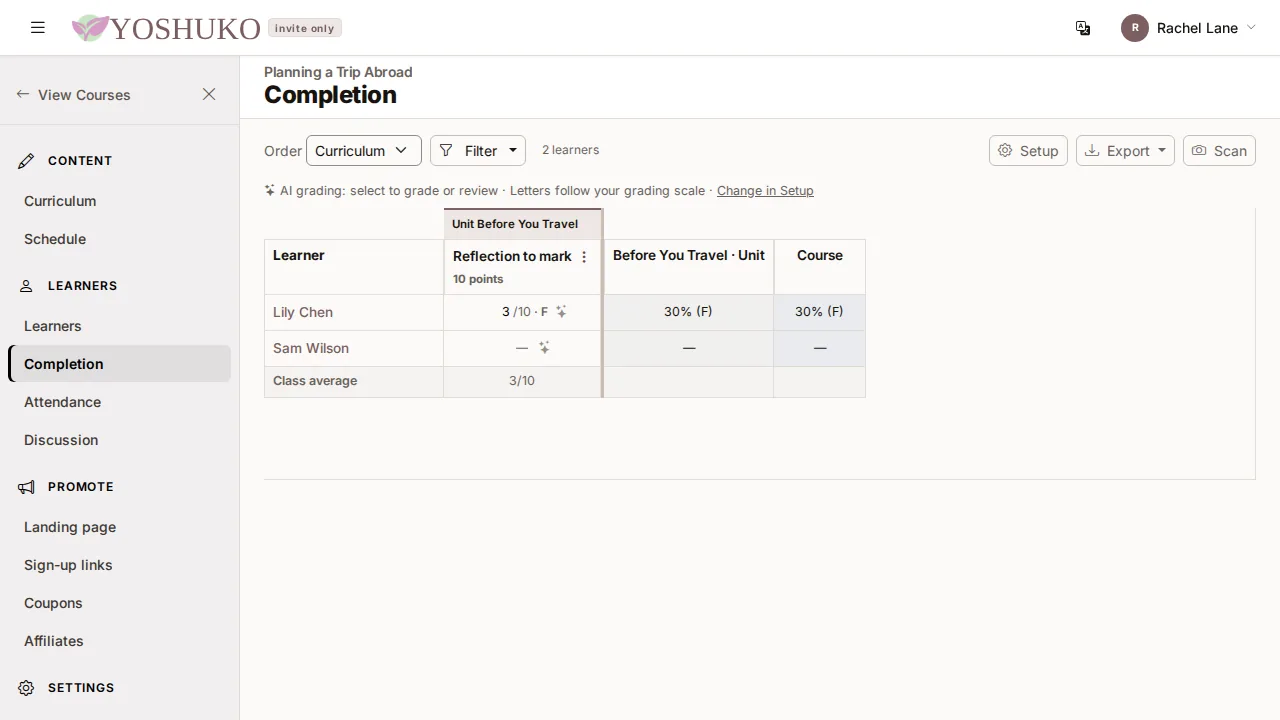
A letter grade appears in the corner of a marked box, and a small AI label marks a grade the AI produced, so you can tell it from one you typed.
Give every learner a mark for one task at once
Useful for recording a zero for everyone who did not hand something in.
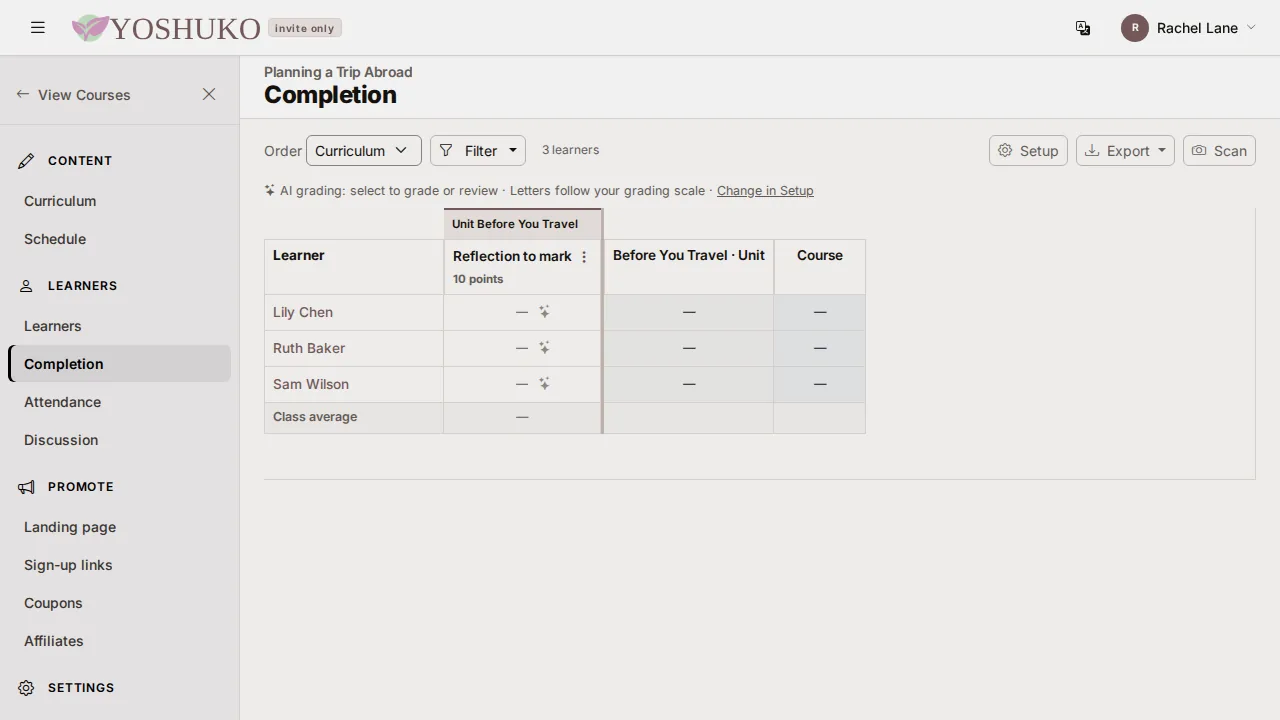
- Open the column's menu — the ⋮ button at the top of the task's column.
- Choose Fill grades….
- Under Apply to, choose who gets the mark: All learners, Only those who turned it in, or Only those who have not turned it in.
- Choose Points or a share of 100 (
Percent), and type the Value. Or checkExcuse instead (does not count toward the grade). - Press Apply.
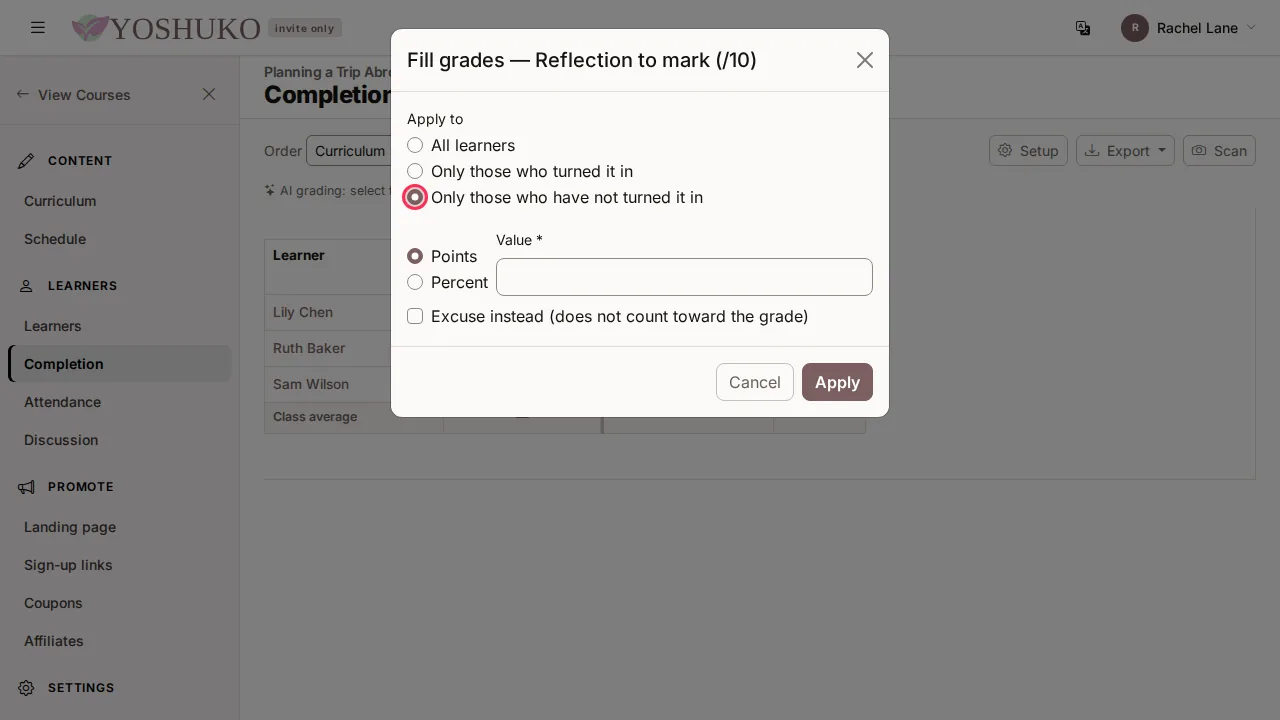
Learners outside the group you chose are left exactly as they were.
Fill grades… appears only on graded columns. A column that is only marked done or
not done shows Completion column in its menu instead.
Read and mark each learner's answers
- Open the column's ⋮ menu and choose Review responses…. (If nobody has answered yet, the menu says No learner response to review.)
- Pick a learner from the list on the left. Use Search learners or the
Filterbutton to find someone. - Read their answer, type the Points earned, or check Excused.
- Press Save.
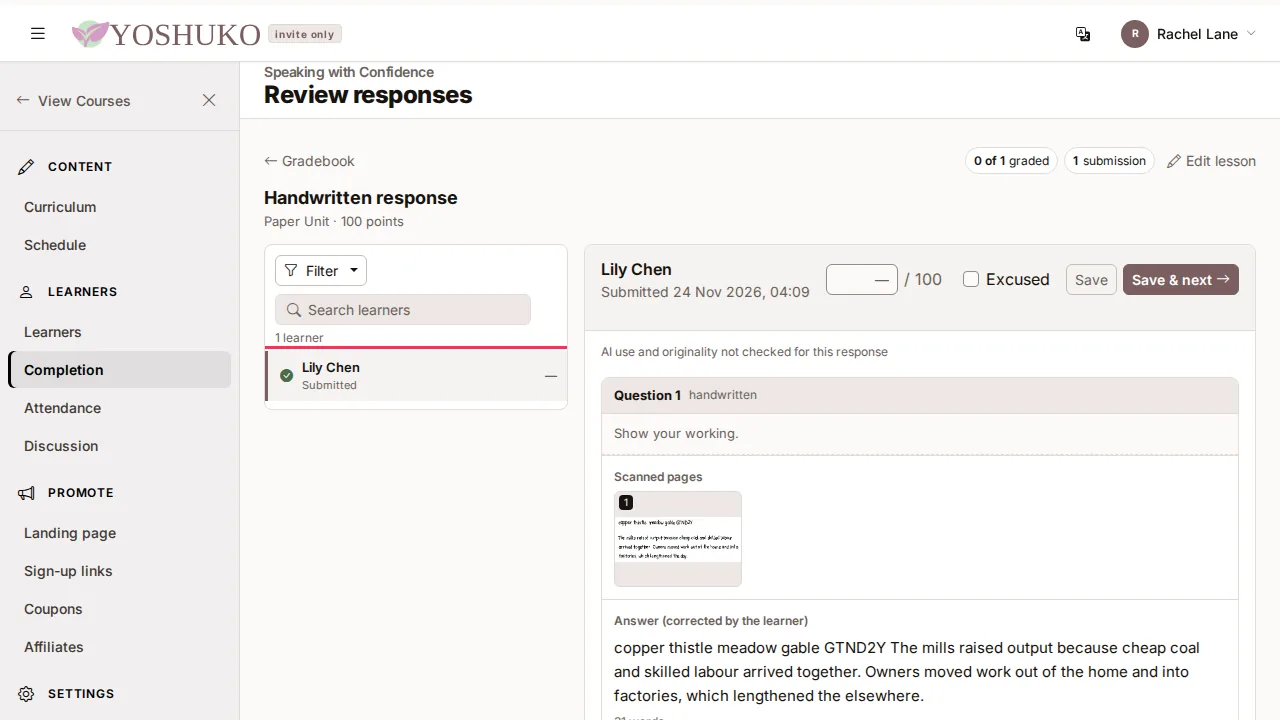
If the task is only marked done or not done (Completion), a score would not appear in
the gradebook. Yoshuko asks you to say yes to a Point value for this assignment and
press Make it graded and save, or Cancel.
If someone else — or an AI grading job — recorded a grade after you opened the response, you see This grade changed while you were reviewing. Choose Show me theirs to see their grade, or Keep mine to replace it with yours.
Answers written by hand
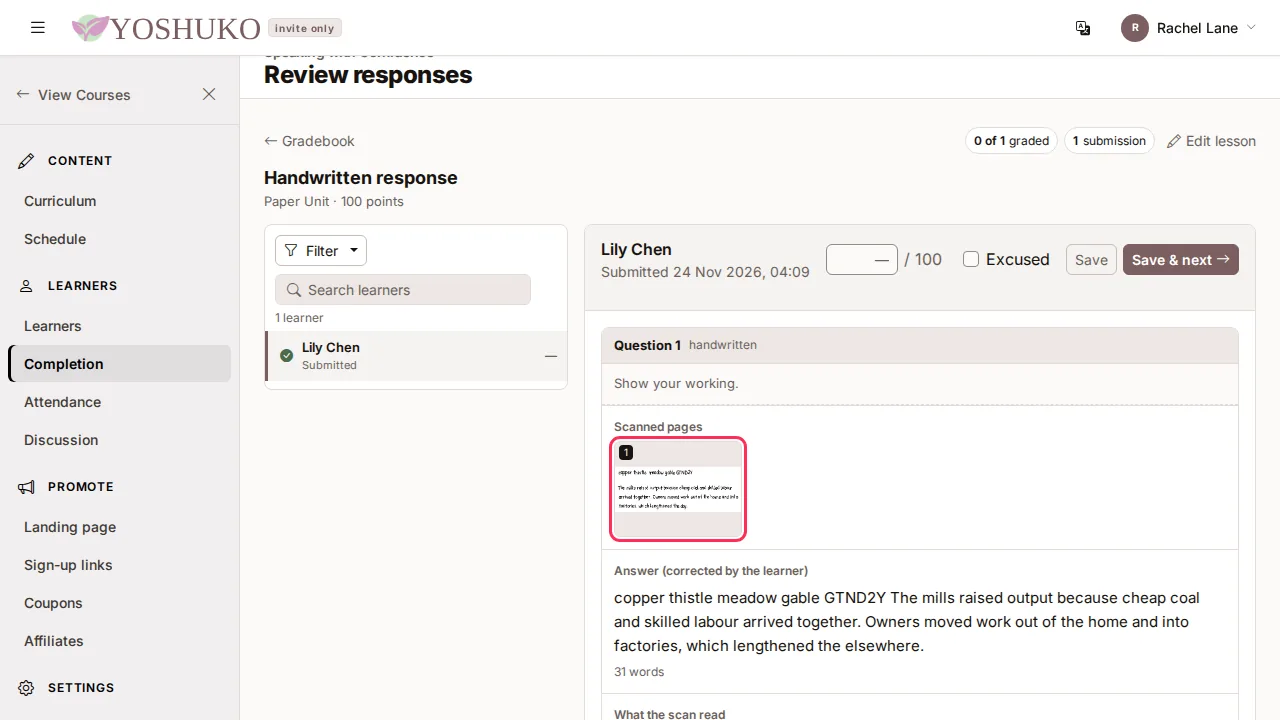
When a learner answers on paper and scans the pages, their pages appear as small pictures beside the answer.
- Click a small page picture to see the scan full size.
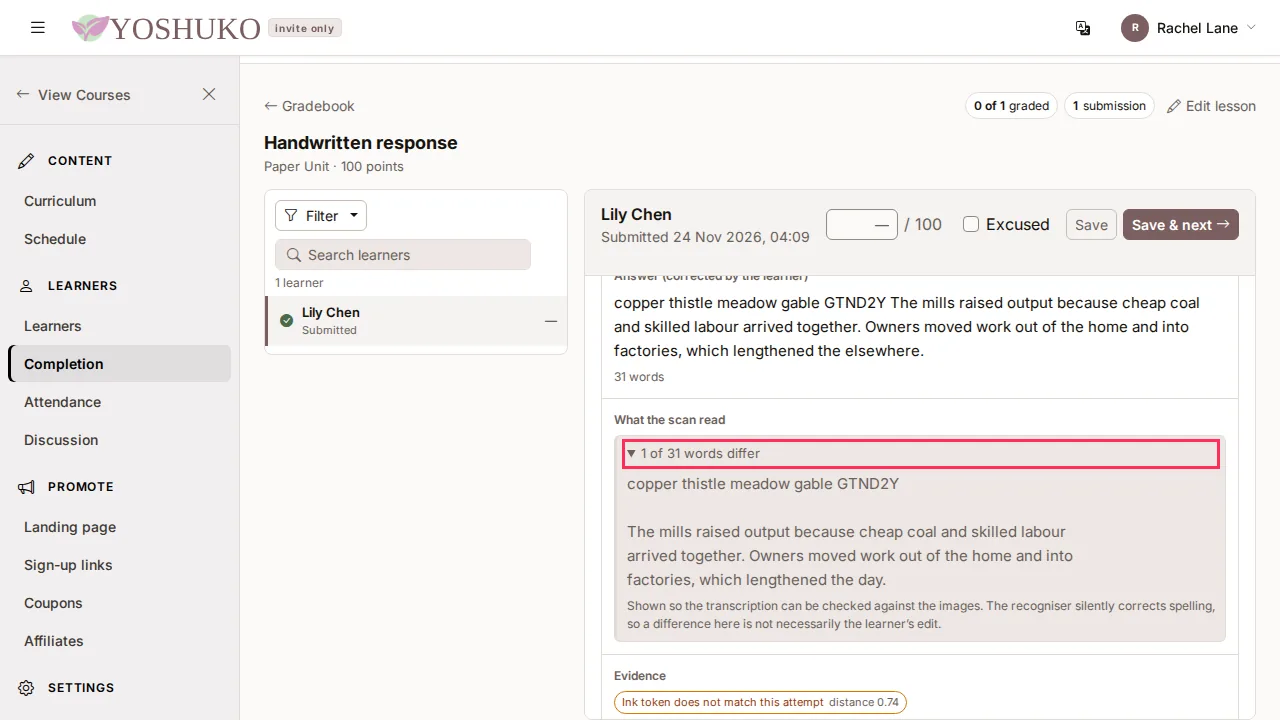
- Open the line that reads, for example,
3 of 120 words differ. It shows what the scanner first read, so you can compare it with the answer the learner sent.
Keep in mind:
- The scanner fixes spelling without saying so, so a difference is not always a change the learner made.
- When the learner wrote a lot again, the comparison opens by itself and says
this is a rewrite, not a fix. - If the scanner could not read the page at all, the screen says so: the learner typed the answer themselves, and you should read the pictures to check it.
- If a page picture has been removed by the rule that says how long pictures are kept, its small picture says image no longer stored. The answers the learner sent are kept.
Have the AI mark a task
The AI can mark tasks that ask for a written text response.
- Open the column's ⋮ menu and choose AI grade all…. (If the task has no text response, the menu shows AI grade (needs a text response) and you cannot choose it.)
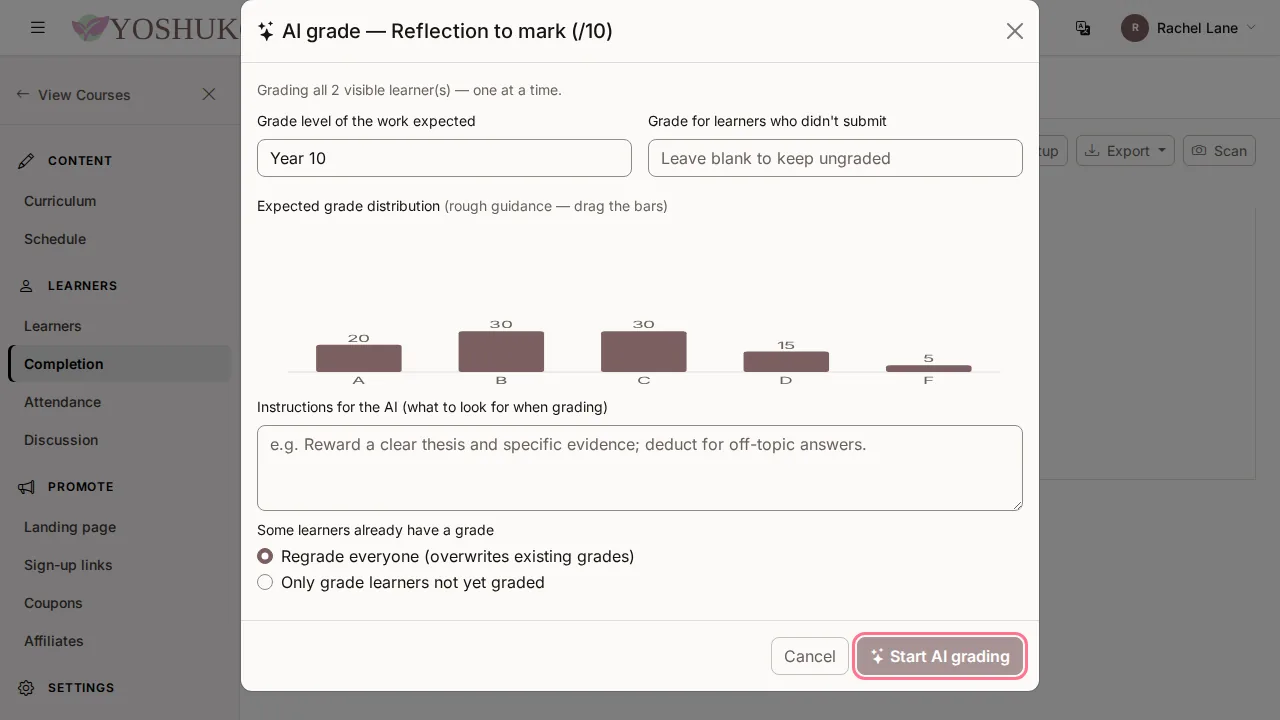
- Fill in the box that opens:
- Grade level of the work expected — for example 8th grade or College.
Grade for learners who didn't submit— leave it empty to leave them without a grade.- Expected grade distribution — drag the bars to show roughly how many learners you expect at each grade.
- Instructions for the AI (what to look for when grading).
- If some learners already have a grade, choose
Regrade everyone (overwrites existing grades)or Only grade learners not yet graded. - Press Start AI grading.
The AI grades every learner shown in the table now (if you chose to show fewer learners, only those are graded), one
at a time. A message at the top shows how far it has got, with Cancel to stop it —
and a button to go on (Resume) if a run was stopped. You can keep working while it
runs.
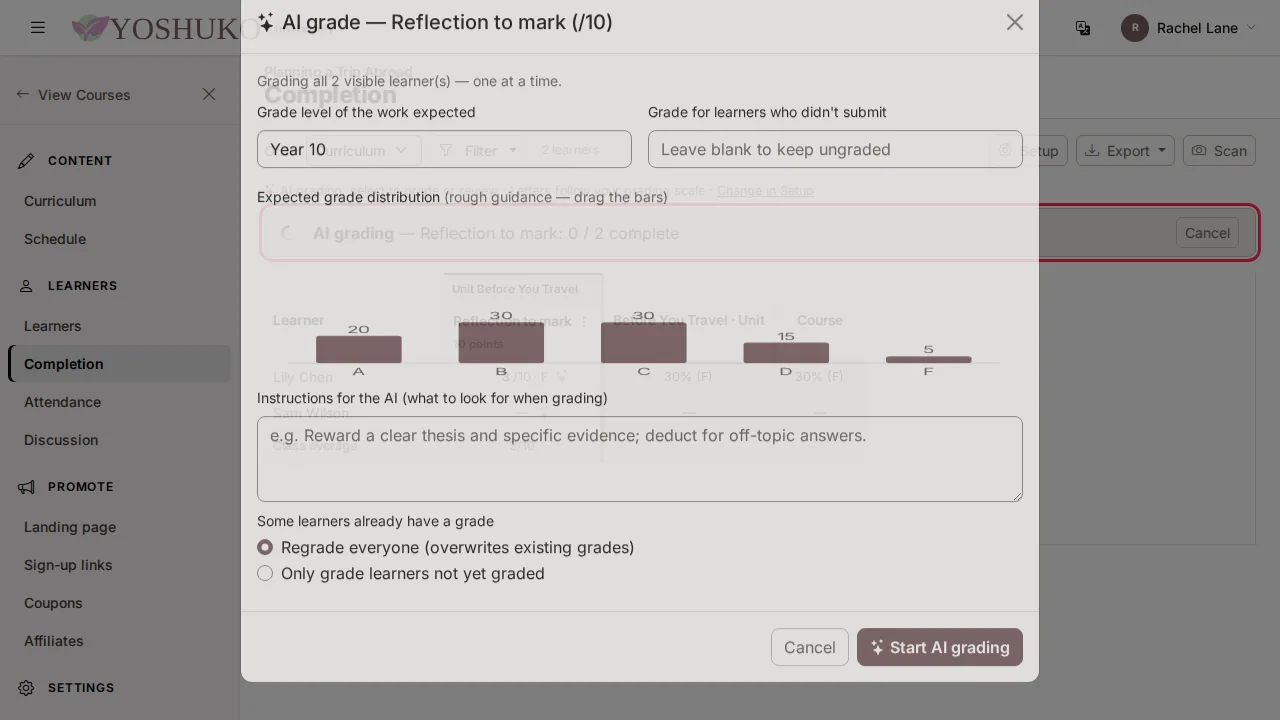
To grade a single learner with the AI, use the small AI button in that learner's box (AI grade this learner).
If you ask the AI to grade a task that is only marked done or not done, the box tells you it will be marked as graded so the scores show.
See how one learner is doing
- In the gradebook, click the learner's name.
- Their page shows their Course grade, their Unit grades, and lists of
work that is coming soon (
Upcoming) and Completed work, with each item's mark, Complete, Not done or Excused. - Press Back to gradebook to go back.
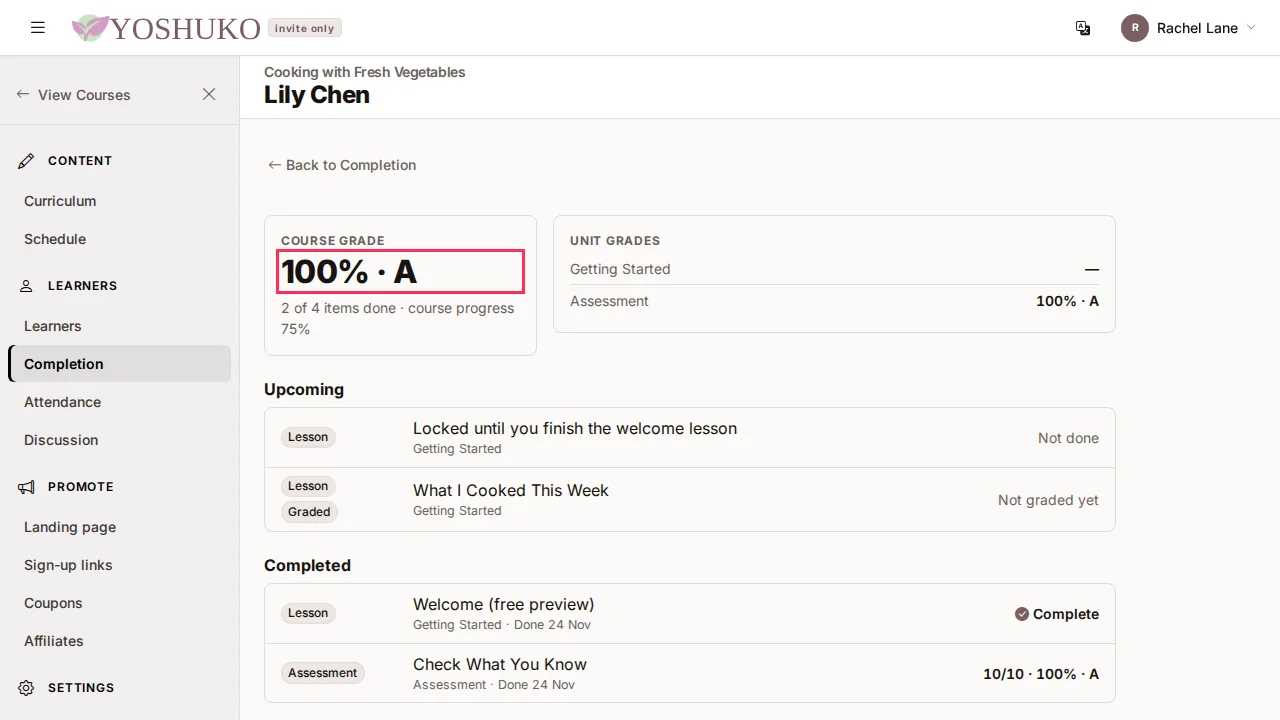
Download the gradebook as a spreadsheet
- Press Export.
- Under Current view choose
XLSX (view)orCSV (view)to download just the learners and columns you are looking at. Under Entire gradebook chooseXLSX (all)orCSV (all)for everything. A CSV file is a simple table you can open in a spreadsheet.
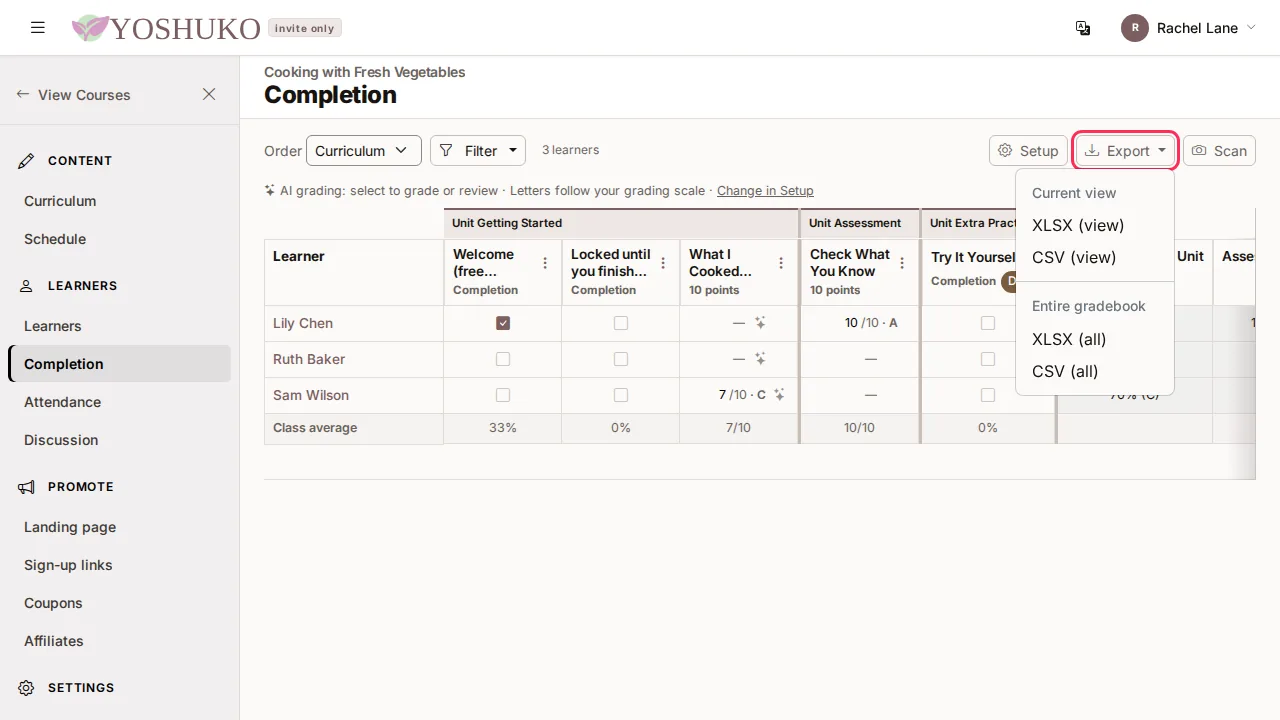
Marks for learners who were excused are written as EX in the file.
Change how the gradebook adds up
Press Setup to open the gradebook settings for this course.
If something goes wrong
| You see | What it means | What to do |
|---|---|---|
No learners are enrolled on this course yet. |
Nobody has joined the course, so there is nothing to mark. | Press Add learners to go to the course's learner list. |
No learners match the filters you have set. |
The choices you made to show fewer learners hide every learner. | Press Clear filters. |
| Could not load the gradebook. | The table did not load. | Press Retry. If it keeps failing, load the page again. |
| AI grade (needs a text response), in grey | The task has no written answers for the AI to mark. | Mark it yourself, or with Fill grades…. |
| A box's value turns red and will not save | The mark is not a number of zero or more. | Type a number, EX, or clear the box. |
Related
- Tests and tasks
- Add learners and cohorts
- Certificates
- Analytics — analytics are numbers and charts about what learners do.
Grading paper answer sheets
An assessment given on paper, where each question has a list of answers, can be scanned straight into this gradebook. See Paper answer sheets.