Affiliates
An affiliate programme lets other people tell others about your courses and earn a commission on each sale they bring in. You invite them with a link, approve them, and pay them yourself. Setting it up takes about ten minutes.
Before you start
- You need to be a creator in the organisation.
- Affiliates earn on paid sales, so you need at least one course with a price, and Stripe connected — see Payments, plans and coupons (a coupon is a code for a lower price).
You pay your affiliates directly
Yoshuko takes only its own fee on a sale that an affiliate brought in; the commission is not taken off, so the full amount reaches you and is yours to pass on. Yoshuko does not hold, process or guarantee affiliate payments, and does not issue tax forms for them — you are the payer.
Turn on your affiliate programme
- In the creator studio's left-hand menu, choose Affiliate Program. The Share page opens and says Your affiliate program is off.
- Press Turn on affiliate program.
- Open the Settings tab and choose:
- Commission type —
Percentage of each saleor Fixed amount per sale. - Commission rate (a number out of 100, from 0 to 100) or Amount per sale. Sales in another kind of money use the rate out of 100 instead.
Attribution window— how many days (1–365) after clicking an affiliate's link a learner's purchases still earn commission. 60 days is usual for courses.- Terms shown to affiliates before they join — plain text, up to 4,000 characters. Say what kinds of advertising you allow and what you do not.
- Commission type —
- Press Save settings. You see Settings saved.
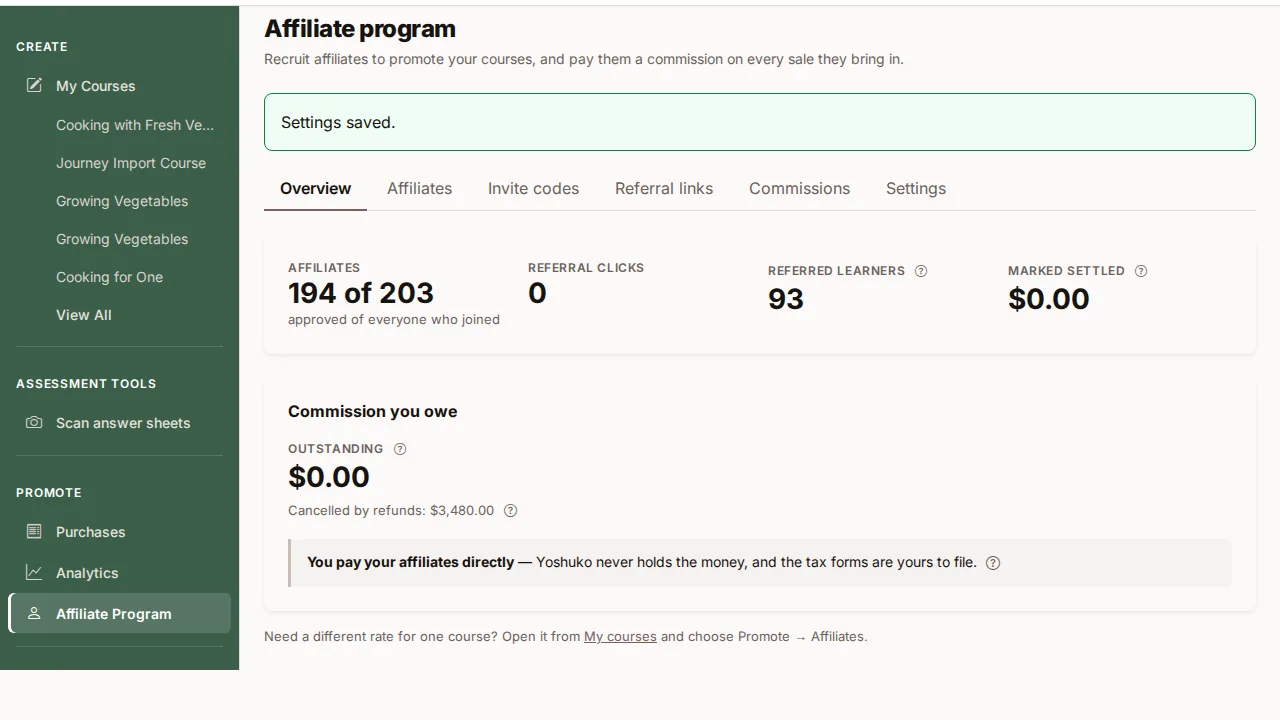
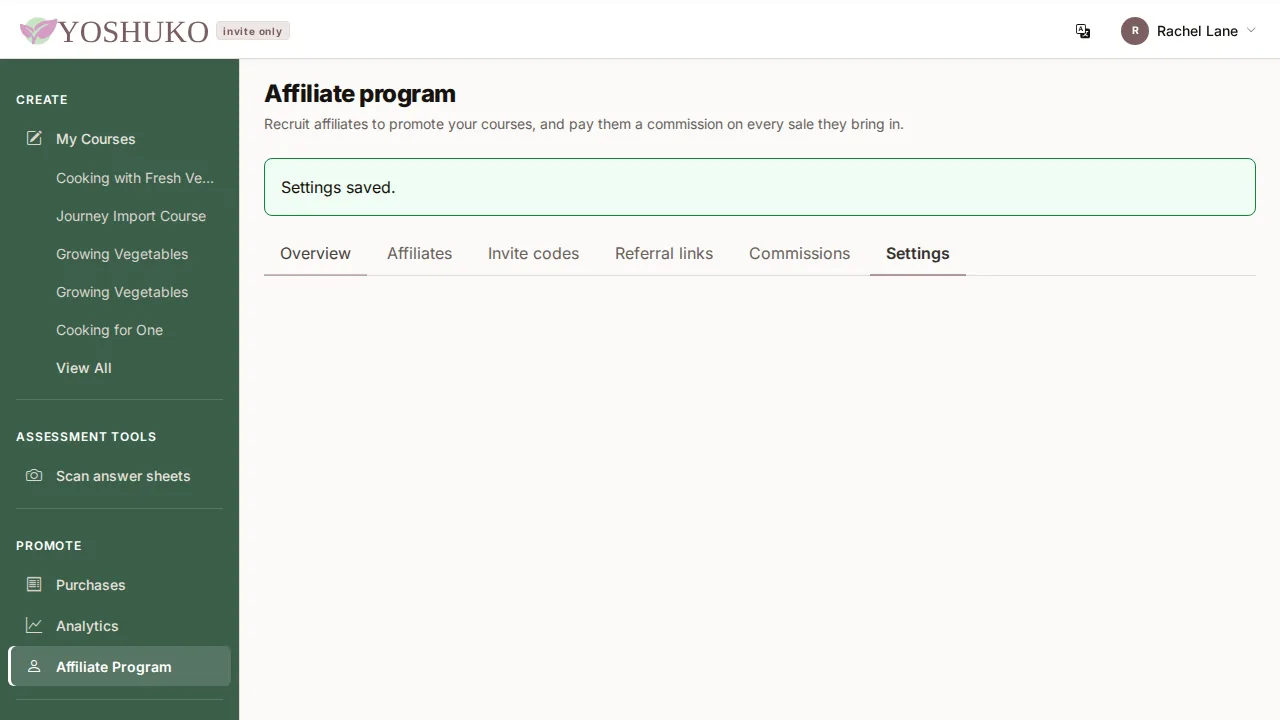
To pause the programme, switch off Affiliate program is on in the same tab. That stops new tracking and new commission; it never cancels commission already earned.
Invite affiliates
- On Share, open the Invite codes tab.
- Under Create an invite code, fill in
What is this batch for?(what this group of codes is for — for examplePodcast partners) and, if you want, Maximum uses. - Leave Approve everyone who uses this code, automatically not checked if you want to look at each person first. Check it only for partners you already know: their affiliate link goes live the moment they join, and anyone who gets hold of the link can start earning commission on your sales.
- Press Create invite code. The new code appears in the table with its Invite link — press Copy and send it to the people you are inviting.
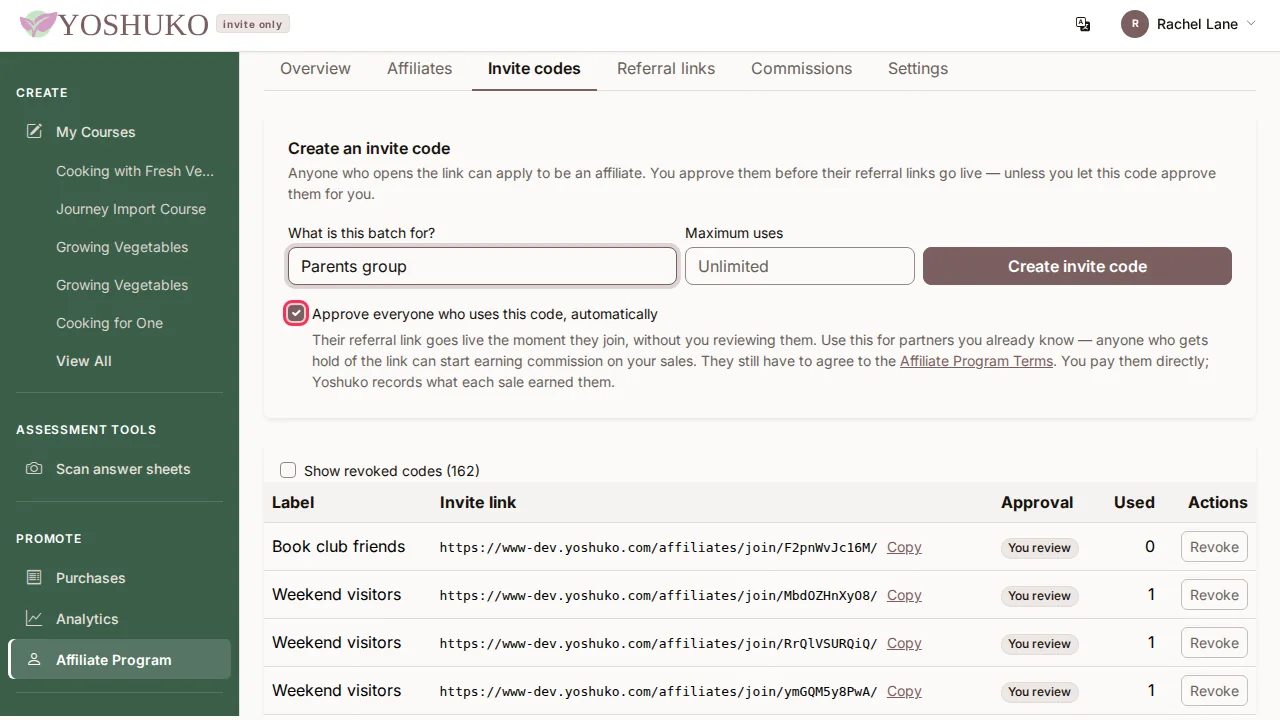
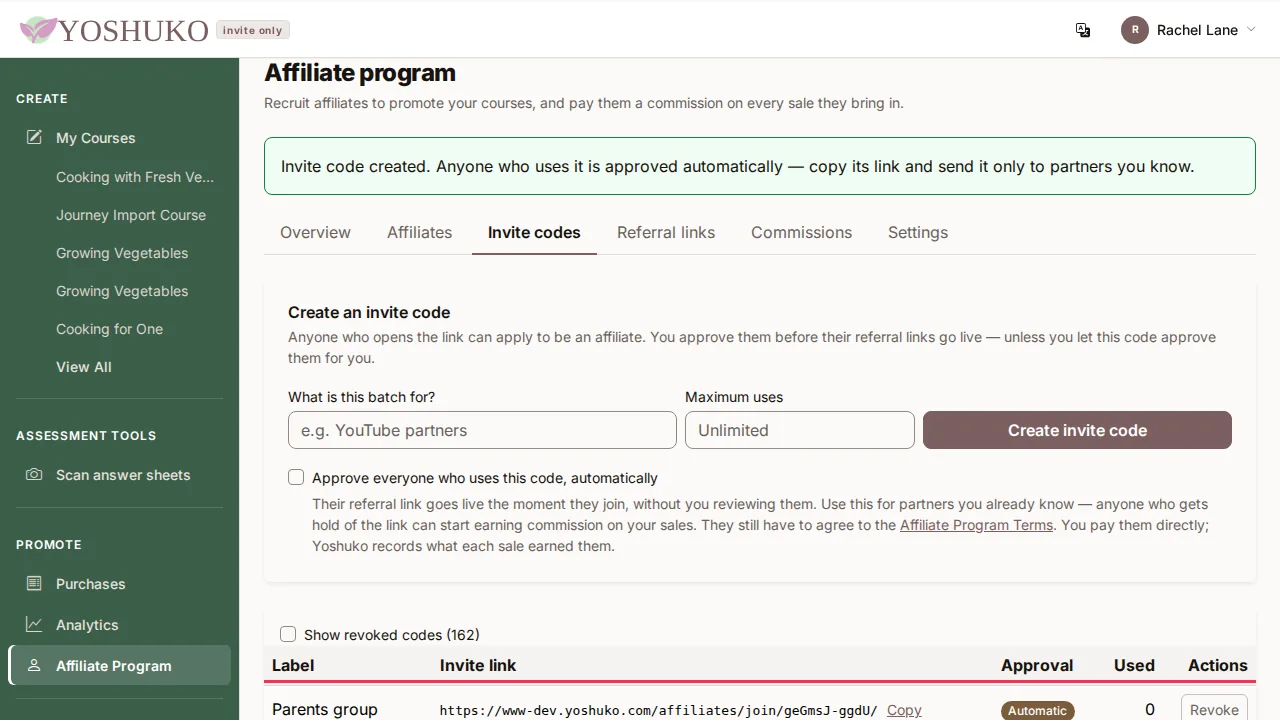
The Approval column shows You review or Automatic. Press Revoke to
stop a code taking new people; affiliates who already joined through it keep
their place.
Approve people who ask to join
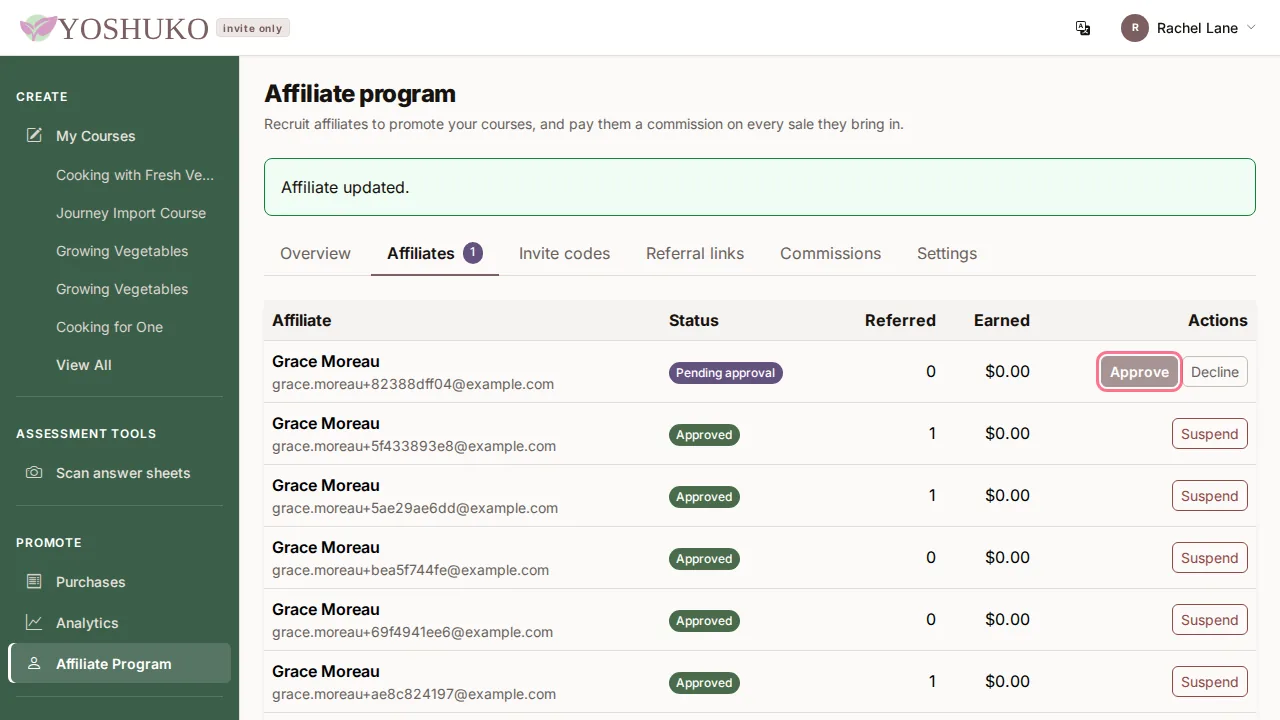
Open the Affiliates tab. A number on the tab shows how many people are waiting. Each row shows the affiliate, their status, how many learners they sent to you and what they have earned.
- A person who is still
pending(waiting): press Approve or Decline. Approving gives them an affiliate link for all your courses straight away. - An approved affiliate: press
Suspendto stop their links working immediately. Commission they have already earned is still owed to them. - An affiliate you stopped or declined: press
Reinstateto let them back in.
The Referral links tab lists every link your affiliates share, what each one
advertises, and how many people clicked it and signed up.
Set a different commission for one course
- Open the course. In the course menu, under Promote, choose Affiliates.
- Under Commission for this course, choose one:
Use the program default— the rate from your programme's settings.- A different rate — type the rate (out of 100) for this course.
- Exclude this course from the program — people sent to it by affiliates are still counted but earn nothing; affiliates are told why on their own screen.
- Press Save.
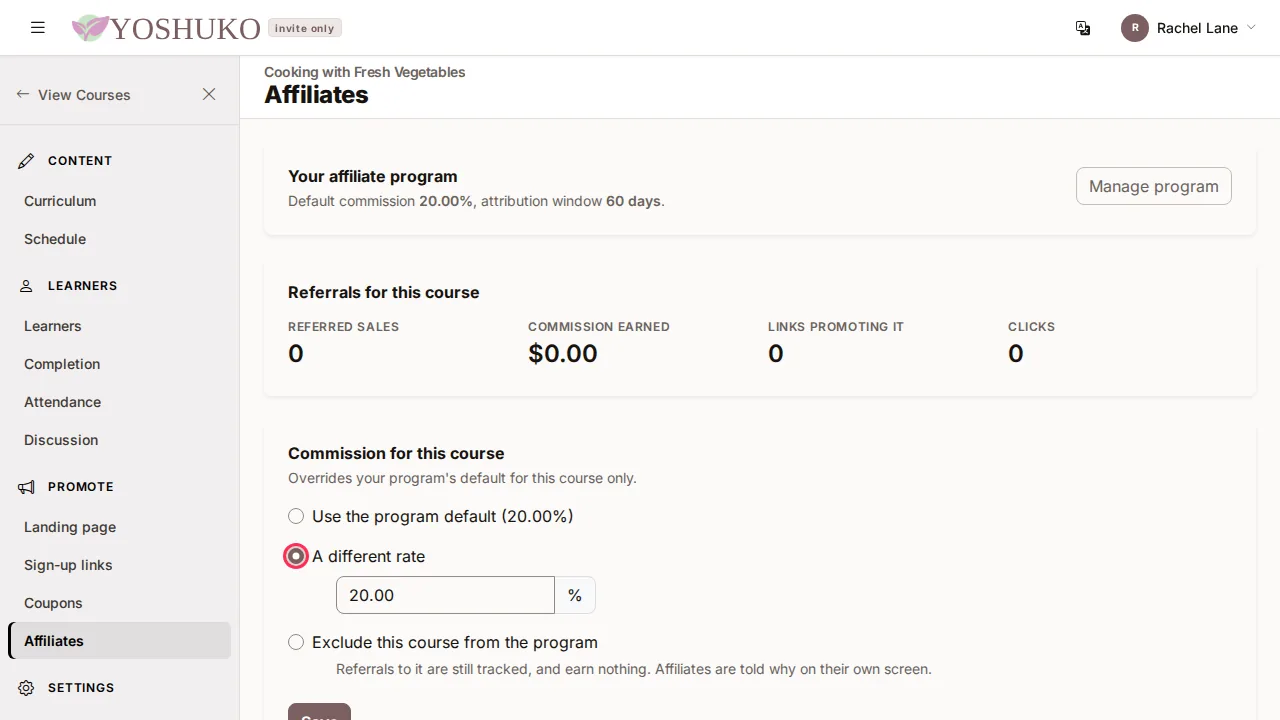
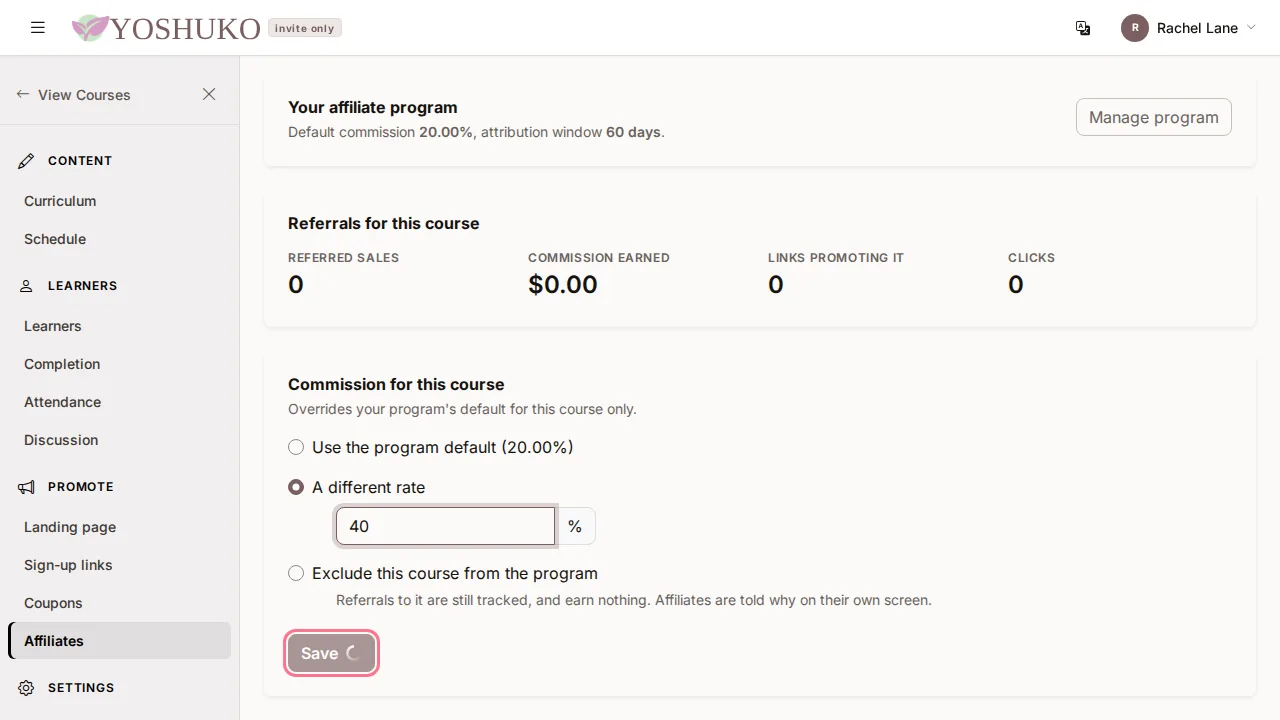
The same page shows Referrals for this course. Other courses keep the programme's
main rate, and follow it if you change it later.
Keep track of what you owe
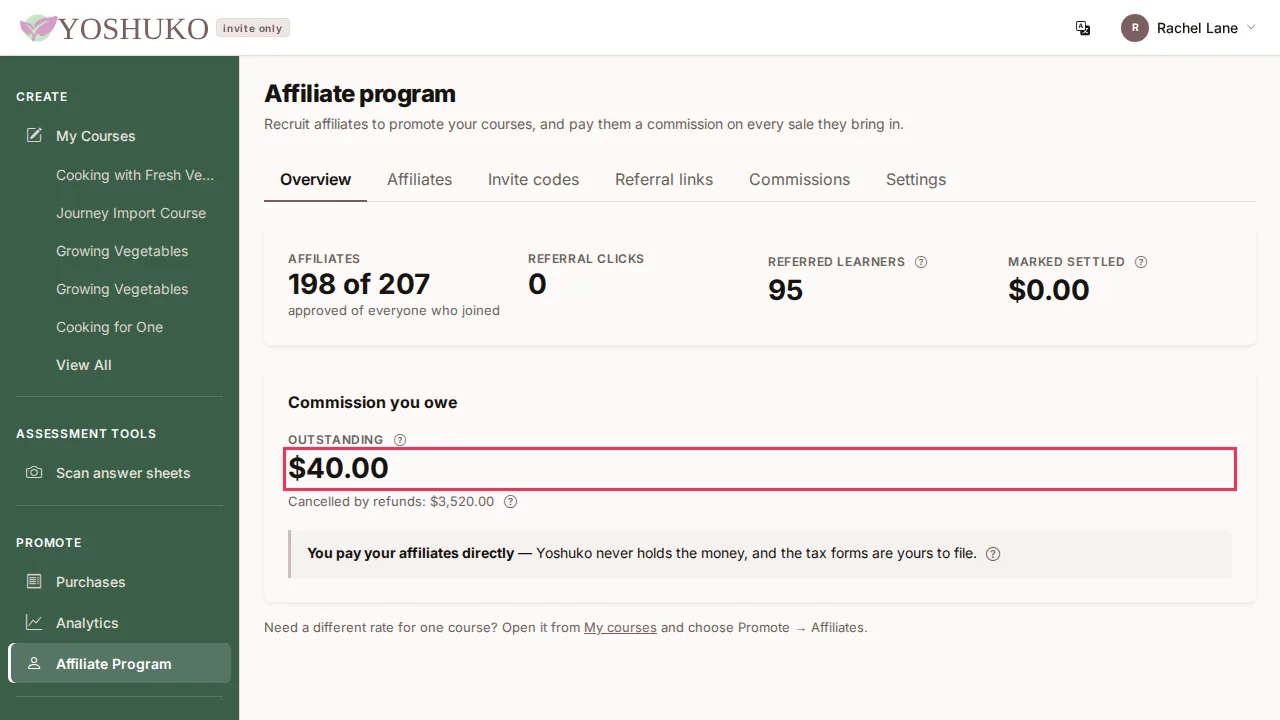
The Overview tab shows Affiliates, Referral clicks, Referred learners
and Marked settled, and under Commission you owe, the Outstanding amount —
earned by your affiliates and not yet marked settled.
- Pay your affiliate however you have agreed with them.
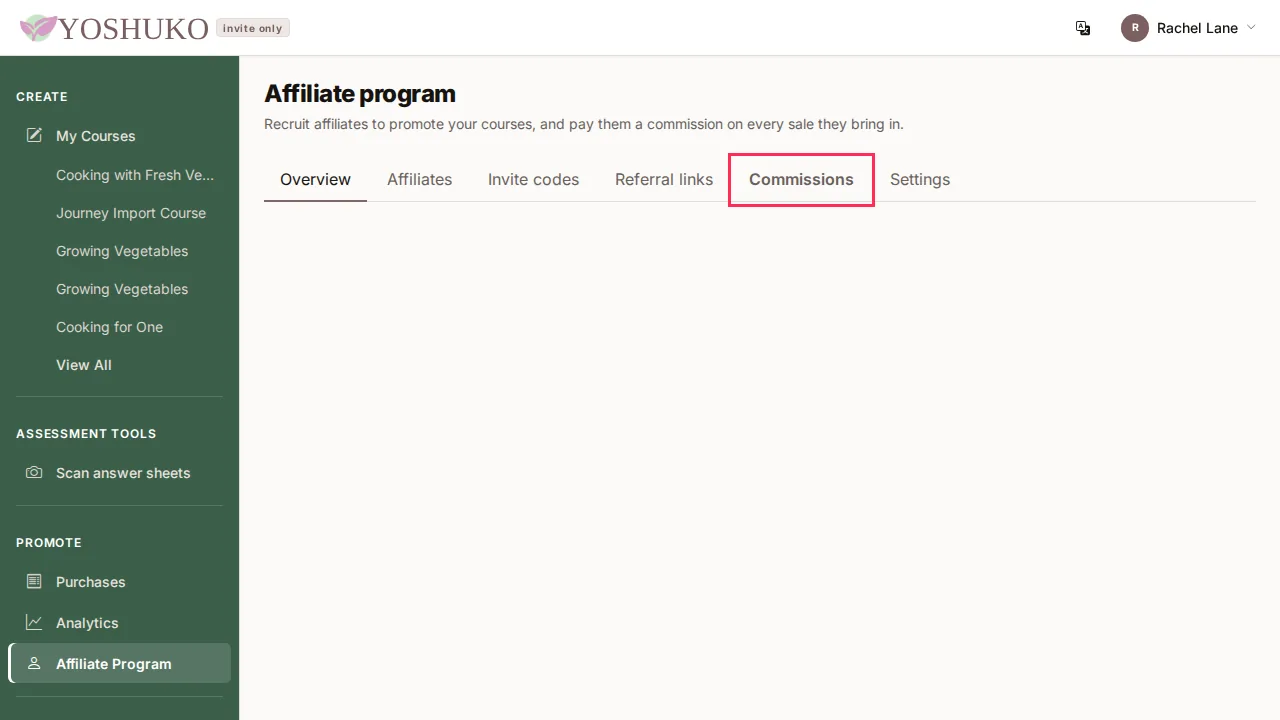
- Open the Commissions tab. Each sale an affiliate brought in shows the affiliate, course, sale,
commission and status (Owed,
Voidedor Reversed — refunded). - Press Mark settled on the rows you have paid. They read Settled, and Outstanding drops by that amount. This is your own record — Yoshuko sends no payment. Press it again to take the mark away.
If a buyer gets a refund, that sale and its commission are cancelled and the row reads Reversed — refunded.
If you have been invited to be an affiliate
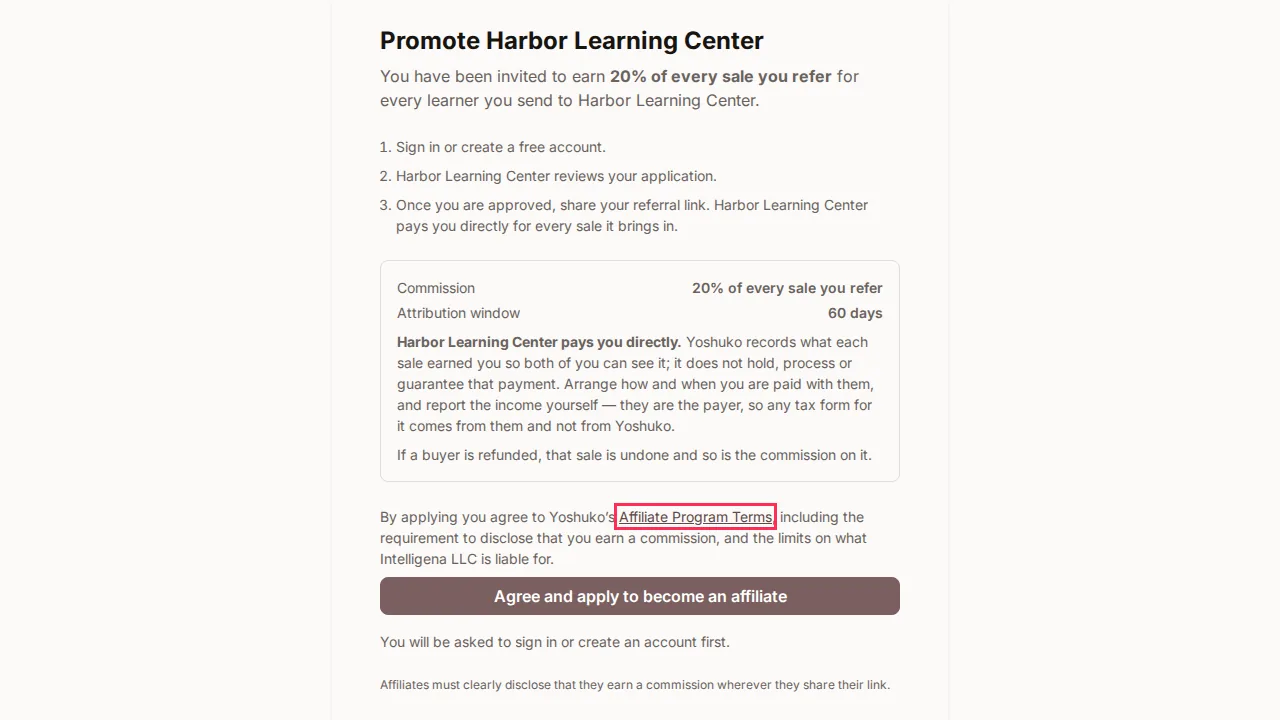
- Open the invite link you were sent. The page, Promote followed by the organisation's name, shows the commission on offer, who pays you (the creator, directly), and the creator's Program terms.
- Read the Affiliate Program Terms (linked on the page) — they include the rule that you must tell people you earn a commission, and section 7, No guarantees, about earnings, how correct things are, payment, and whether the programme will go on. You can also read them at /legal/affiliate-terms/.
- Press Agree and apply to become an affiliate. If you are not signed in, you are asked to sign in or create an account first.
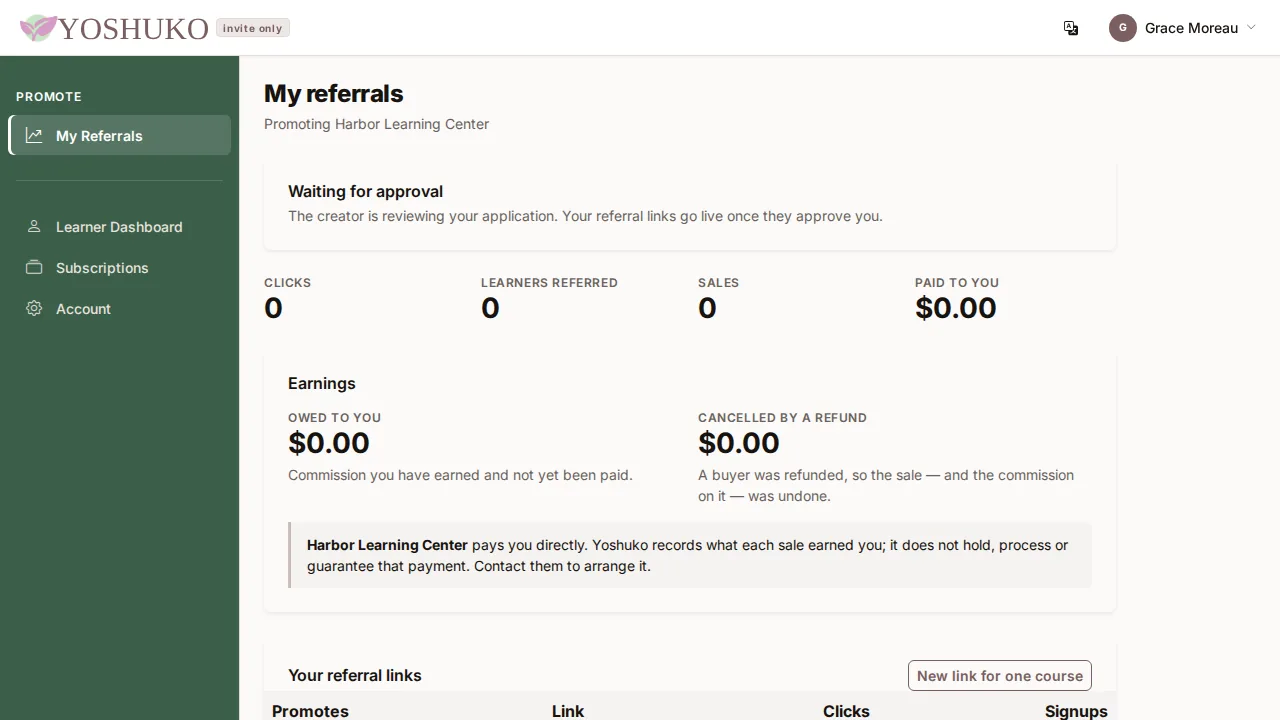
- You see Application sent. You will get an email when it is reviewed. — or, for a
code that approves automatically,
You are approved. Your referral link is ready on your referrals page.
Share your link and see your earnings
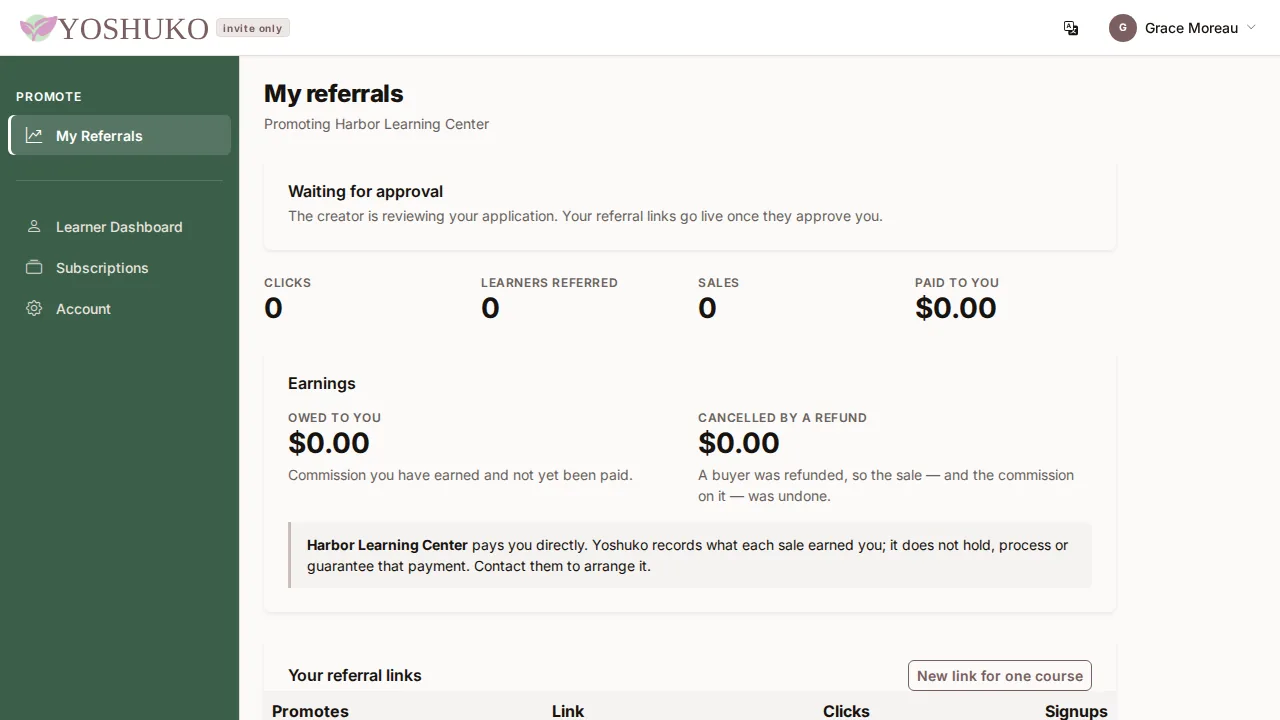
My Referrals is your own page. Once the creator approves you:
Your referral linkslists your links, with a Copy button. Press New link for one course, choose the Course and, if you want, a Label, and press Create link to advertise just one course.- Earnings shows Owed to you — commission earned and not yet paid — and the Commission table lists each sale you brought in.
When somebody follows your link, purchases they make within the number of days the creator set earn you commission. If they later follow another affiliate's link, the most recent link wins. Your creator pays you directly; contact them to arrange it. Wherever you share your link, say clearly that you earn a commission.
If something goes wrong
| You see | What it means | What to do |
|---|---|---|
| We could not load your affiliate program. | The Share page did not load. | Press Try again. |
| You are not running an affiliate program on a course's Affiliates page | The programme is off. | Press Set up affiliates. |
| This invitation is no longer open. or That invitation is no longer valid. Ask for a new invite link. | The code was stopped, used up, or its time ran out. | Ask the creator for a new invite link. |
| This program is not accepting affiliates right now. | The creator has switched the programme off. | Ask the creator. |
| You cannot be an affiliate of your own organisation. | You opened your own invite link. | Send it to someone else. |
| You have already applied to this program. | Your application is already in. | Wait for the email, or check My Referrals. |
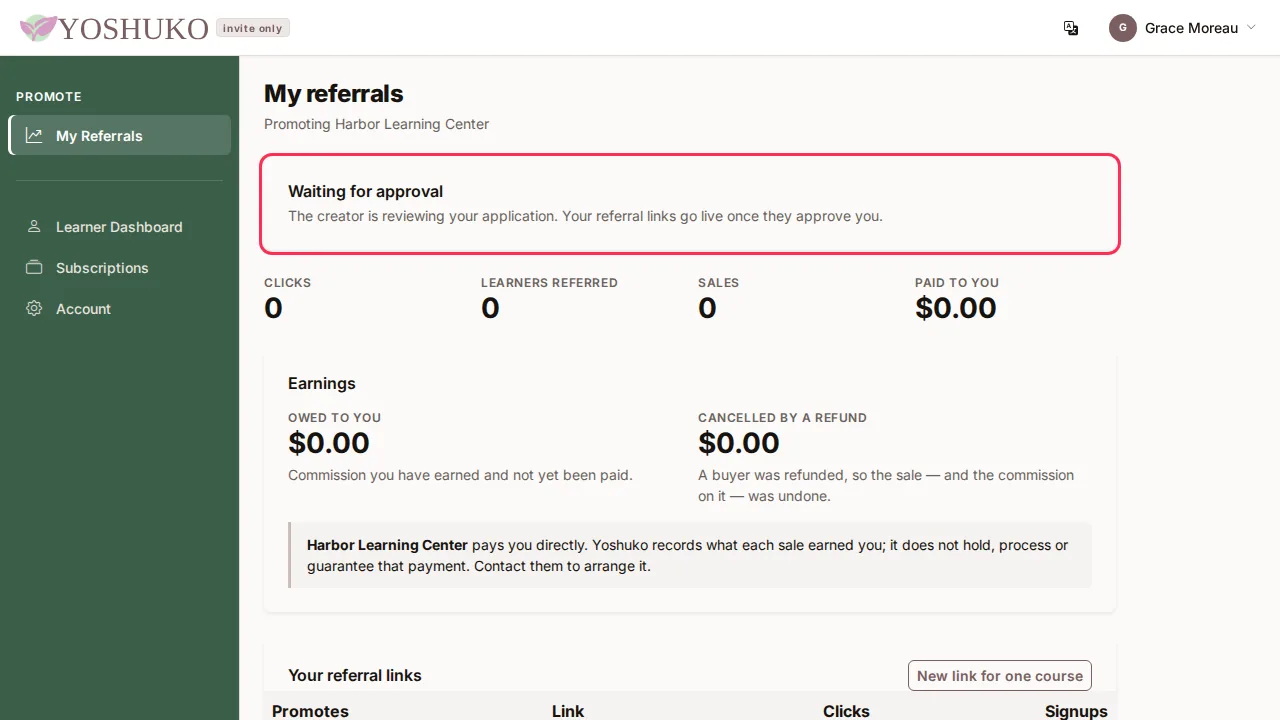
| Your links appear here once the creator approves you. | You have applied and are waiting. | Nothing — you will be emailed. |
Related
- Payments, plans and coupons
- Your course listing
- Storefront and your own domain (your storefront is your shop page; a domain is the name of a web site)
- Legal documents