Security and passwords
Keep your Yoshuko account safe: set a new password when you cannot remember the old one, choose a new one, add a mobile number, and turn on an authenticator app for sign-in. Each task takes a few minutes.
Before you start
- Anyone with a Yoshuko account can do everything on this page.
- Have your email ready. Most changes send a code there to prove it is you.
Set a new password when you cannot remember it
-
On the sign-in page, press
Forgot password?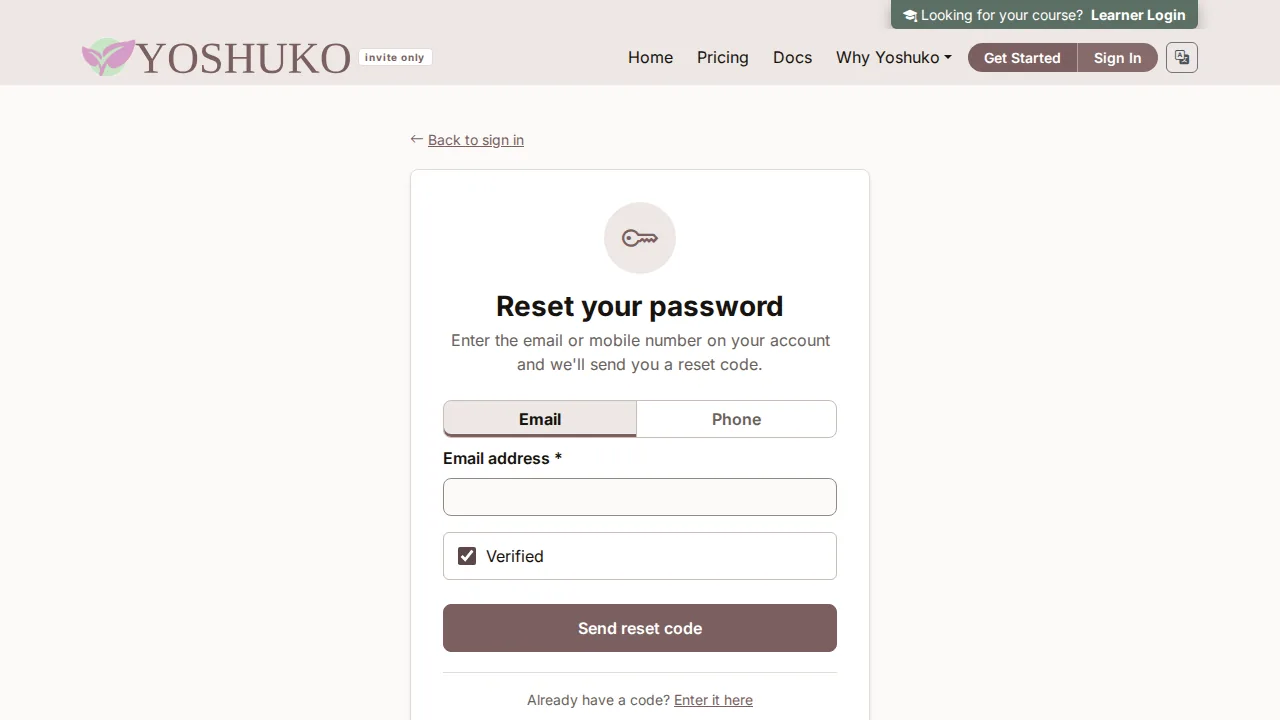
-
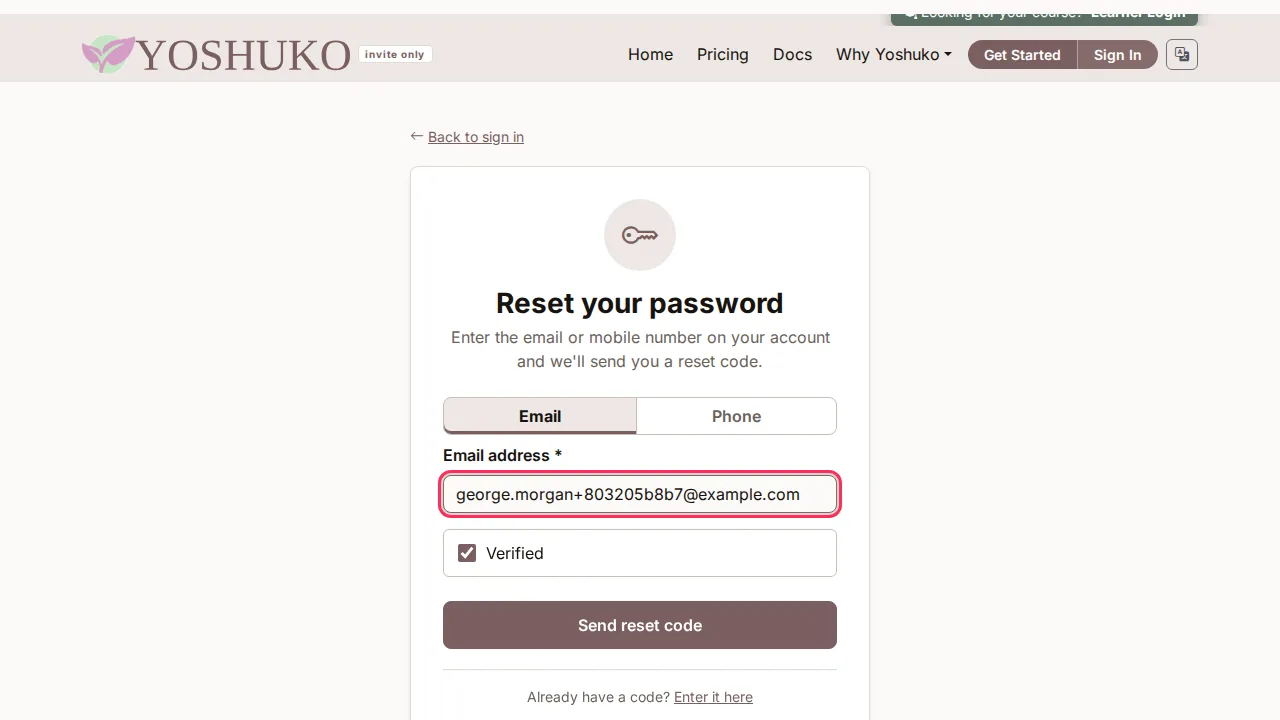
On Reset your password, choose Email or Phone, then enter your Email address (or Phone number). We email you a code.
-
Press Send code once you can (a short safety check runs by itself first).
-
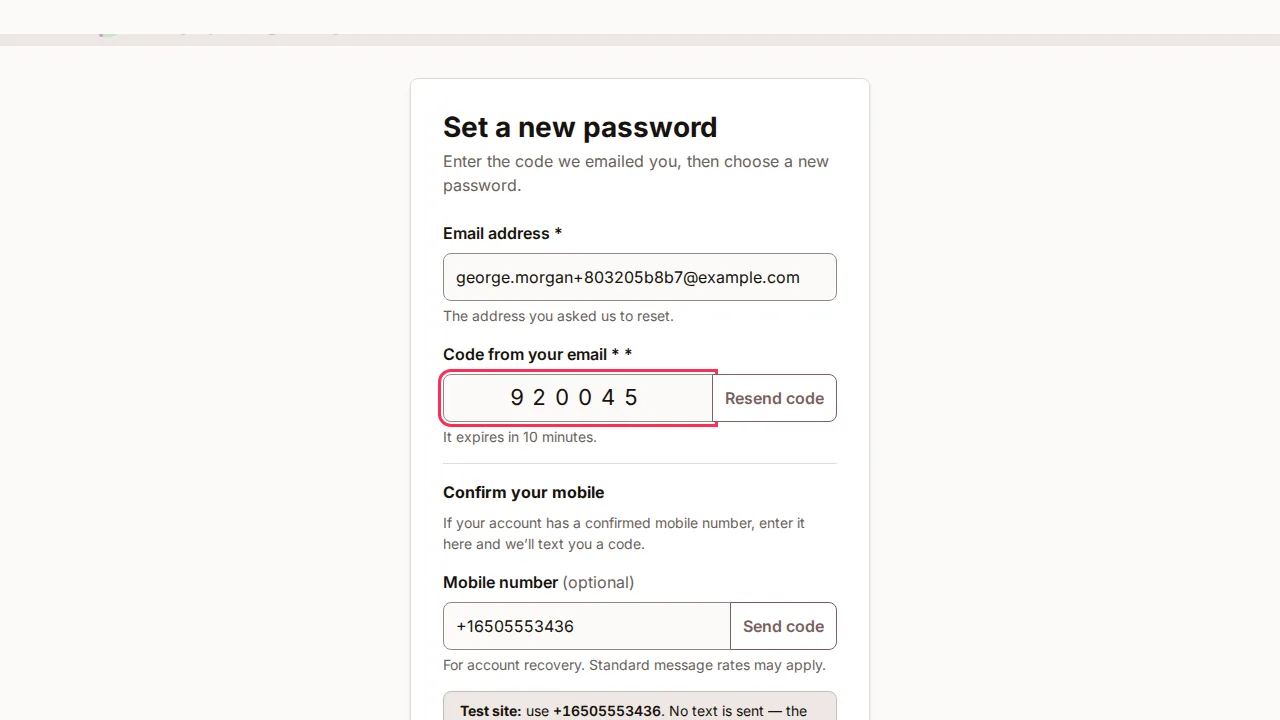
On Set a new password, enter the Code from your email. It stops working after 10 minutes.
-
If your account has a mobile number that you have proved is yours, you also see a phone step. Press Send code in it, and Google sends a text message with a code to the number on your account. Enter it to prove the number is yours. Creators with a proved mobile number need both the emailed code and this phone step. A code for any other number does not work.
-
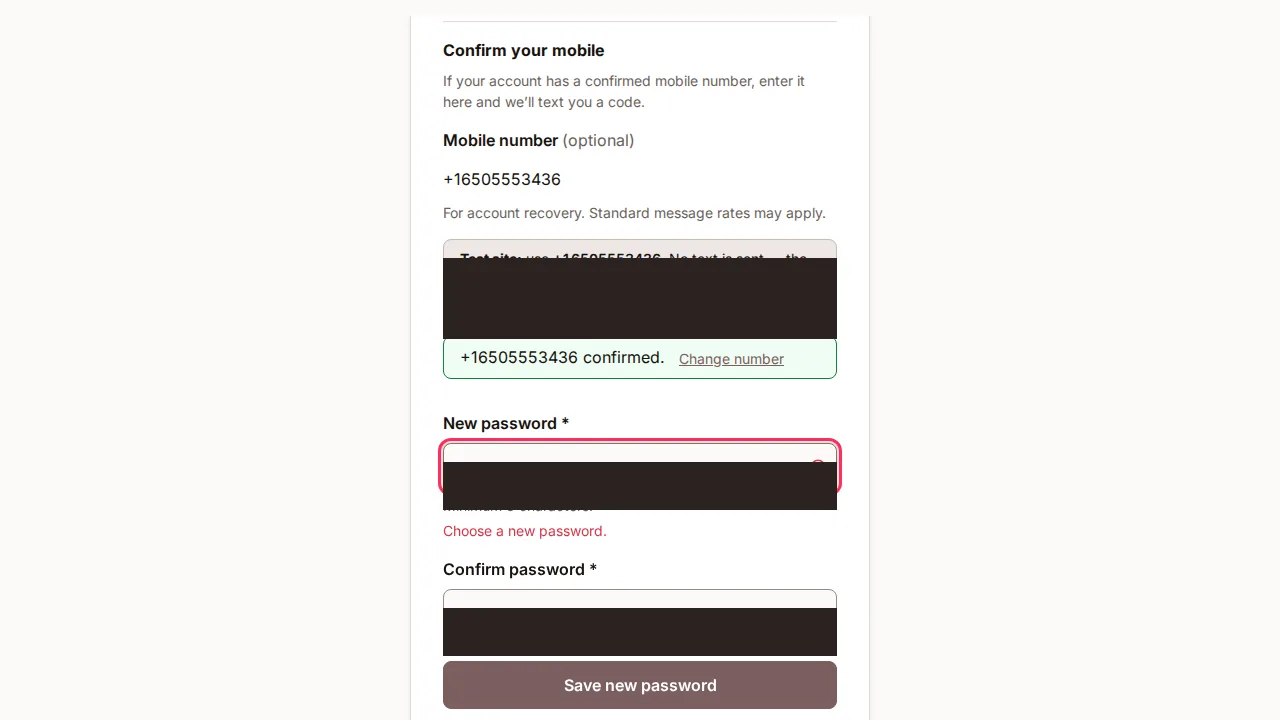
Enter your New password (at least 8 characters) and type it again in Confirm password.
-
Press Set password. Your old password stops working, and you can sign in with the new one.
Lost the page? Go back to Reset your password and use Already have a code? Enter it here.
When you're asked to confirm your card
If you run an organisation that pays for its plan by card, and your account has no mobile number, Yoshuko may ask for one more proof after your emailed code has been accepted.
- After pressing Set password, you see One more step: confirm your card.
-
Press Confirm my card. You are sent to Stripe, the company that takes our payments, to enter the card that your organisation pays with. We never see your card details, and you do not pay anything.
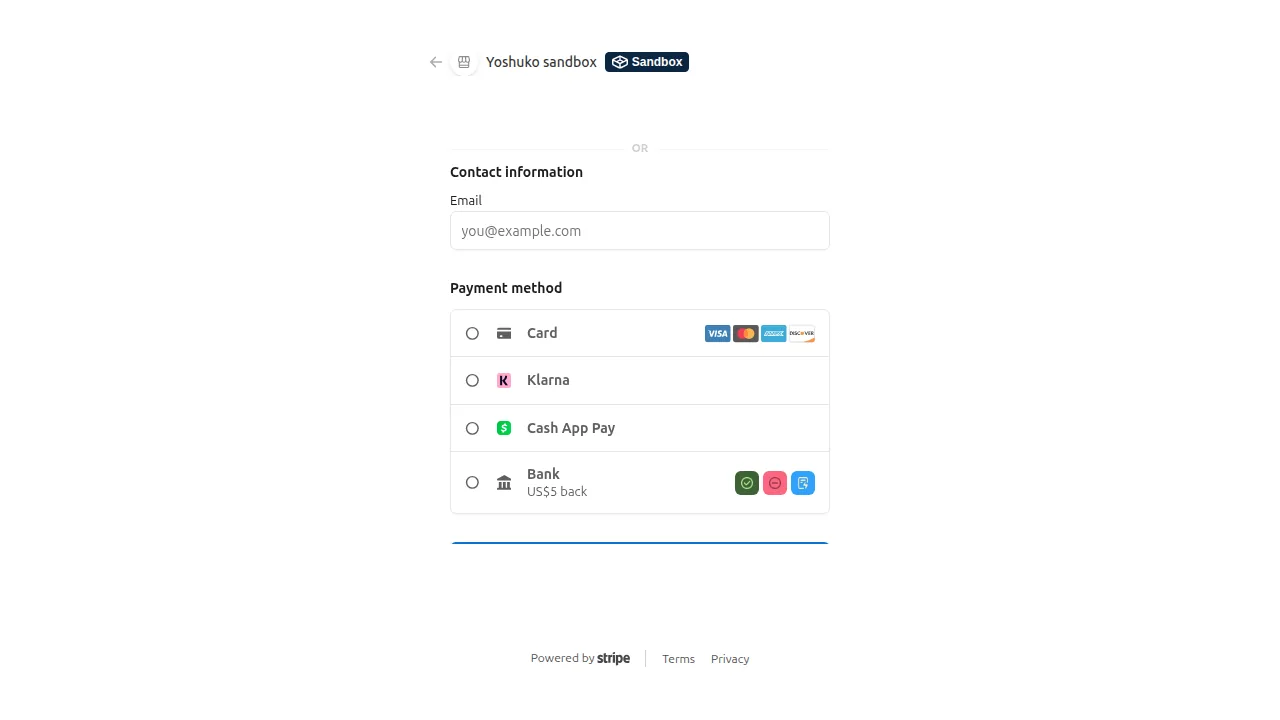
-
You come back to Confirming your card… while it is checked, and then to the form.
- Press Set password again to finish.
If the card does not match, you see We couldn't confirm that card. Press Back to the reset form and try again with the card your organisation pays with.
Change your password
As a creator:
- Open the account menu (your name, at the top of the studio) and choose Change Password. Your Profile page opens at the Password section.
- Enter your Current password.
- Enter a New password (at least 8 characters, and not a common password) and type it again in Confirm new password.
- Press Change password. You see Password changed.
If you cannot remember your current password, use Reset it instead in the same section. It takes you to setting a new password when you cannot remember it.
As a learner:
- Open the account menu and choose Settings, then Password (Choose a new password).
- Enter your Current password.
- Enter a New password (at least 8 characters) and type it again in Confirm new password.
- Press Change password. You see Your password has been changed.
If you were given a password by your teacher or organisation
When your account was set up for you with a password somebody else chose, Yoshuko asks you to choose your own the first time you sign in. You see a message that explains that somebody else has seen the password you were given, and the rest of Yoshuko waits until you change it.
Fill in Current password (the one you were given), New password and Confirm new password, then press Change password. Press Continue to my courses to go on.
Add or change your mobile number
Your mobile number is used for the second sign-in step and to get back into your account if you cannot remember your password.
-
Open your Profile page (creators: the account menu, then Profile). The Mobile number card shows Your number: with a shorter form of it, or No mobile number on this account.
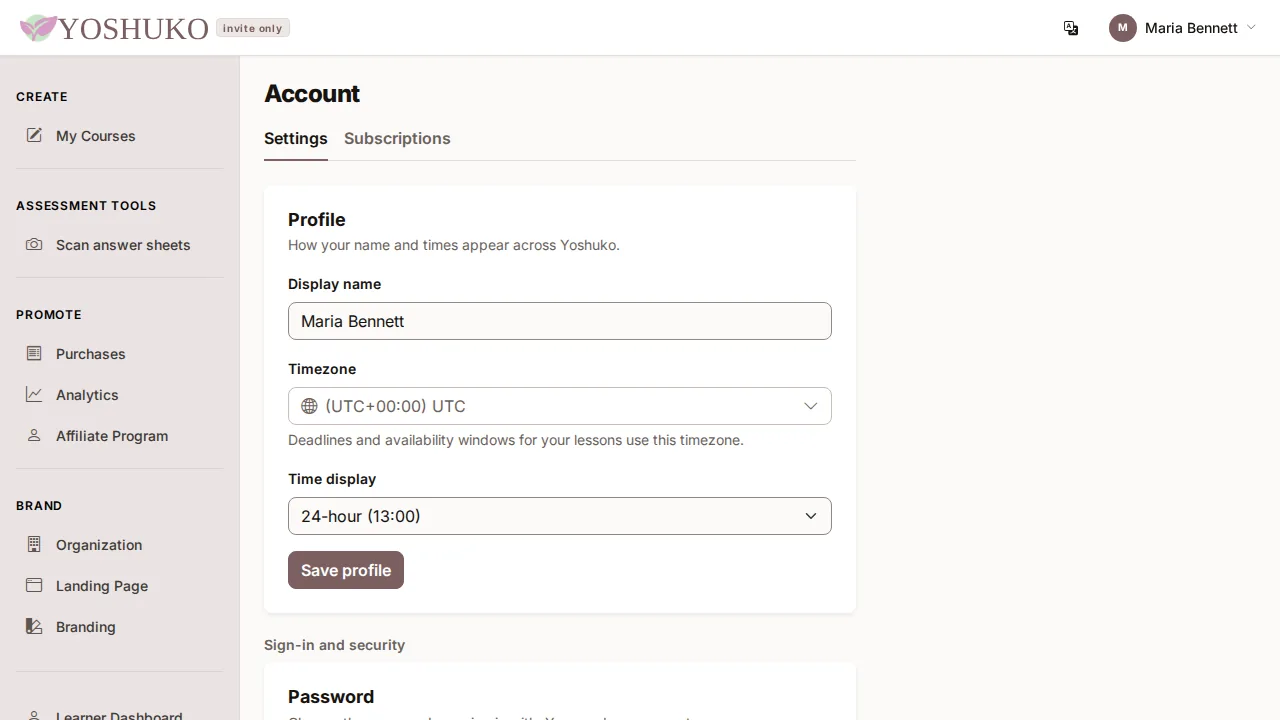
-
Press Add a number (or Change number).
-
Enter your New mobile number. Include your country code, or enter it the way you would call it at home.
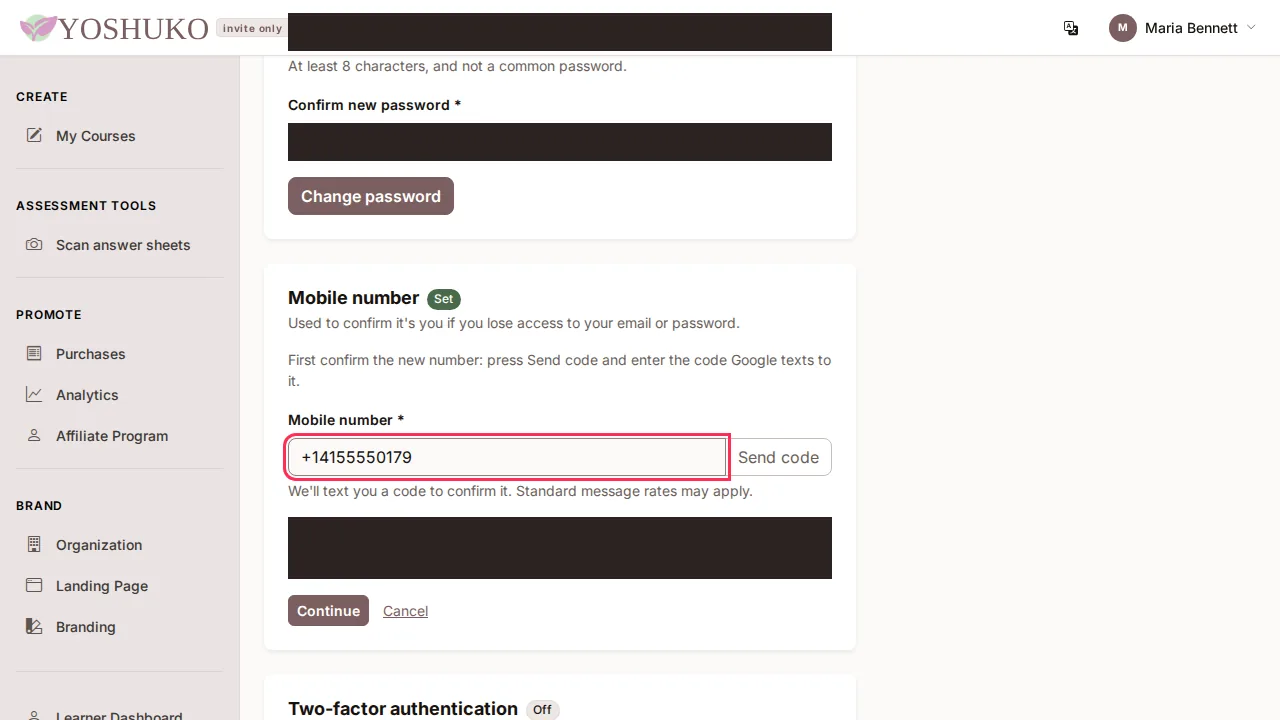
-
Press Send code. Google sends a text message with a code to the new number. Enter it. The step shows that the number is proved.
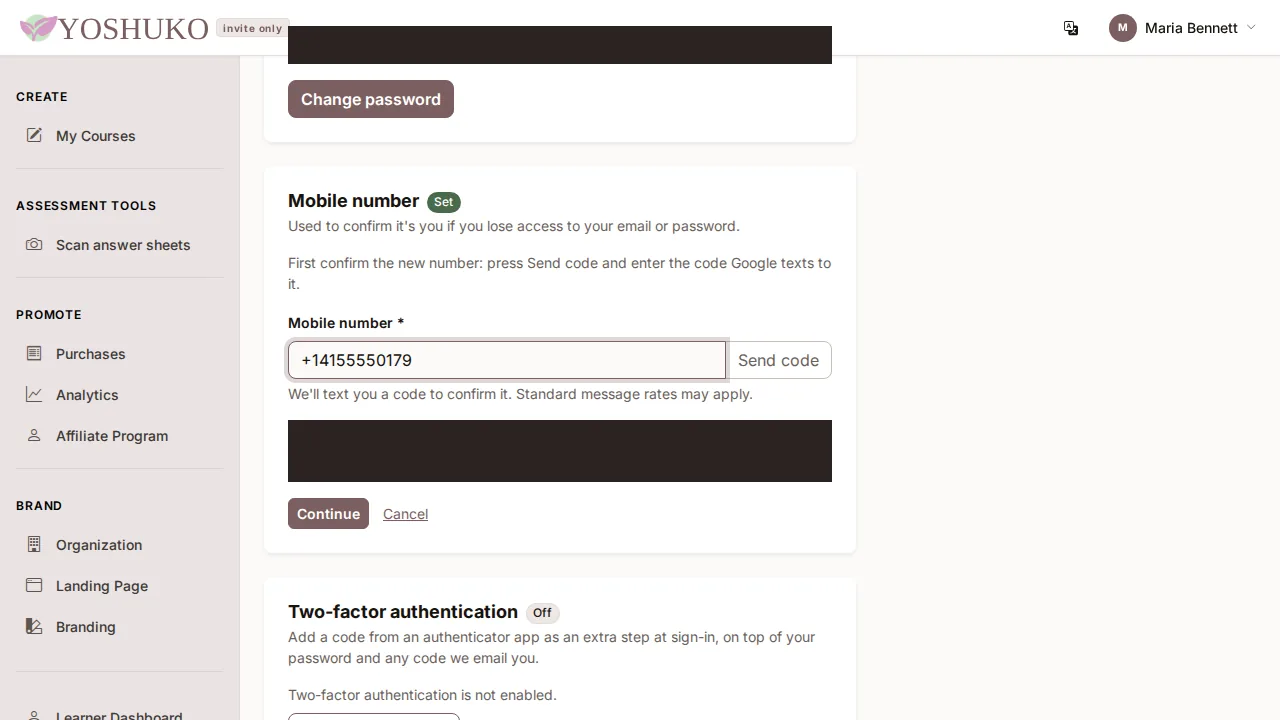
-
Press Continue. We email you a code.
- If you are replacing a number, you are also asked to confirm your current number: press Send code in that step and enter the code that Google sends to the number already on your account. This stops anyone else moving your number to a phone they hold.
- Enter the Code from your email. The card now shows your new number.
Didn't get the emailed code? Use Send the code again. Changed your mind? Press Cancel.
Note
A number change always needs a code sent by email. An account with no email address cannot add or change a number here. If your account was created for you, ask whoever set it up.
Turn on the second sign-in step
Add a code from an authenticator app as a second step at sign-in, on top of your
password. Yoshuko calls this two-factor authentication.
- On your Profile page, find
Two-factor authentication. It saysTwo-factor authentication is not enabled. -
Press
Enable two-factor authentication.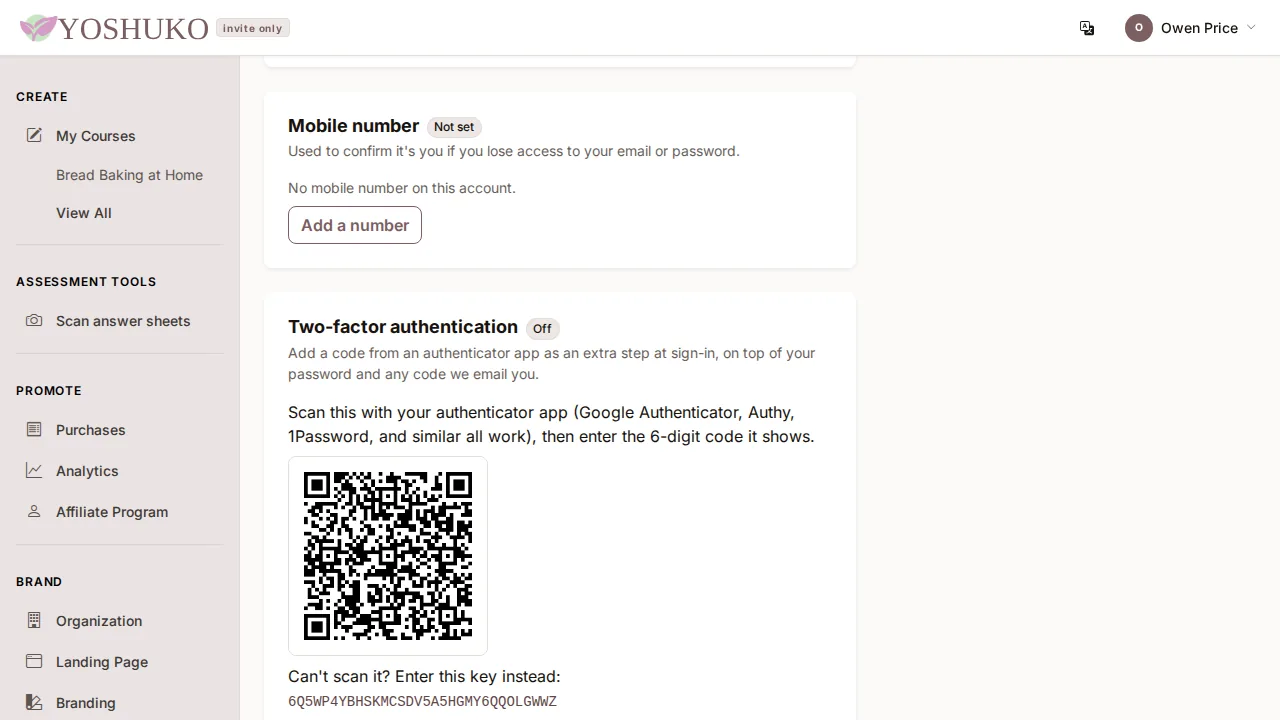
-
Scan the QR code with your authenticator app (Google Authenticator, Authy, 1Password and other apps like them all work). Can't scan it? Type in the key shown under the code instead.
-
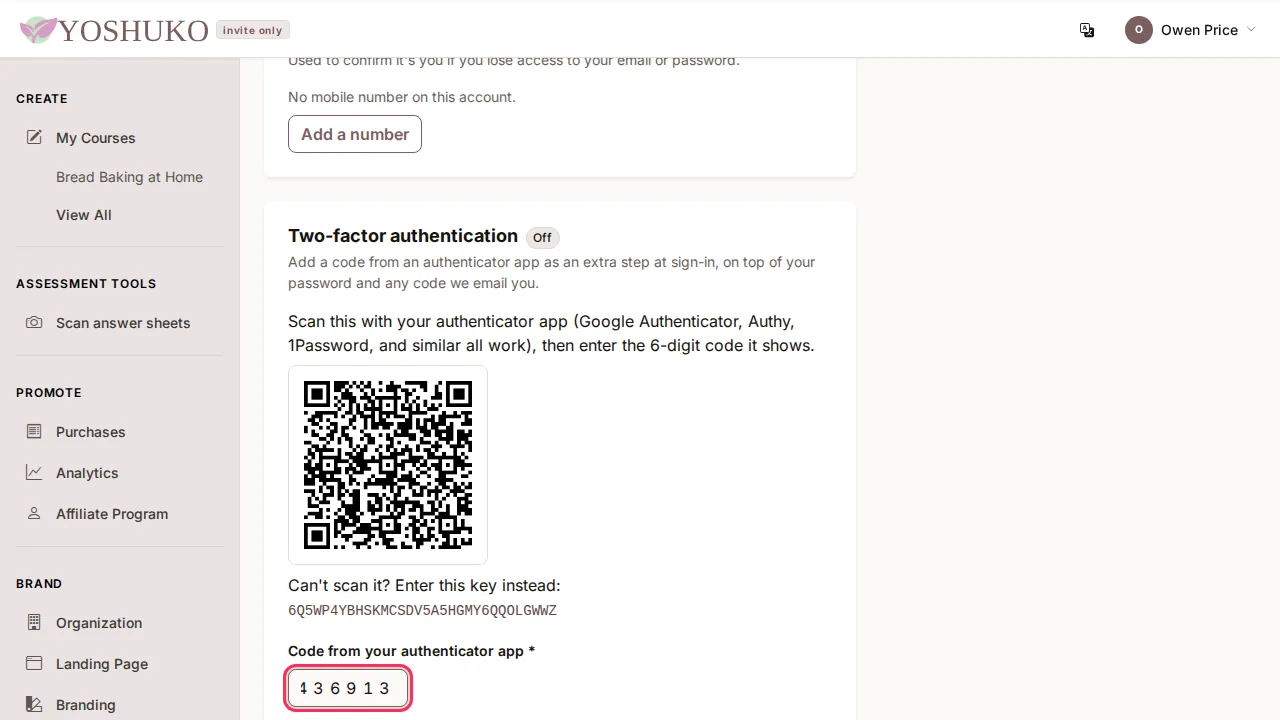
Enter the 6-number code your app shows into Code from your authenticator app and press Confirm.
-
Save the backup codes you're shown somewhere safe. Each works once, and this is the only time they will be shown. Press I've saved these codes.
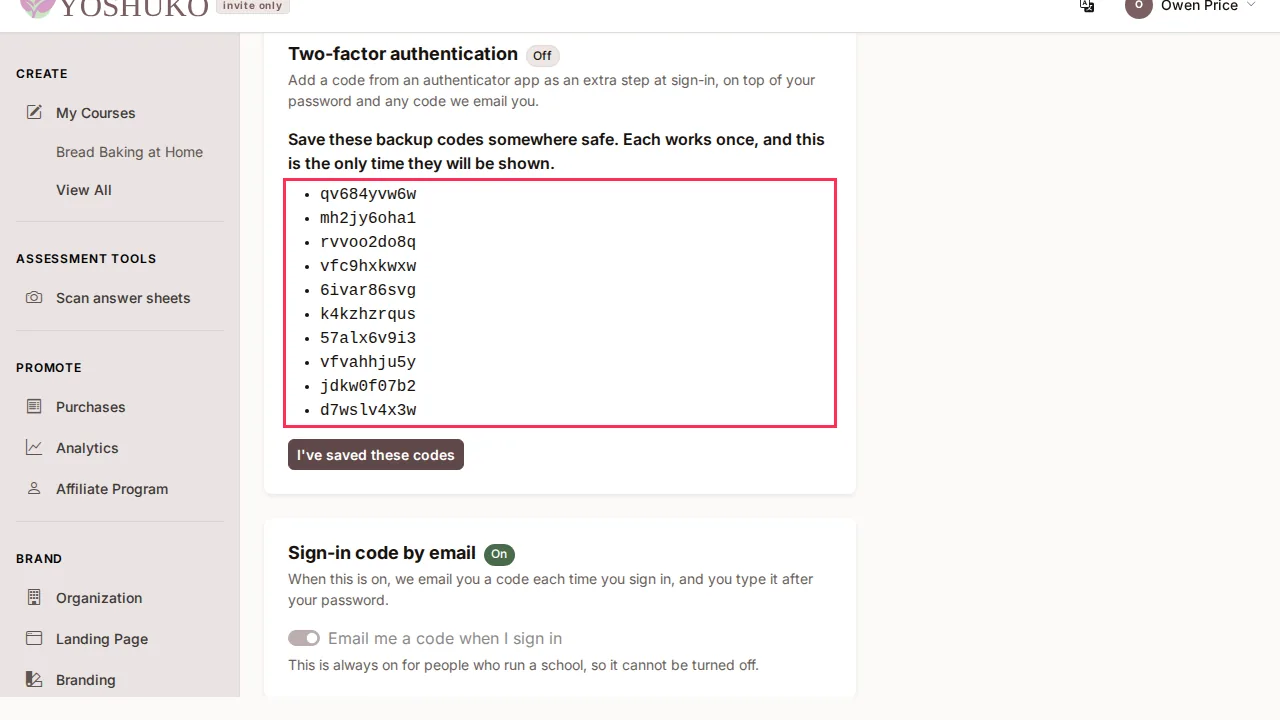
The card now says Two-factor authentication is enabled. From now on, you sign in with
your password and a code from your app. See
sign in.
New backup codes, or turning it off
Regenerate backup codesgives you a new set. Every code you were shown before stops working.Disableturns the second step off after you say yes. Creators are then asked for an emailed code at sign-in instead.
Sign out
As a learner: open the account menu and choose Sign out.
As a creator: open the account menu and choose Log out.
Signing out ends your time signed in on that device. Anyone who uses the browser after you has to sign in again.
If something goes wrong
| You see | What it means | What to do |
|---|---|---|
That code is not correct or has expired. |
The code was typed wrong, already used, or more than 10 minutes old. | Use Send a new code (or Send the codes again) and enter the newest one. |
| Those two passwords do not match. | The two password boxes are different. | Type the same new password in both. |
| We couldn't confirm that card | The card did not match the one your organisation pays with. | Press Back to the reset form and try the card your organisation pays with. |
| Your password was changed, but you still see the change-password screen | You're signed in with a password someone else gave you. | Choose your own password. The rest of Yoshuko opens once you do. |
| You can't add a mobile number | Your account has no email address. | Ask whoever set up your account. |