Tests and tasks
There are two ways to ask learners for work. An assessment, such as a quiz, is a lesson made of questions, with a passing score. A learner response can be added to any ordinary lesson — a written answer, a page written by hand and scanned, a link to a file, or a quick question. Setting up either takes a few minutes.
Before you start
- You need to be signed in to the creator studio as a creator or as a manager of the organisation.
- You need a course with at least one unit — see Organise a course.
Build an assessment
- On the course's Curriculum (the curriculum is the plan of your course), press Add in a unit, type a Title, choose the Assessment type and press Add. Then open it from its row.
-
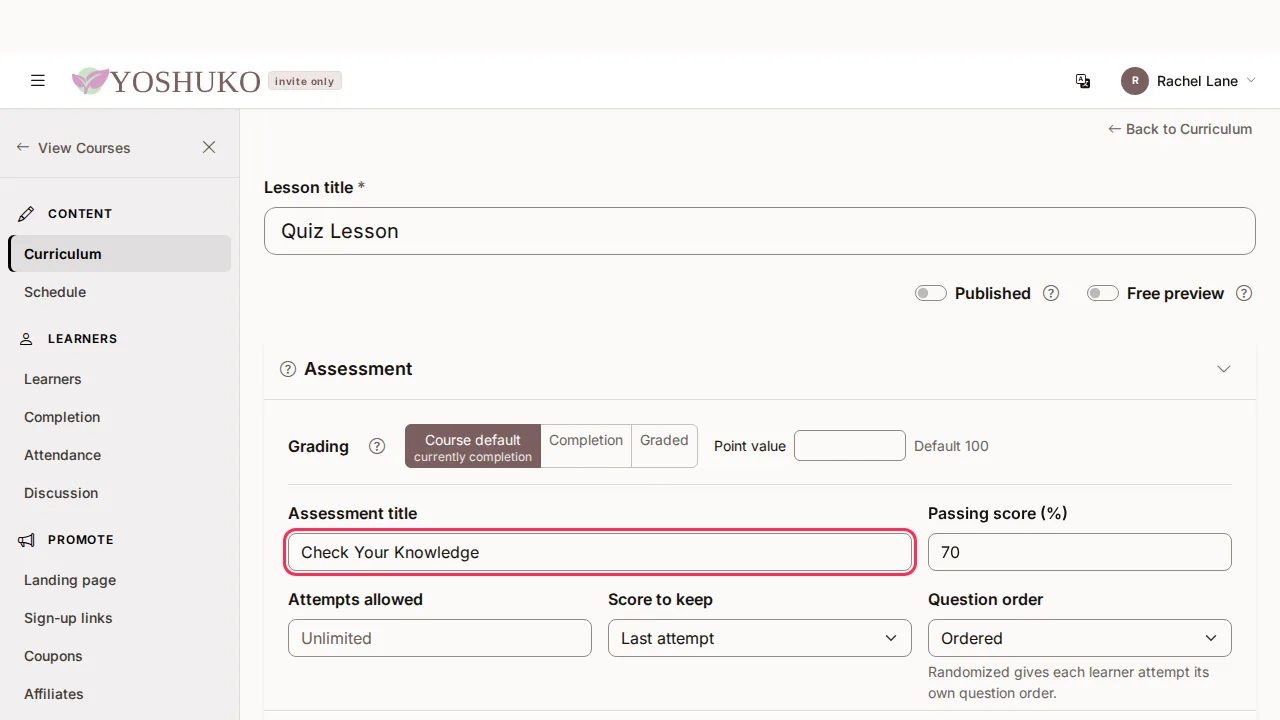
In the Assessment section, fill in:
- Assessment title
- Passing score (%) — 0 to 100.
- Attempts allowed — leave it empty for no limit.
- Score to keep, when learners may try more than once: Last attempt, Highest score or Lowest score.
- Question order — Ordered shows every learner the questions as you wrote
them. The other choice (
Randomized) gives each learner a different order, and a different order again on each new attempt (if the page loads again in the middle of an attempt, the order stays the same). It does not change how answers are marked. Printed tests have their own versions, under Print Versions.
-
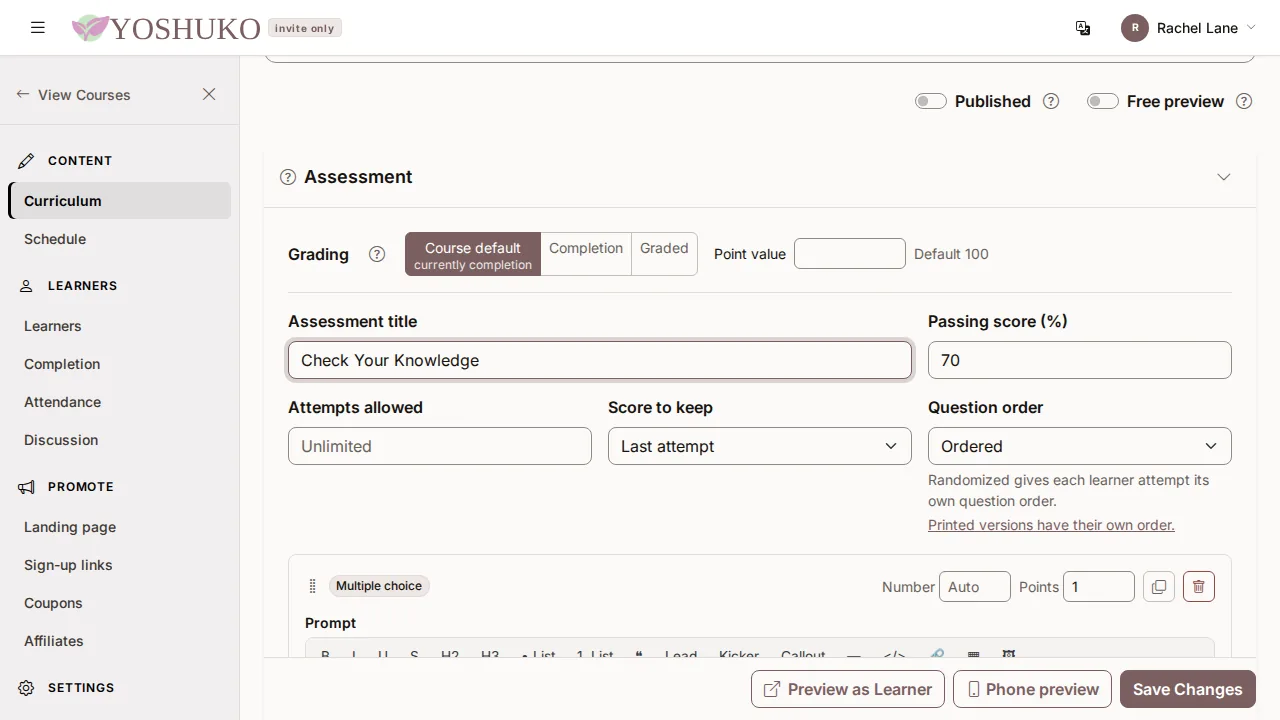
Add questions with the buttons below (see the next section).
-
Press Save Changes.
The four question types
| Button | What the learner does | How it is marked |
|---|---|---|
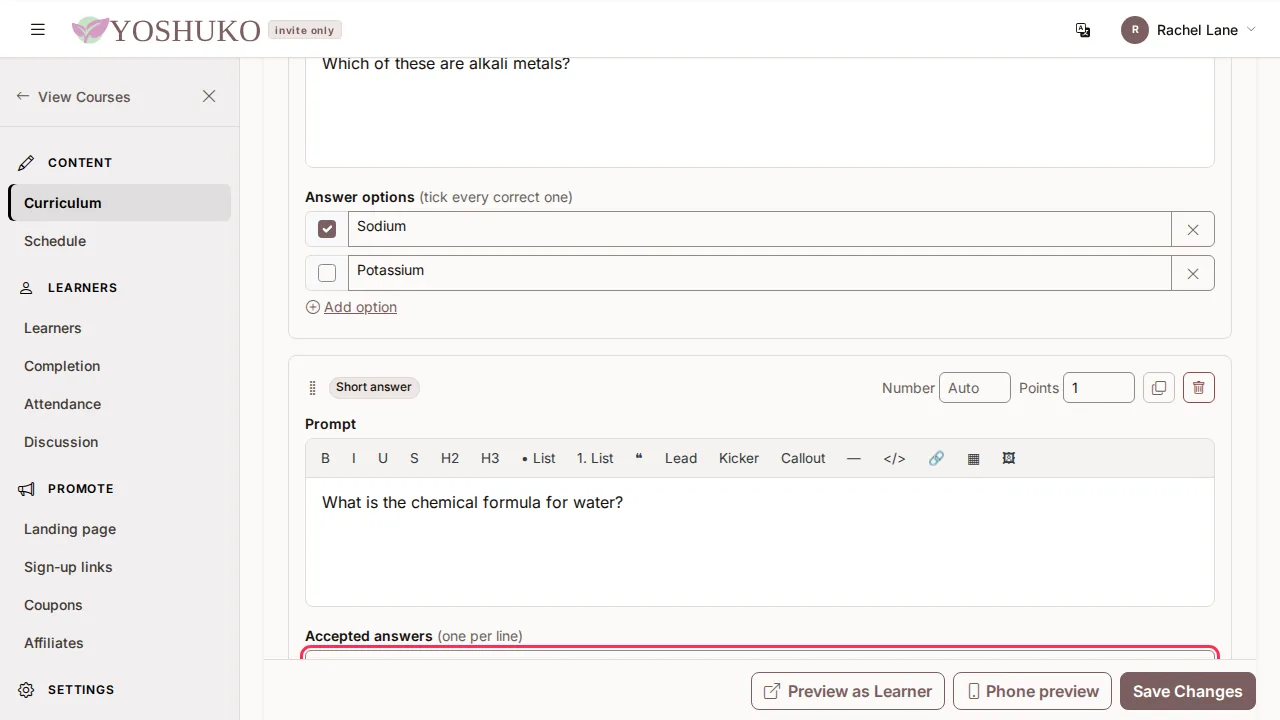
Add multiple choice |
Picks one answer from a list | Automatically. Mark the one correct answer (Correct answer). |
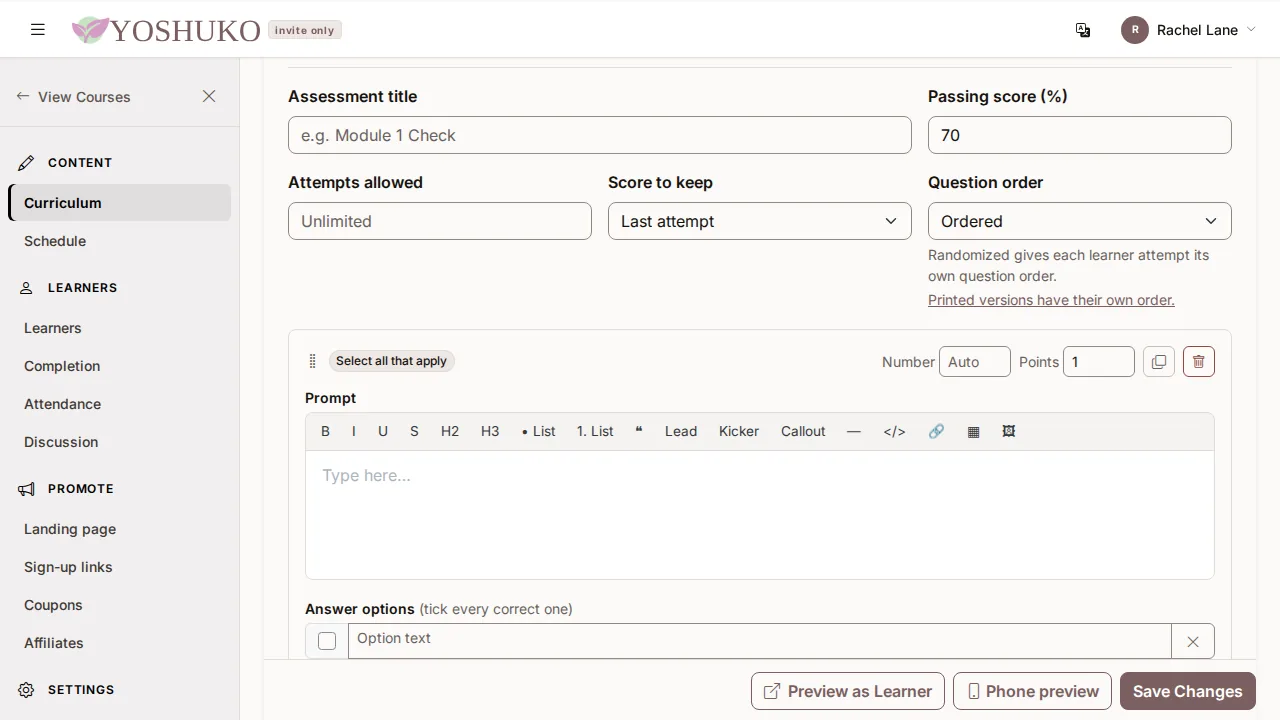
| Add select all that apply | Checks several answers | Automatically, and only full marks for choosing exactly the correct ones — there are no marks for part of the answer. |
| Add short answer | Types a word or phrase | Automatically. List Accepted answers, one per line. A match does not look at capital letters or extra spaces, so list every spelling you would accept. |
| Add extended response | Writes a longer answer | By you or by AI grading, against Grading notes / rubric and an AI grading prompt, which you do not have to fill in. |
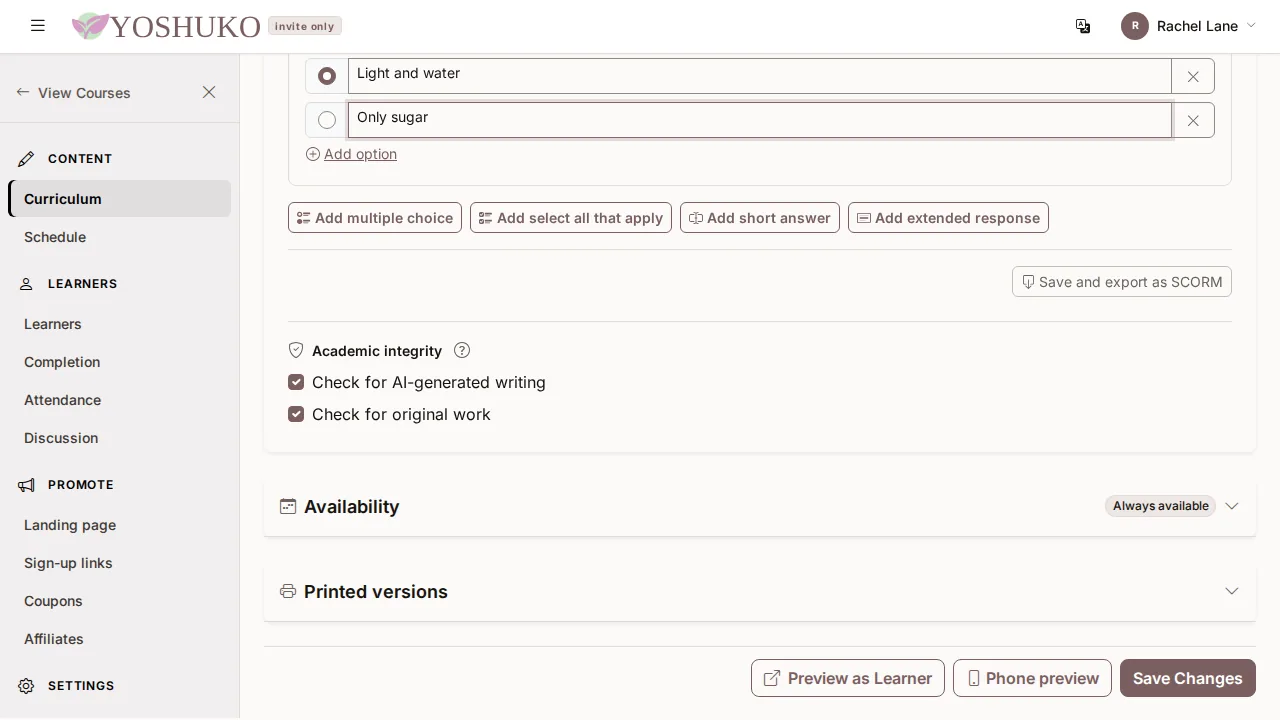
Every question has a Prompt and a Points value. Choice questions have Answer options — press Add option for more. Remove a question with Remove question.
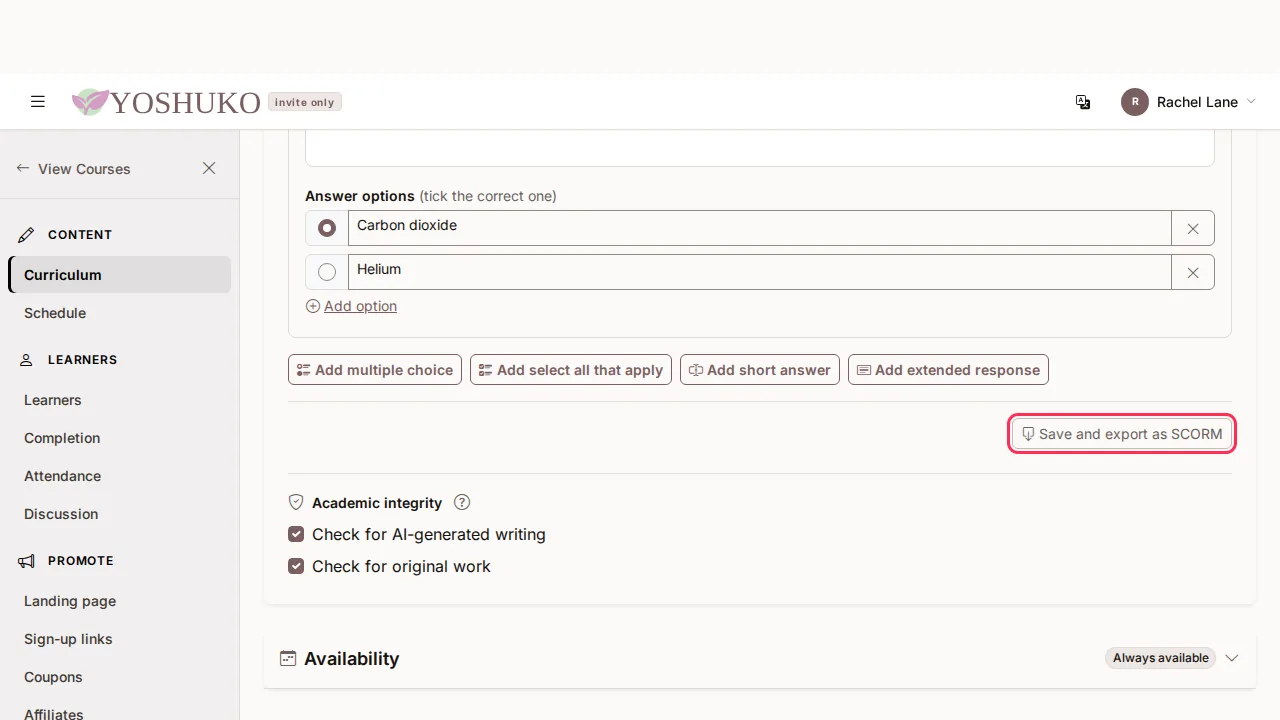
Take an assessment to another system
Press Save & export SCORM in the Assessment section. The assessment is saved, then downloaded as a SCORM package you can load into another learning system.
Ask for a response on an ordinary lesson
A lesson with no questions shows "No response required for this lesson." in its Learner Response section.
-
Press Add response and choose a kind:
Kind What the learner gives Marked Written response A typed answer AI graded Handwritten ScannedA photo of a page written on paper by hand AI graded Multiple choiceOne correct answer from a list Automatically Select all that apply Several correct answers — full marks only for all of them Automatically Short answer A typed answer matched to a list Automatically Link to a file A URL the learner puts in By you — AI cannot grade it 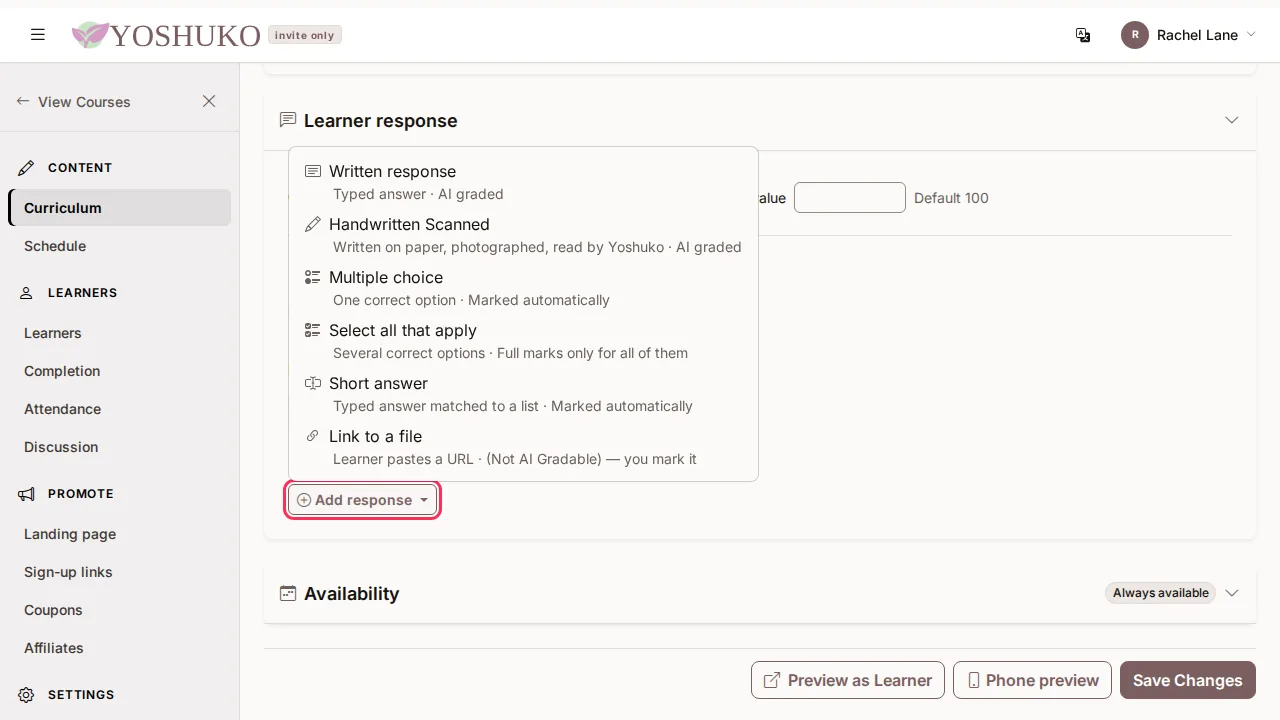
-
Fill in what the learner should answer, and press Save Changes.
You can add more than one response to a lesson; each one is its own card.
Mark against a rubric
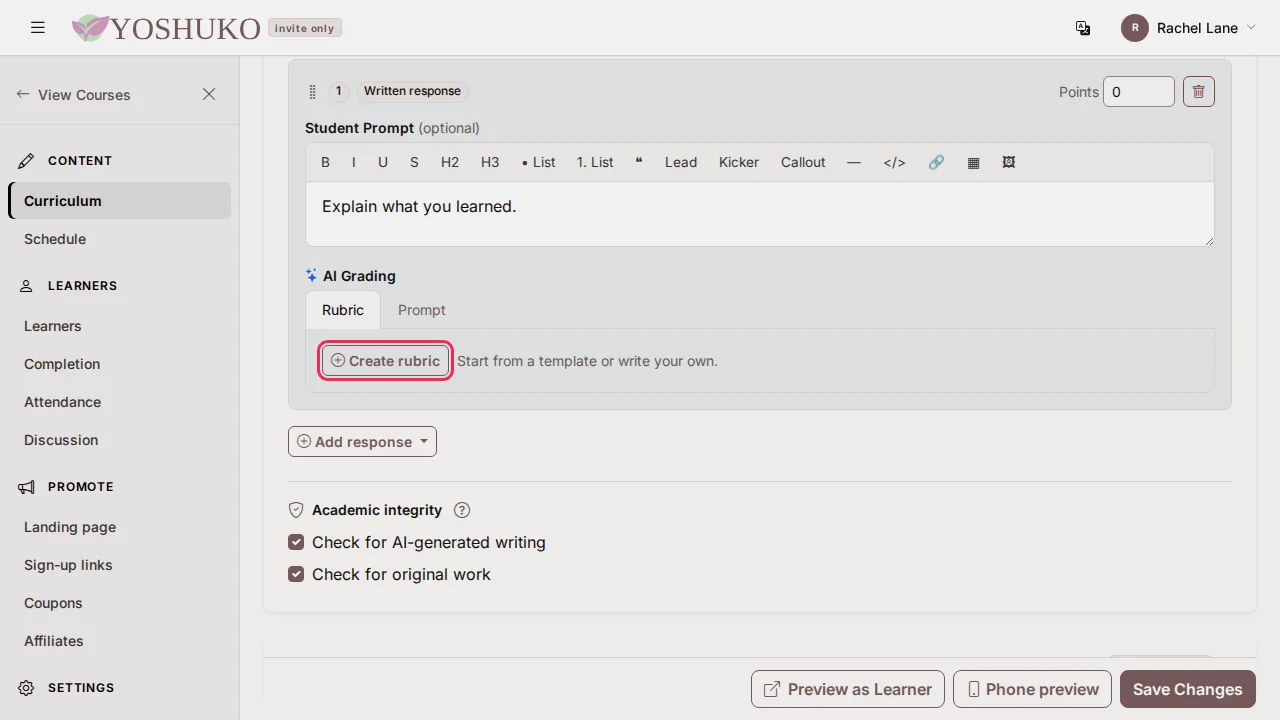
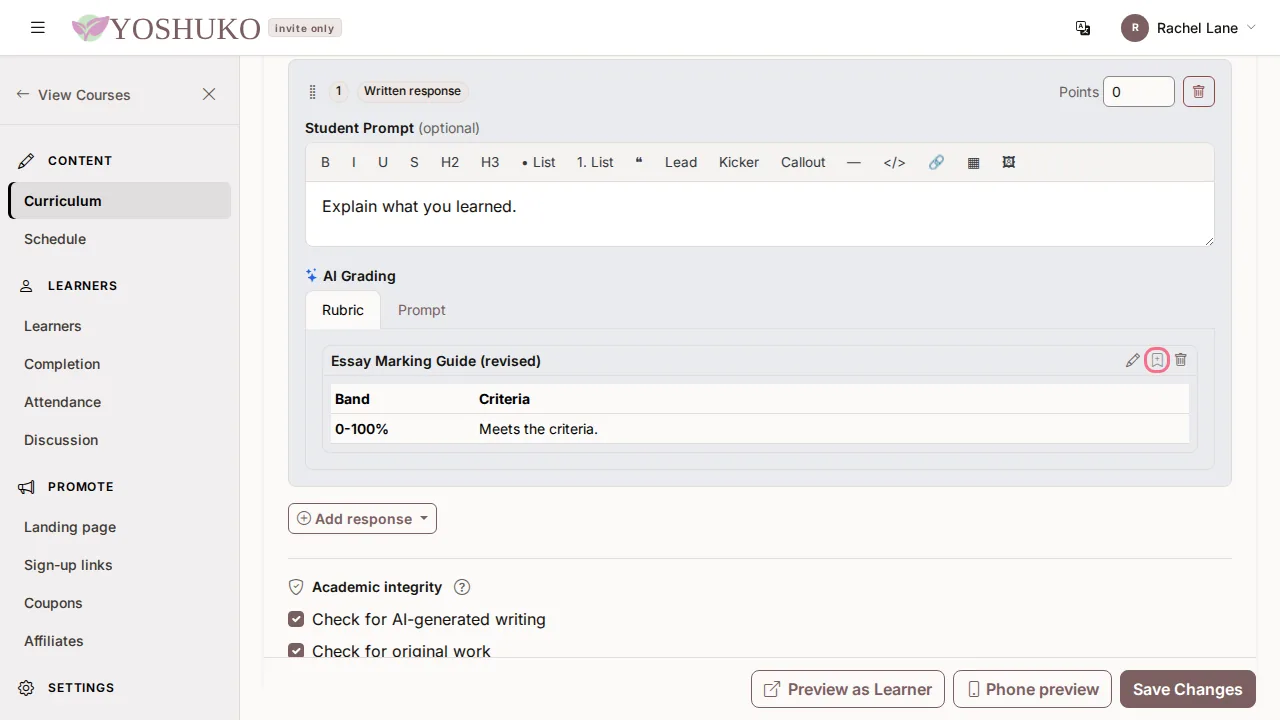
A rubric is a set of grade bands. Each band has the rules for placing an answer in it. It belongs to one response and is saved with the lesson. Rubrics are set in the AI Grading part of a response card, on its Rubric tab.
Create a rubric
-
Press Create rubric.
-
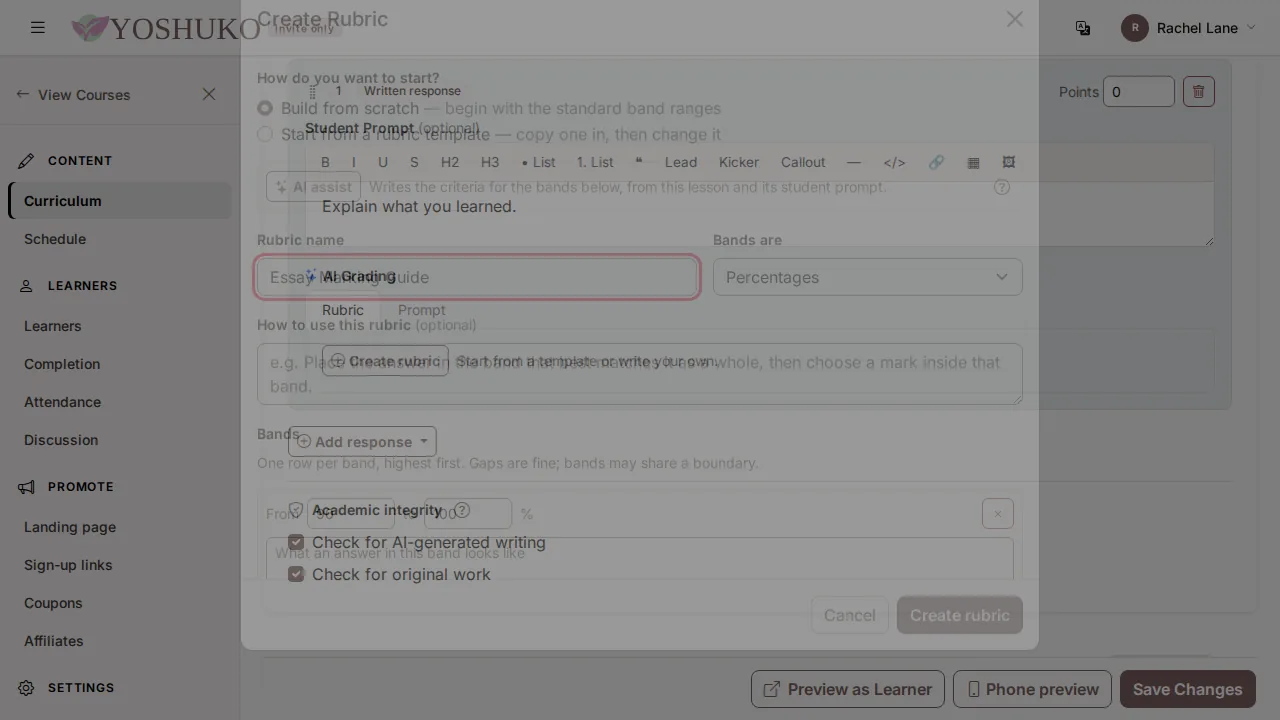
Choose Build from scratch, or Start from a rubric template and pick one. A template is a rubric you saved to start from again. Picking another template replaces whatever is in the form.
- Enter the Rubric name, and if Bands are given as a share of 100
(
Percentages) or as Points (for points, say what it is Out of). -
Under Bands, give each band its range and its rules. Add band adds another. AI assist can write the rules for the bands you have set — it never changes your ranges.
-
Press Create rubric, then Save Changes on the lesson. Nothing is saved until you do.
Every band needs a description, and bands must not cover the same numbers. Bands that meet at one number, such as 80–90 and 90–100, are fine.
Change, use again or remove a rubric
Once a response has a rubric, the bar at its top offers:
Edit rubric— opens the form again; press Save rubric, then Save Changes.- Save as template — keeps a copy you can start from on other responses in this course. Later changes to either copy do not change the other.
- Remove rubric from this response — takes it off this response only. Press Save Changes to keep the change.
Review what learners sent
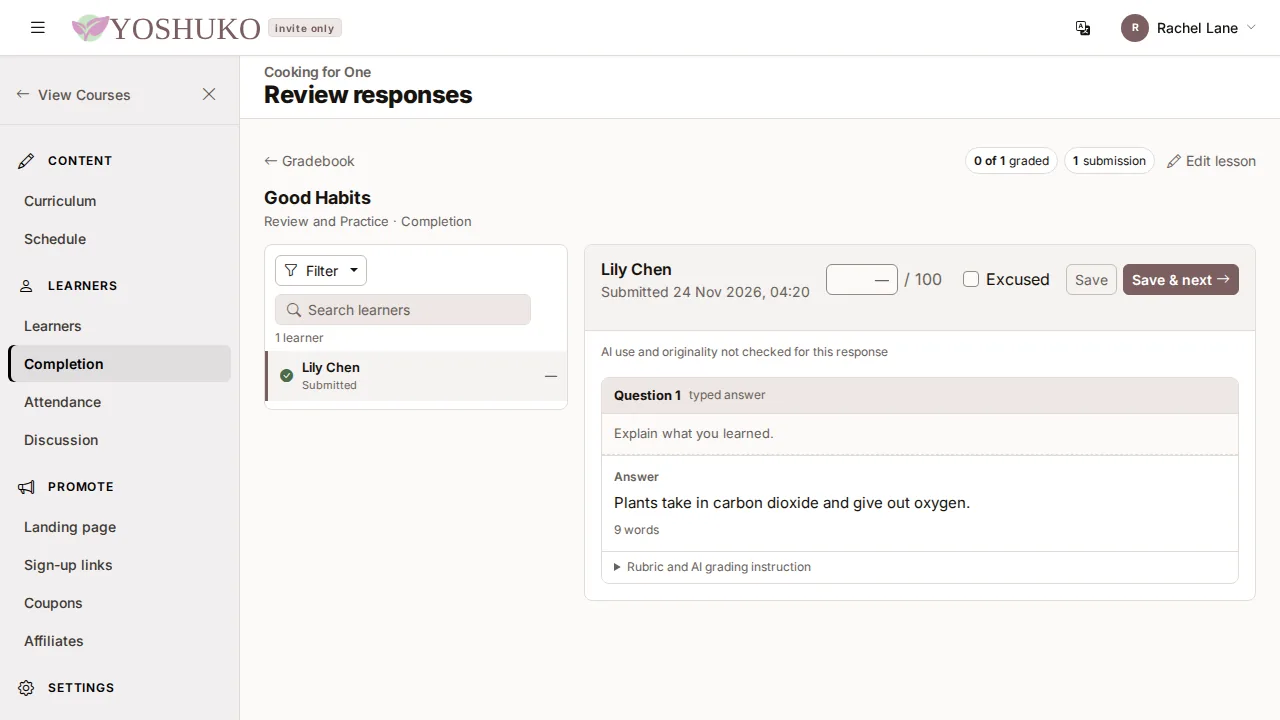
When a lesson collects responses, its editor shows Review responses, with the number waiting. Press it to open the review screen for this lesson. Marking is covered in Grading.
Decide how the whole course is graded
- Open the course's Details page (row menu → Settings → Details) and press
Gradebook setup. The gradebook is the table of every learner's marks. -
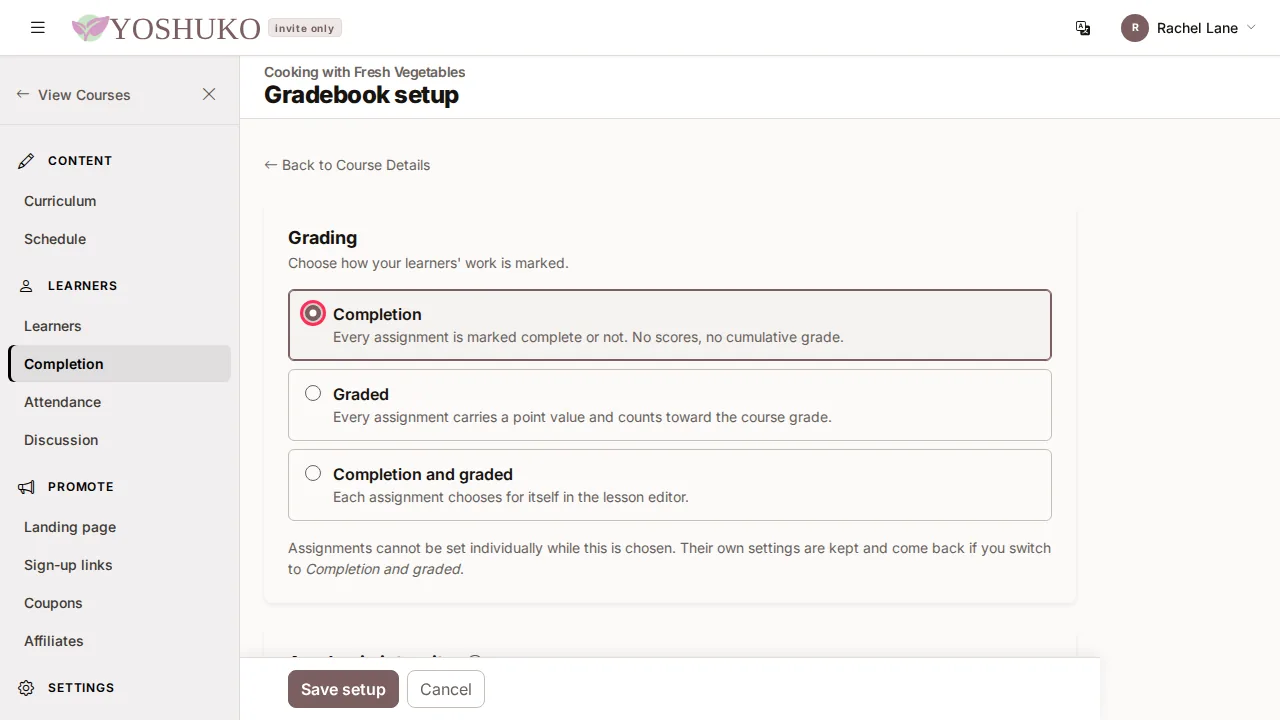
Under Grading, choose:
Completion— every task is marked complete or not. No scores, no total grade that adds up over the course.- Graded — every task carries a point value and counts in the course grade.
Completion and graded— each task chooses for itself in the lesson editor.
-
With a graded setting you can also set Weighting, the Grading scale and the checks for honest work (
Academic integrity). PressSave setup.
When the course uses Completion or Graded for everything, each lesson's own
Grading choice is locked and says so: "Every assignment in this course is graded."
(or the same with completion), with a link back to Gradebook setup. Switching the course back to
Completion and graded brings back each lesson's own choice. If not, a lesson's
Grading can be Gradebook default, Completion or Graded, with a
Point value.
Let a program do this
Tests and tasks are lessons, so they can also be created and changed with an API key. See Build a course with the API.
If something goes wrong
| You see | What it means | What to do |
|---|---|---|
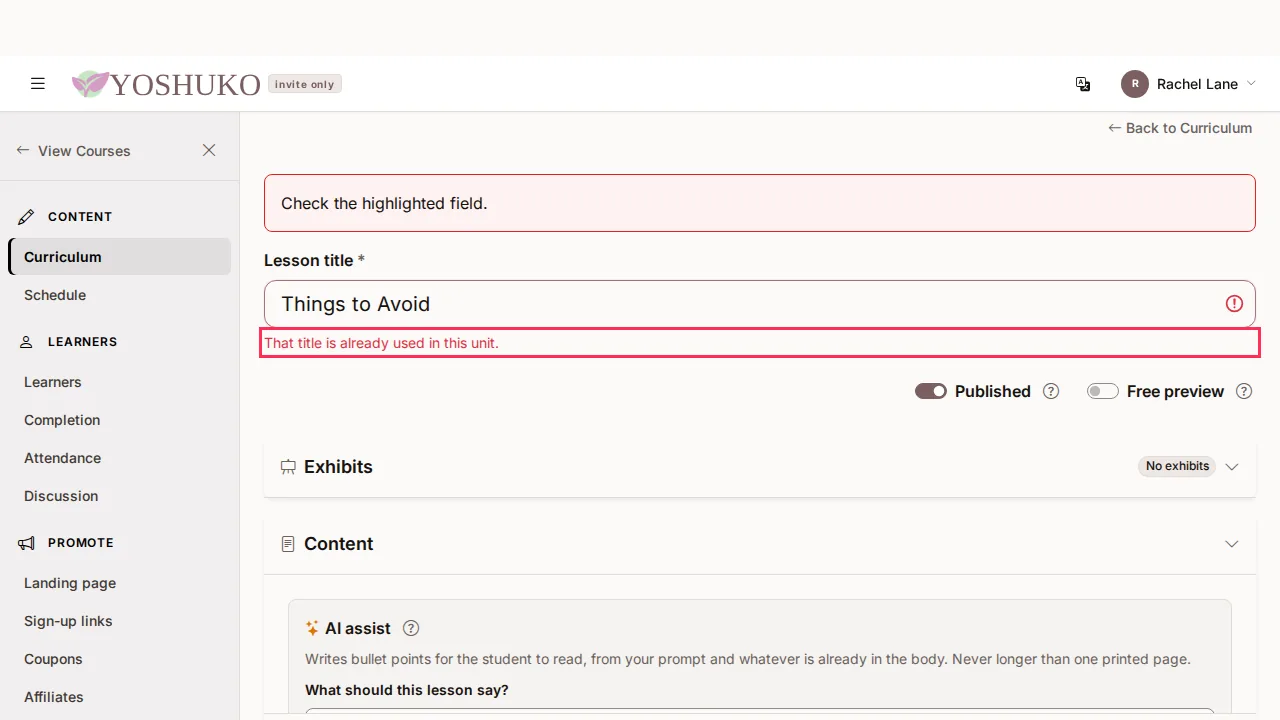
| "Title is required." beside the title, after pressing Save Changes | The lesson has no title, so nothing was saved. The box with the problem is marked. | Type a title and save again. |
| No Review responses button | This lesson does not collect a response yet. | Add one under Learner Response. |
Related
Giving it on paper
An assessment where each question has a list of answers can be printed as bubble answer sheets and graded with a camera. See Paper answer sheets.