Profile, email and your data
Keep your details correct, choose which emails Yoshuko sends you, and take a copy of your data with you, or close your account. Each task takes a minute or two.
Before you start
Change your name, timezone and the money you use
As a learner:
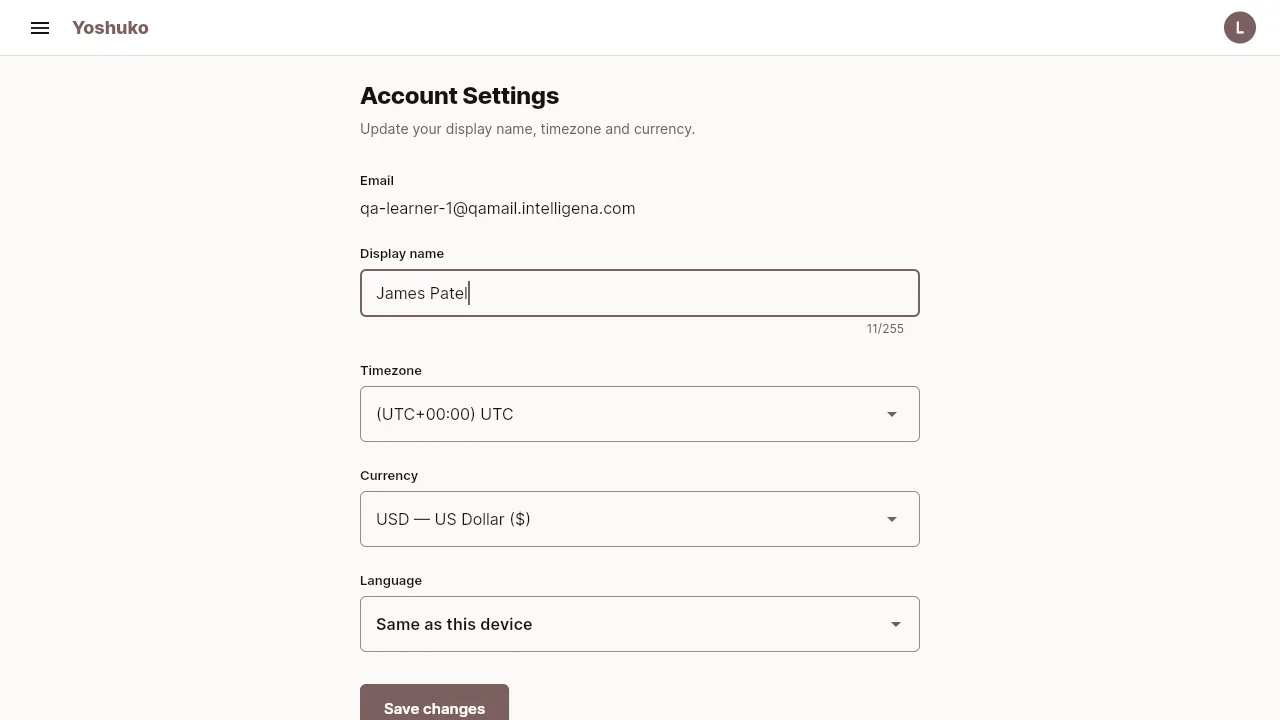
- Open the account menu and choose Settings. The Account Settings page shows your Email, which you can't change here.
- Change any of these:
- Display name: the name other people see.
- Timezone
Currency(the kind of money prices are shown in)
- Press Save changes. You see Settings saved.
As a creator: on your Profile page, change Display name, Timezone or
Time display (12-hour (1:00 PM) or 24-hour (13:00)), then press Save.
The last dates for work, and the times when your lessons are open, use your timezone. It
was set from your browser when you signed up.
Choose your language
Yoshuko is in English, Chinese (the simpler written form), Spanish, Japanese, German, French and Arabic. Arabic reads from right to left.
- In the learner app: open Settings and use Language. Same as this device follows your phone or browser. Each language is named in its own letters, so you can find yours without reading English. The app changes as soon as you choose, and your choice is saved to your account, so another device and the emails we send you follow it.
- On the website: use the language menu in the top bar. On the public pages (home,
pricing, comparisons, help) each language has its own address, such as
/ja/pricing/, so you can save a link to the page in your language or share it.
What is not translated
The legal documents (Terms, Privacy Policy and the rest) are in English only. Course content is written by creators and stays in the language they wrote it in. Where a sentence has no translation yet, you see it in English.
Choose which emails you receive
- In the learner app, open Settings, then
Notifications(Choose which emails you receive). -
Switch each kind of email on or off:
Setting What it covers Marketing emails Special offers, new features, and news about the product. Course updatesNew lessons, changes to content, and messages from teachers. Progress reminders Messages that remind you to continue courses you have started. Discussion replies When someone answers a discussion topic you started. Billing emails Receipts, bills, and warnings about payments. This one can't be switched off. 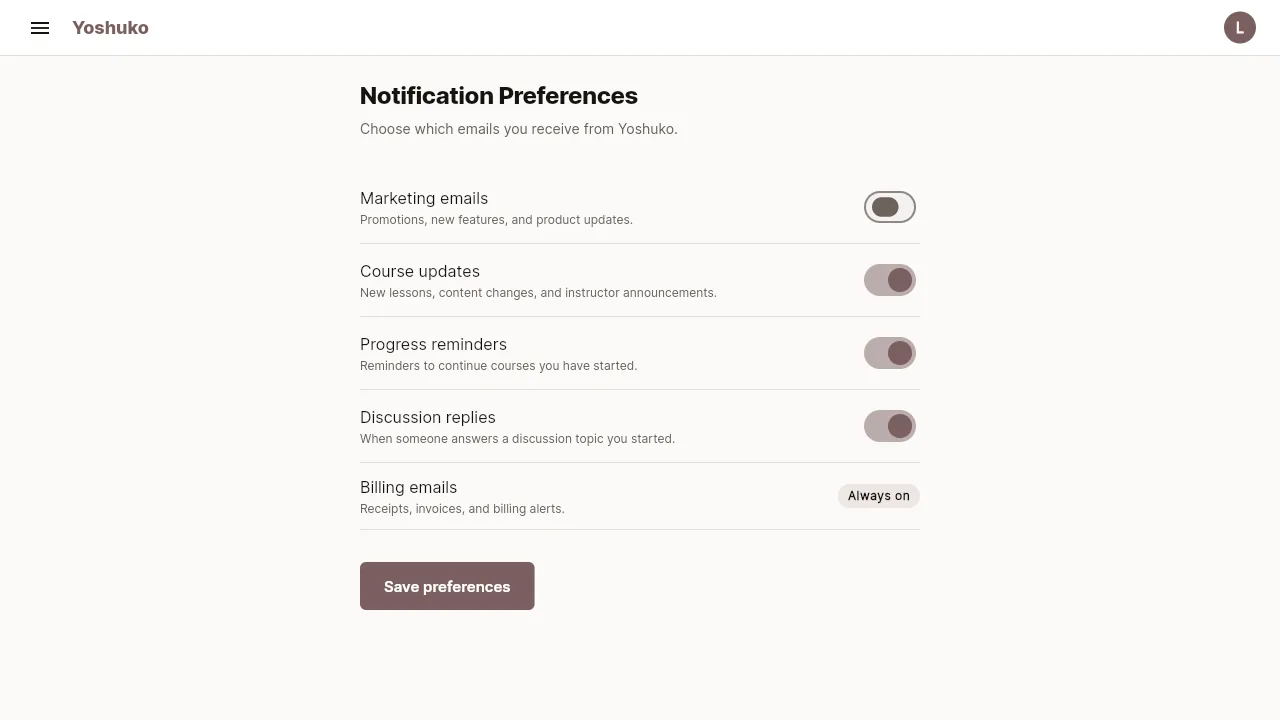
-
Press Save preferences. You see Preferences saved.
Download a copy of your data
- In the learner app, open Settings, then Data & privacy (Export a copy of your data).
-
Press Request data export.
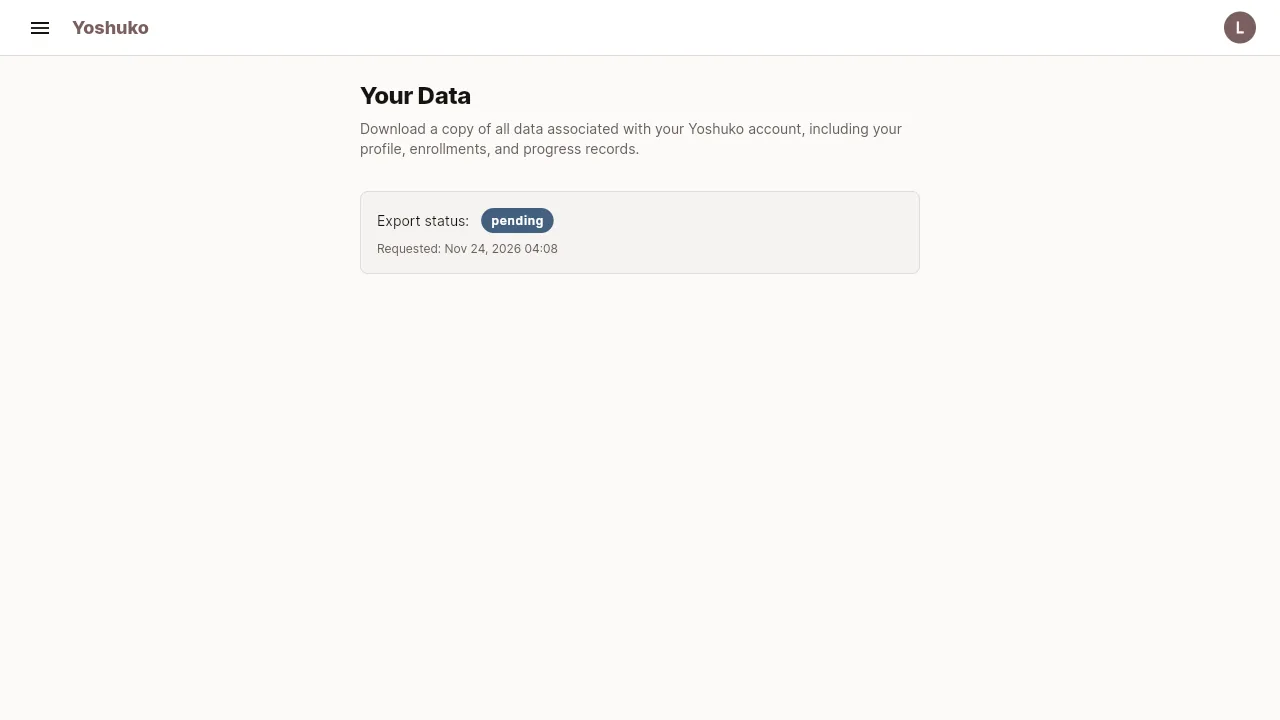 3. Wait while the copy is prepared. The Export status shows how it is going and when
you asked for it.
4. When it is ready, press Download export.
The download is a single file. It includes your profile (email, username, phone number, display name, timezone, language, the kind of money you use, and the dates you joined, proved your email and accepted the terms), the courses you joined and your progress in each course, your lesson progress, your certificates, and everything you wrote or were marked on: your lesson answers and quiz tries, your grades, your discussion topics and replies, your attendance, your results for answers written on paper, which versions of the terms you accepted, and the plans you pay for that give you every course from a creator (each one a subscription). It covers every organisation you have used Yoshuko with. If a part of it could not be prepared, the file lists that part by name, so it is never just empty with no reason given. The file is kept for 30 days. If you press Request data export again within a few minutes, you get the same copy back, not a new one.
Remove your account
After 30 days this cannot be changed back
Download a copy of your data first if you want to keep anything.
- In the learner app, open Settings, then
Delete account(Sign-in stops now; details removed after 30 days). -
Read the warning, then type
DELETEin the box.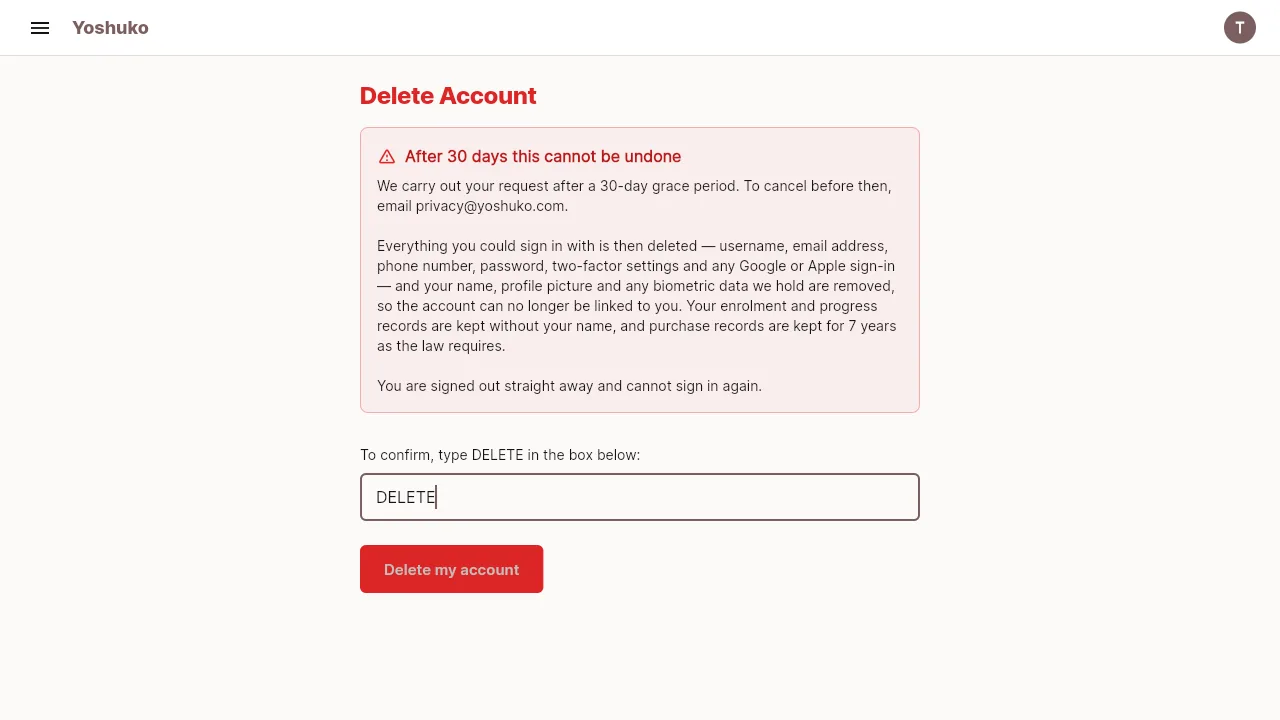 3. Press
Delete my account.
You are signed out straight away, and nobody can sign in to your account any more: not with your password, not with a Google or Apple sign-in, and not on any device you were signed in on. If you have an email address on the account, we email you to say we received your request. If you did not mean to remove it, write to privacy@yoshuko.com within 30 days and we can bring it back.
What happens next
We carry out your request after 30 days, a period in which you can still change your mind. At that point:
- Everything you could sign in with is removed: your username, email address, phone number, password, the settings for the second sign-in step, and any linked Google or Apple sign-in. Your phone number is set free, so you can use it for a new account later.
- Your name and profile picture are removed, so the account can no longer be linked to you.
- Any face data you gave for attendance is removed.
Some records are kept because the law says we must keep them: records of what you bought and paid (for seven years, for tax), records of which terms you agreed to, and records of security and of who did what, kept so they can be checked. None of them contains anything you could sign in with. The records of the courses you joined and your progress are also kept. Once your details are removed they no longer show who you are.
If something goes wrong
| You see | What it means | What to do |
|---|---|---|
| The export status says it failed | The copy could not be prepared. | Press Request data export again. If it keeps failing, contact help. |
| Billing emails can't be switched off | Receipts and warnings about payments are always sent. | — |
Delete my account stays grey |
What you typed doesn't match. | Type DELETE exactly, in capitals. |