Import and export courses
Take a copy of any course away as a file, or bring a course you already teach somewhere else into Yoshuko. You choose exactly which units and lessons travel. An export or import of an ordinary course takes a few minutes.
Before you start
- You need to be a creator in the organisation that owns the course.
- Learners, grades, the work learners sent and the record of who joined never travel, in either direction. No kind of course export file carries them.
Export a course
- Open the course and go to Details (under Settings in the course menu).
- In the Import / Export card, press Export.
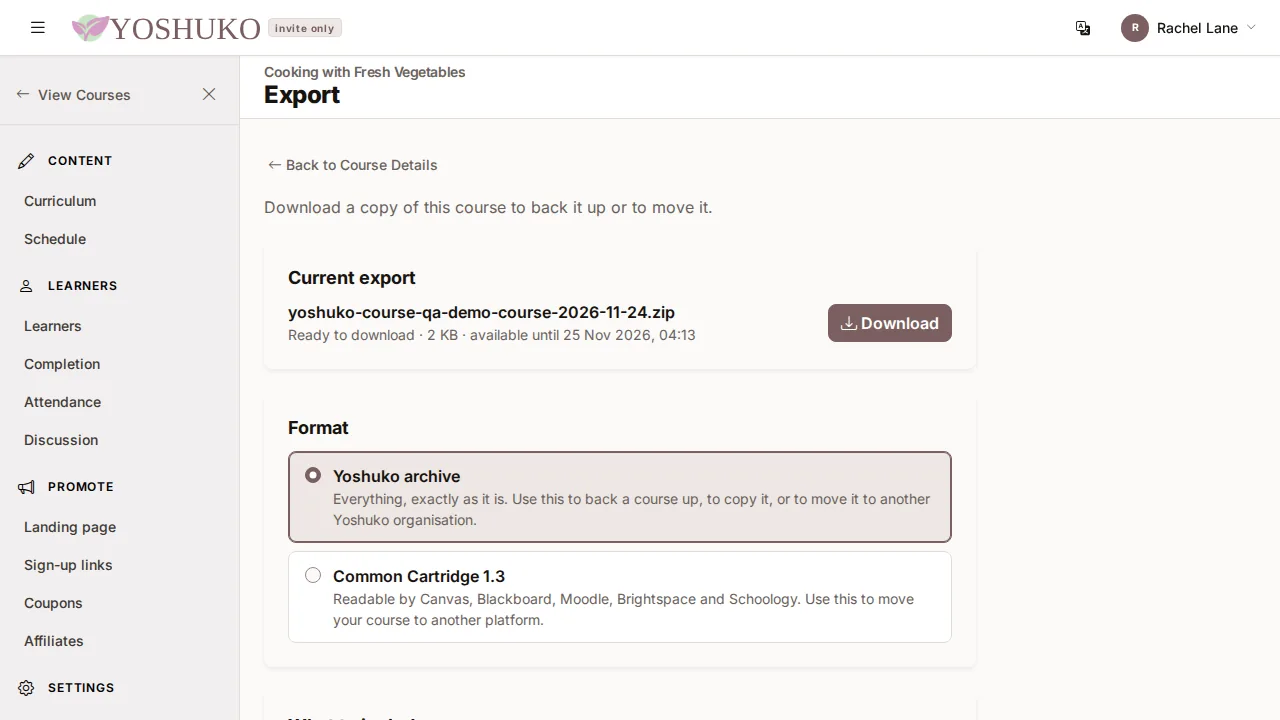
- Under the kind of file (
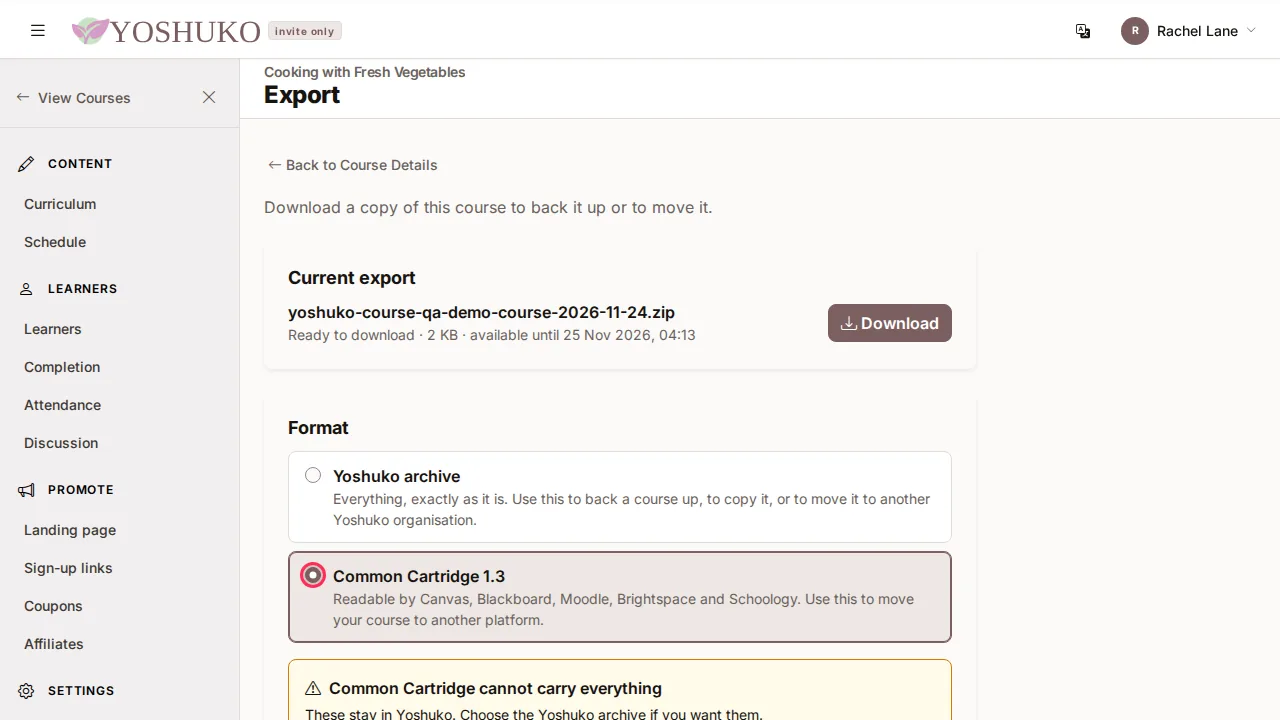
Format), choose:- Yoshuko archive — everything, exactly as it is. An archive file keeps a full copy. Use it to keep a backup of a course, to copy it, or to move it to another Yoshuko organisation.
Common Cartridge 1.3— Canvas, Blackboard, Moodle, Brightspace and Schoology can all read it. Use it to move your course to another system.
- Under What to include, check the units and lessons to export. Select all and Clear check or clear everything.
- Press Start export. When the file is ready, press Download to download it.
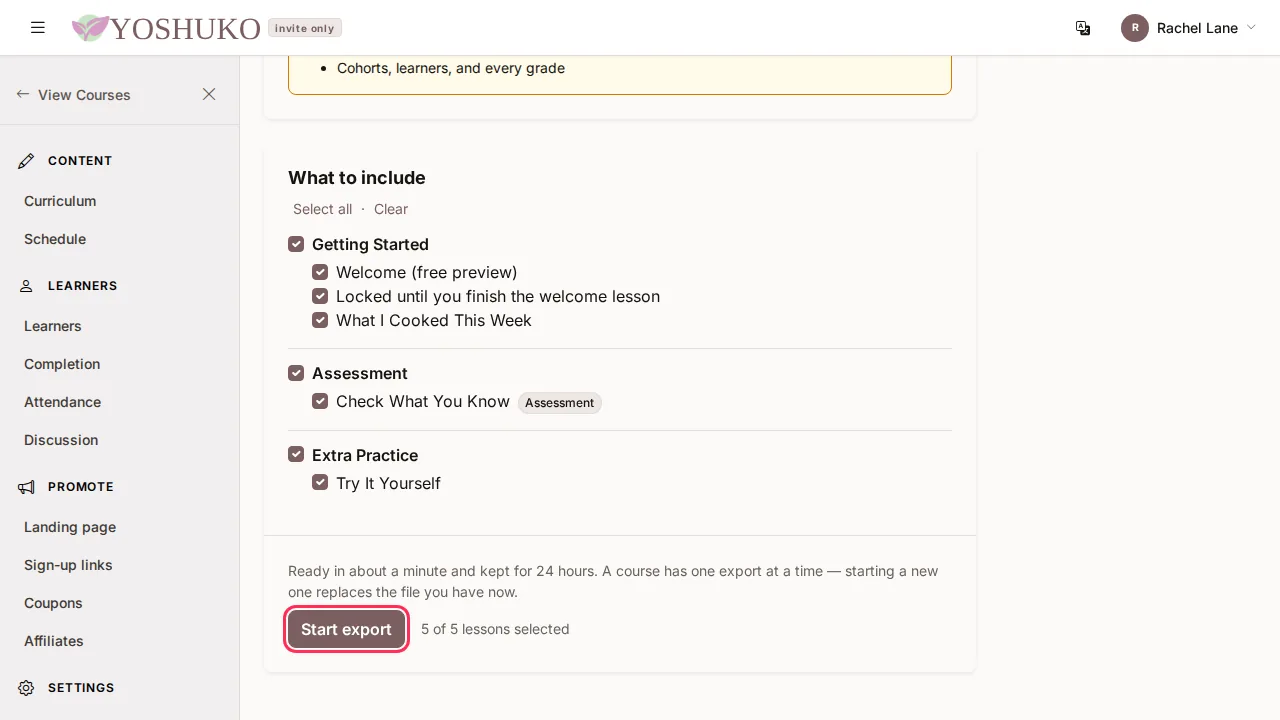
An export is kept for 24 hours, and a course has one at a time — starting a new export replaces the file you have now.
The Common Cartridge file cannot carry everything
When you choose Common Cartridge 1.3, these stay behind in Yoshuko:
- Each rubric and the rules for its marks
- AI grading prompts
- Limits on attempts and which attempt counts
- Release dates, and how many days after the start each part opens
- Checks for honest work
- Point values and the weight of each part in the gradebook
- Each cohort, the learners, and every grade
Choose the Yoshuko archive if you need them.
What you can import
| From | Export it like this | You get |
|---|---|---|
| Canvas | Settings → Export Course Content → Course | a .imscc file |
| Moodle 2.0 and later | Course → Backup, with "Include question bank" checked | a .mbz file |
| Blackboard Learn | Packages and Utilities → Export Course → Common Cartridge |
a .imscc file |
Brightspace (D2L) |
Course Admin → Import/Export/Copy Components → Export as Common Cartridge |
a .imscc file |
| Schoology | Course Options → Export → Common Cartridge |
a .imscc file |
| Yoshuko | Any course's Export button | a .zip archive |
- From Moodle, check "Include question bank", or each quiz arrives empty.
- From Blackboard, use the
Common Cartridgeexport, not the "Course Export" package — that is Blackboard's own kind of file and cannot be read. From Brightspace, in the same way, do not use the Brightspace course package. - Files can be up to 2048
MB.
What comes across: units, pages, tasks, each quiz and its bank of questions; pictures
and PDF files (pictures over 2 MB are made smaller to fit). Video and sound files are
not stored — Yoshuko links to them, and each one leaves a note naming the file so you
can add the link.
What cannot be imported: SCORM packages (a file that plays a
course, not a course you can change), Moodle 1.9 and earlier (put it back into a new
Moodle and make a backup again), WebCT / Blackboard Vista and ANGEL archives, and
IMS Content Packages.
Start a new course from one you already have
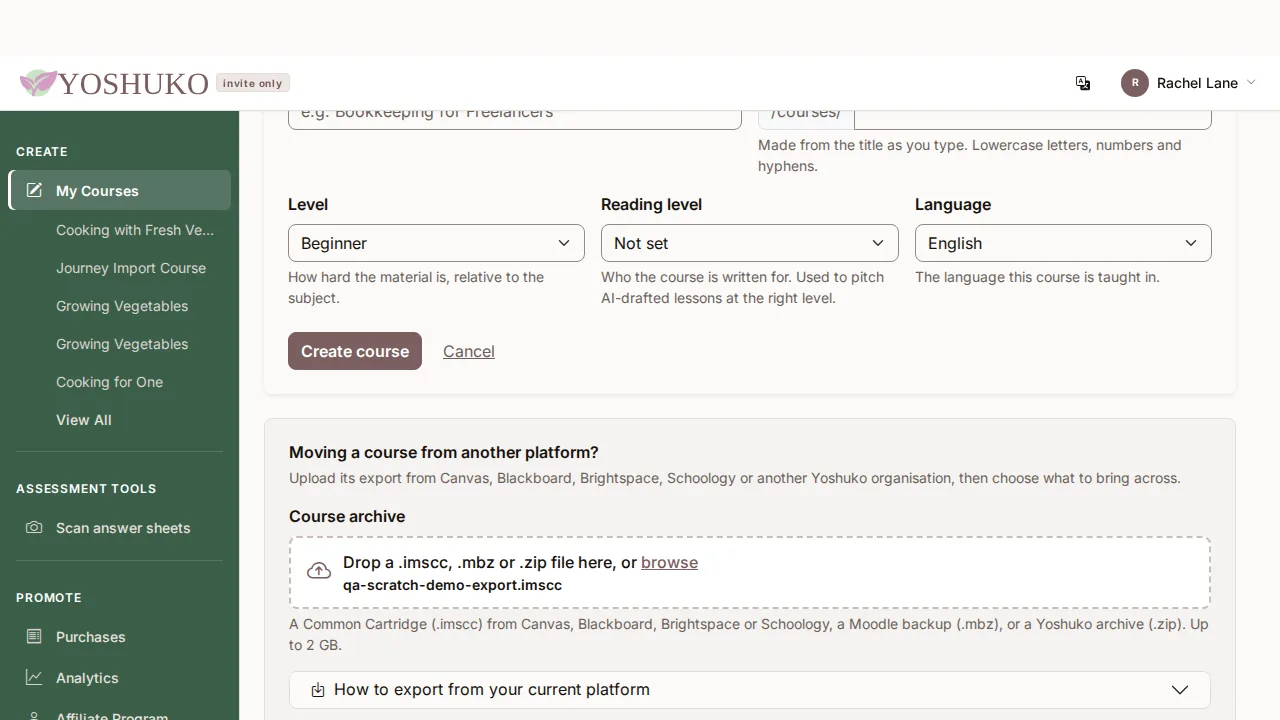
- In the creator studio, press New Course.
- Move down the page to Or start from an existing course.
- Under Course archive, choose your file, then press Upload this file. To upload a file is to send it from your computer.
- Wait while it uploads and is read. You can leave the page — the course appears in your courses and tells you when it is done.
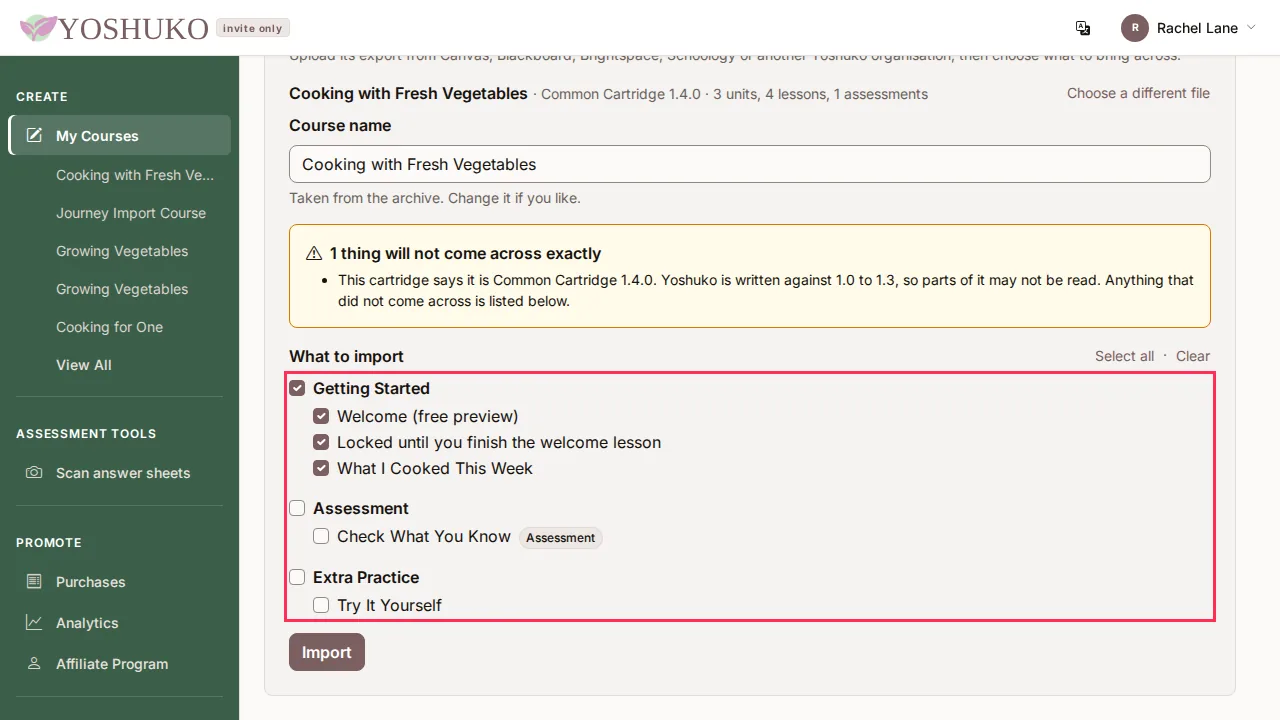
- Check the Course name. It is taken from the archive; change it if you like.
- Read any warnings, then under What to import check the units you want.
- Press Import.
- When you see Imported, press Open the course.
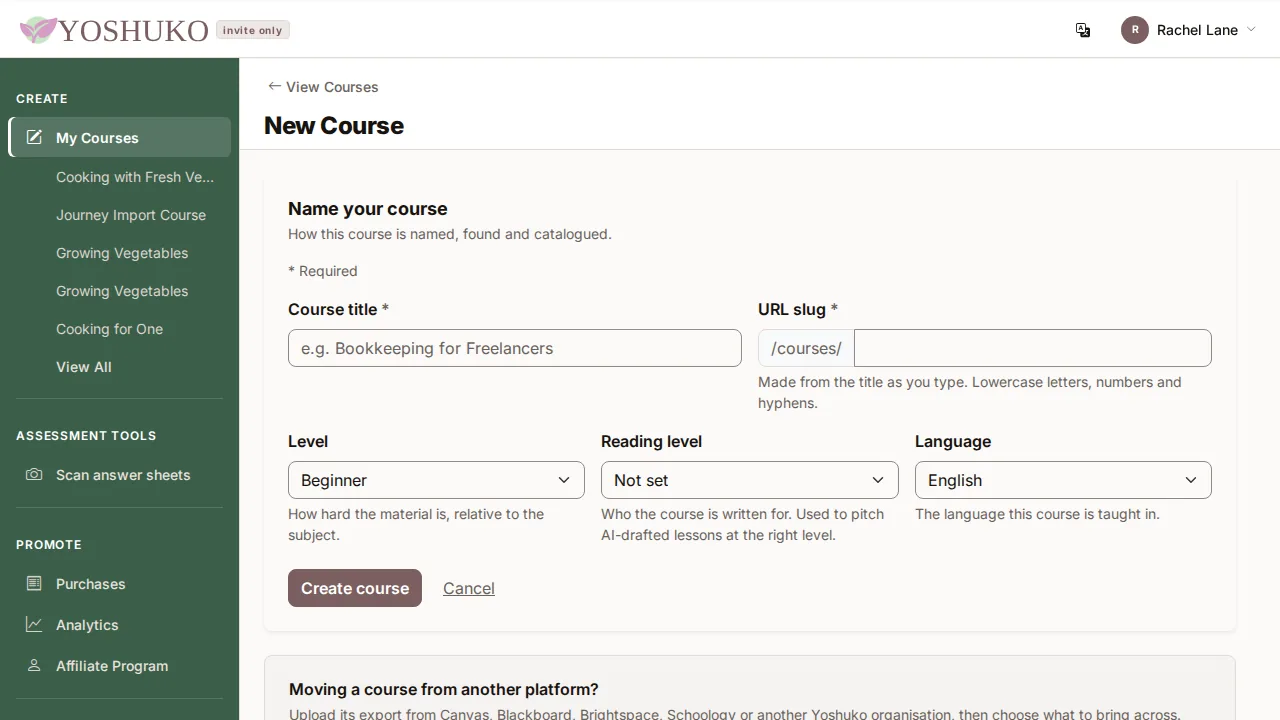
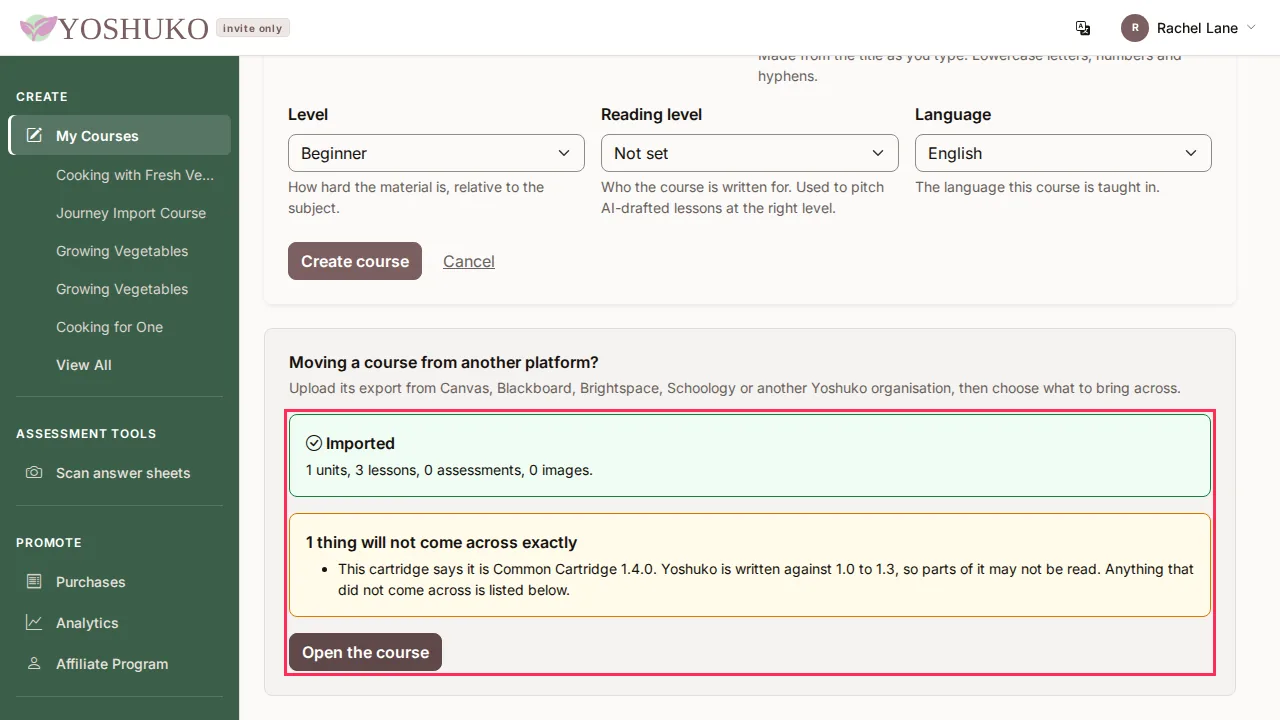
The new course is created as a draft, so no learner sees it until you publish it.
Add units from an archive to a course you already have
- Open the course and go to Details.
- In the Import / Export card, press Import.
- Under Course archive, choose your file and press Upload this file.
- While it works, the panel shows which step is running and how long it has taken.
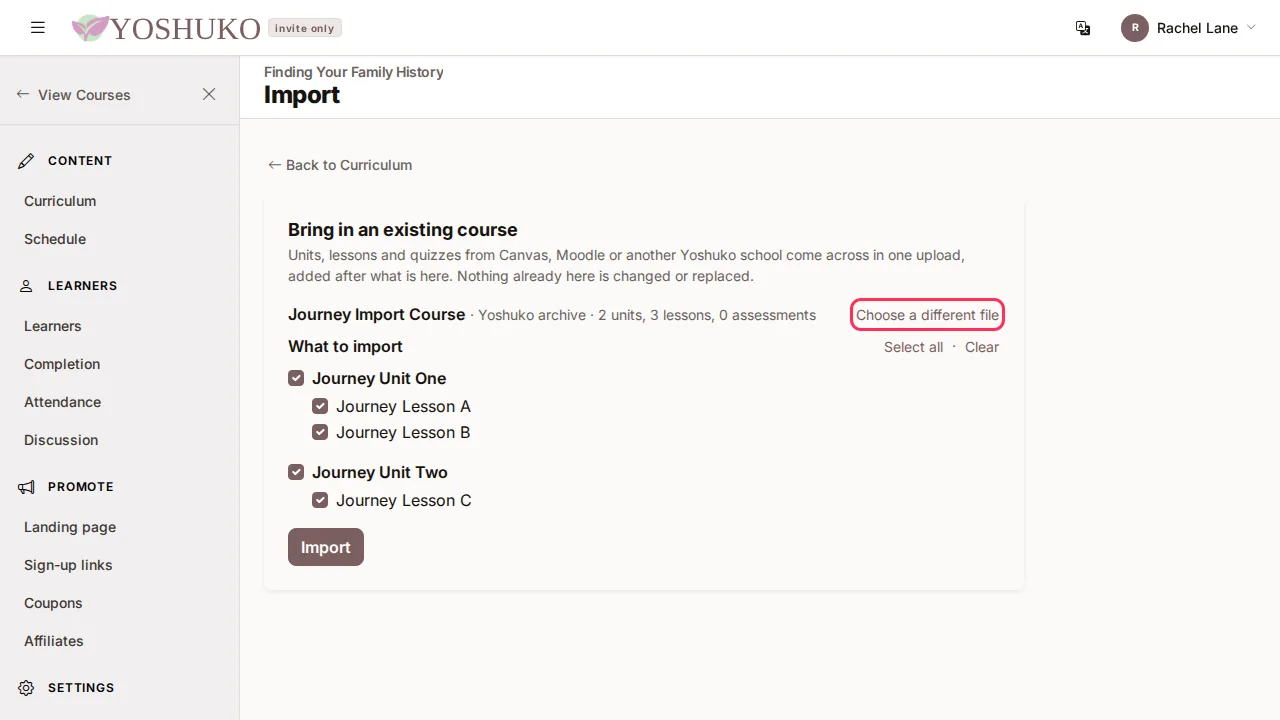
- When it has read the file, you see what the archive says it is and how much is in it. Check the units and lessons you want under What to import — Select all and Clear help.
- Press Import, then Open the course.
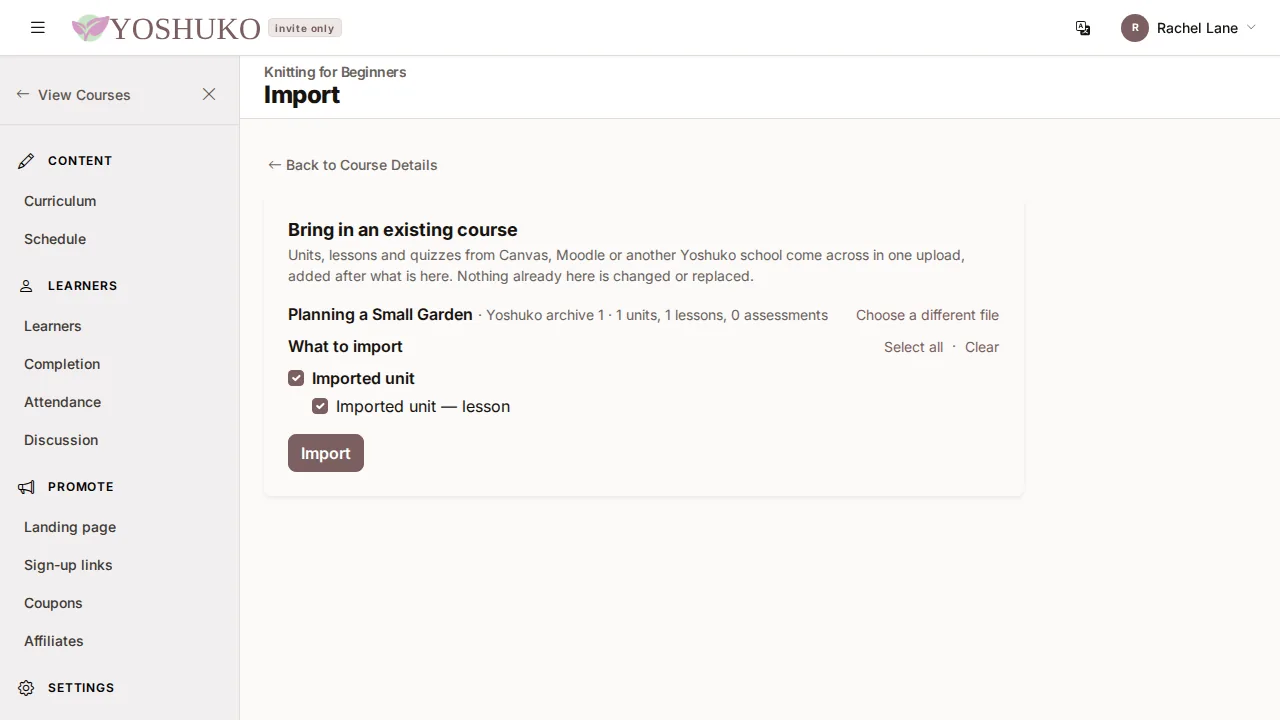
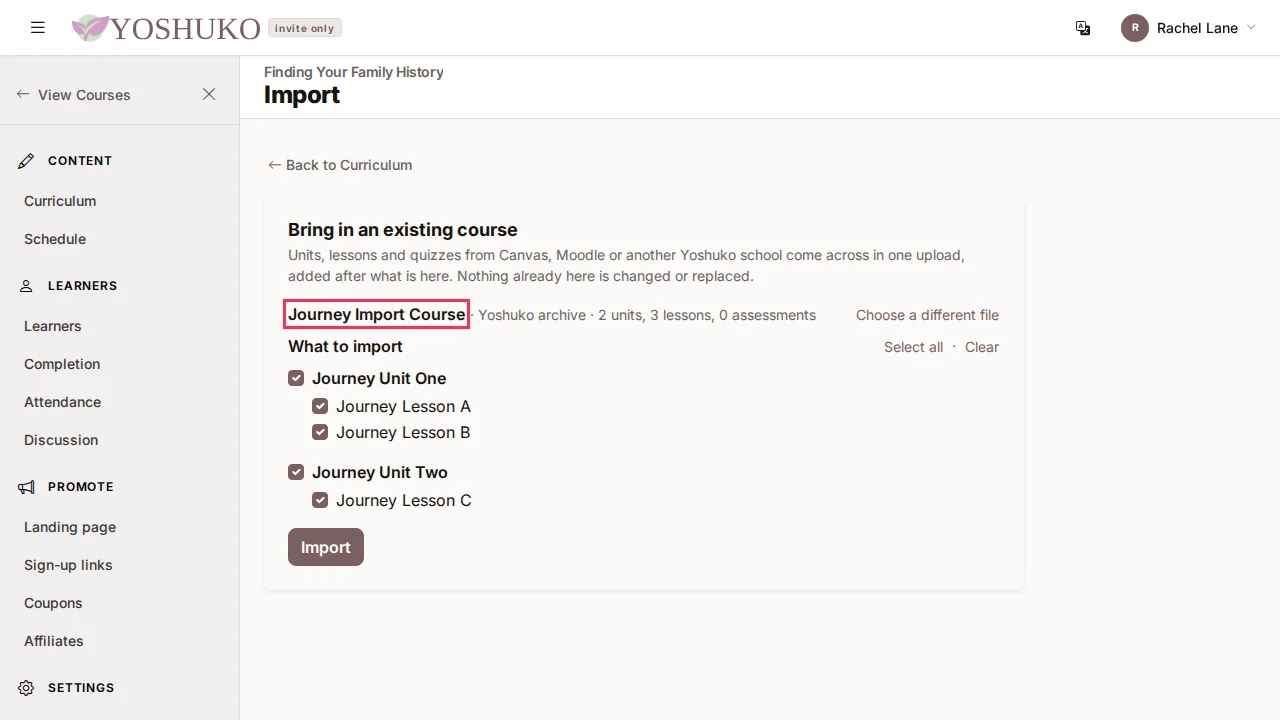
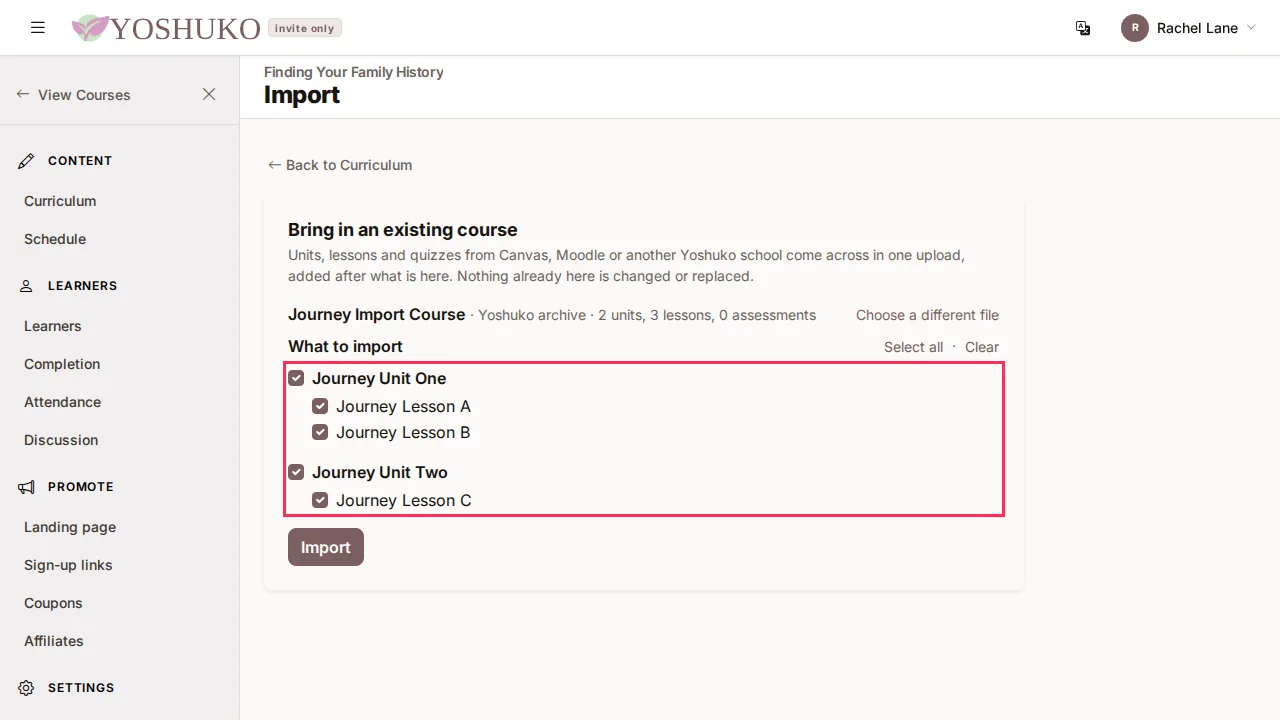
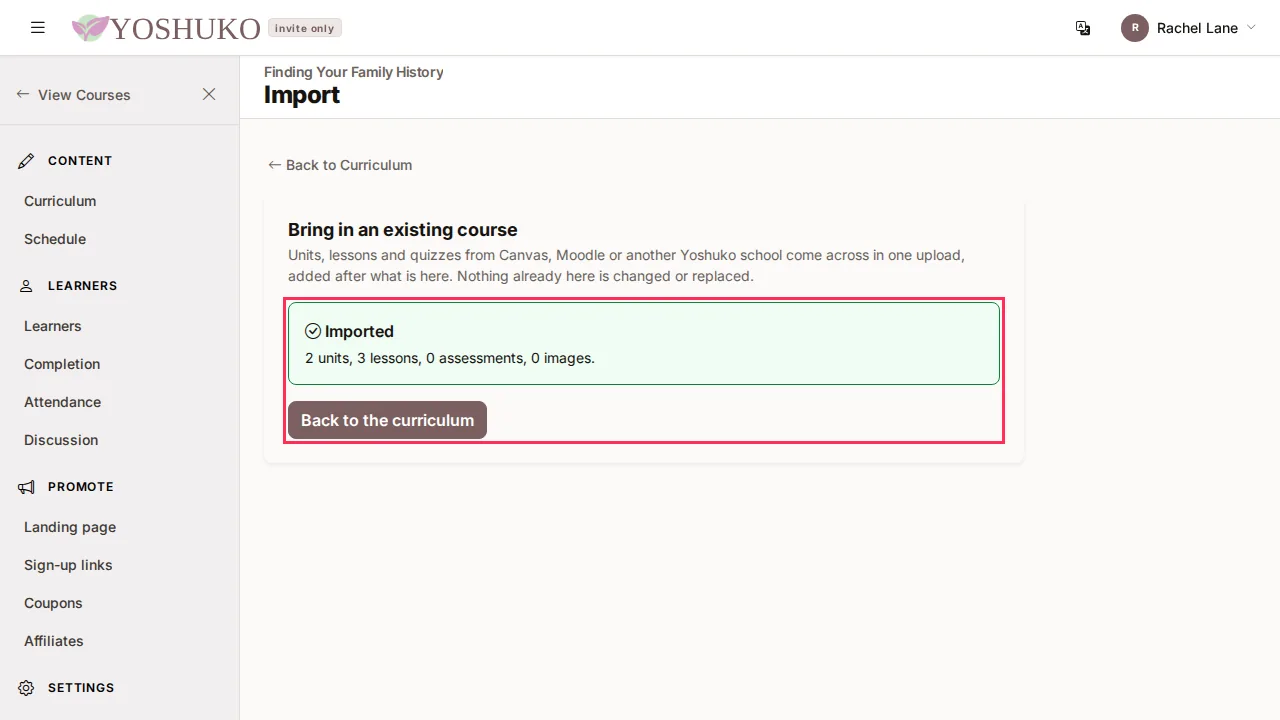
Units and lessons are added after the ones already there. Nothing already in the course is changed or replaced.
See what will not come across, before you import
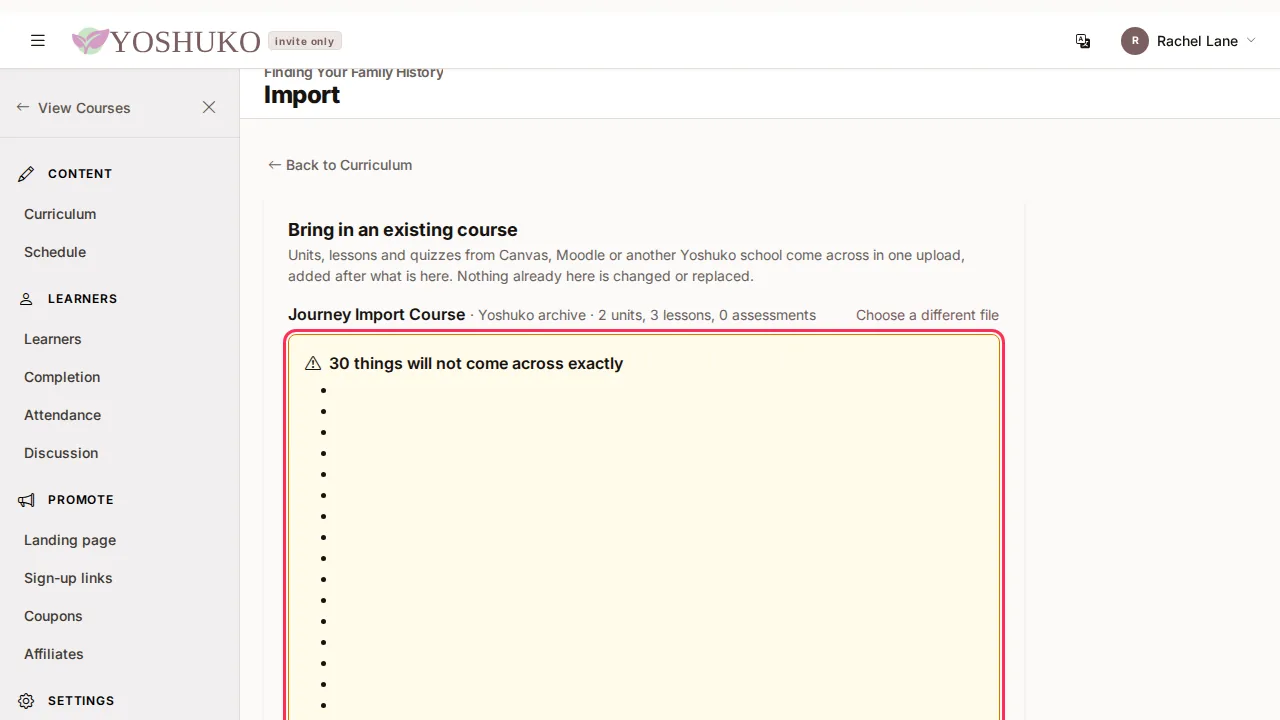
If some of the archive cannot travel exactly, a yellow box above the list says, for example, 3 things will not come across exactly, and lists them. Read it while you choose what to import — the same list is shown again after the import.
Change your mind
- Choose a different file changes the archive without leaving the page.
- Cancel, while it is still uploading, stops the import and takes you back to the file step.
- Back to … at the top of the page leaves without importing anything.
If something goes wrong
| You see | What it means | What to do |
|---|---|---|
| A message under Course archive saying why the file cannot be used | The file is not one Yoshuko can read. | Check it is one of the kinds of file above, then choose another file. |
| That file could not be imported | The file was uploaded but could not be read as a course. | Press Try another file. |
| This step (…) has not reported for a while. It may still be working. | A long import has gone quiet on the step named. | Wait, or leave the page — if it has stopped, the course will say so. |
This export has expired — start another to get a new file |
Exports are kept for 24 hours. | Press Start export again. |
| This course has no units yet, so there is nothing to export. | The course is empty. | Add content first. See Organise a course. |
Related
- Organise a course
- Lessons and media
- Build a course with the API — an API lets a program build a course for you.