クイズと書く課題
A quiz and a piece of written work both open in the course player, like any other lesson. A quiz is marked the moment you send it. Written answers are marked by your teacher.
開始前に
- コースに参加し、クイズまたは書いた作業を開いています。Take a courseをご覧ください。
クイズに答える
クイズはいくつかの質問形式があります:
- 選択肢から1つだけ選ぶ。
- すべて該当するものを選ぶ: 正しいものすべてにチェックを付けます。
- 短い答え: 一行のボックス (あなたの答えを入力…) に入力します。
- 長い書いた答え: ボックス (あなたの答えを書く…) に入力します。
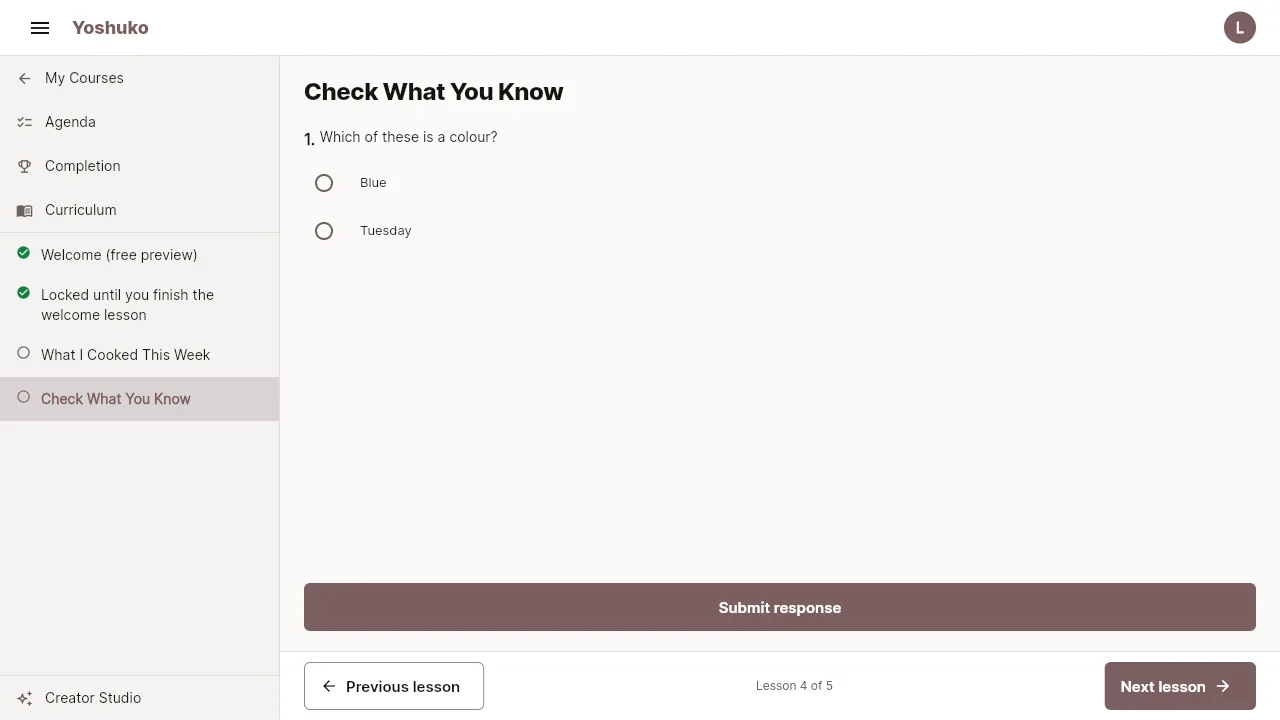
- Answer every question.
- Press
Submit response. -
A box asks Finish this attempt? and tells you how many tries you will have left after this. Press
Submit attemptto hand it in, or Keep working to go back.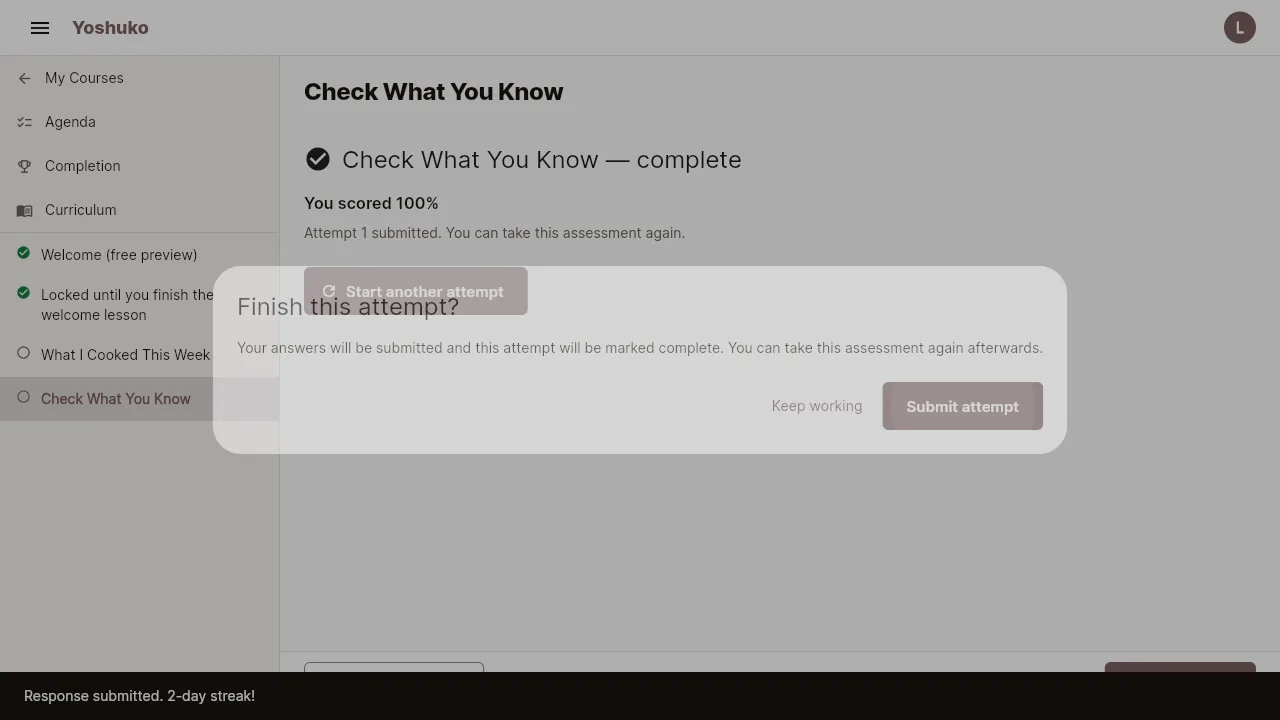
-
You see Assessment complete with your result:
- You scored
N% when the quiz can be marked by the computer, or Your answers are with your instructor for marking.when it has written answers that a person has to read.
- You scored
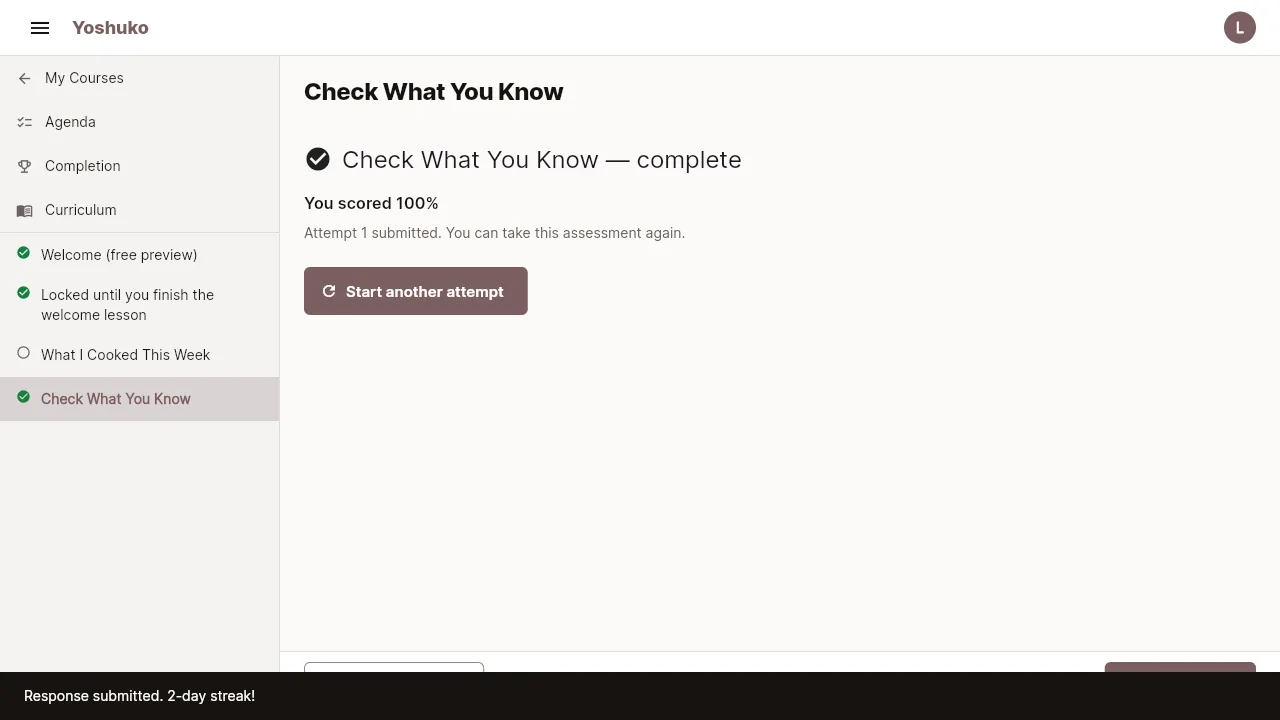
結果の下に、これは何回目の試験か、あと何回残っているかを示す行があります。たとえば: Attempt 1 of 3 submitted. 2 attempts remaining.
クイズをもう一度受ける
もしクリエイターが複数回の試験を許可している場合、あなたはもう一度受けることができます。
- Under Assessment complete, press Start another attempt.
- Answer the questions and press
Submit response, thenSubmit attempt.
When you have more than one try, the panel tells you which one counts, if it is not just your latest: Your highest scoring attempt is the one that counts. or Your lowest scoring attempt is the one that counts.
残りがない場合は、パネルに「No attempts remaining.」と表示されます。
書く課題に答える
- 答えをボックスに入力してください。
Submit responseを押します。するとResponse submitted.と表示されます。
先生が採点し、点数はAgendaとあなたのCompletionページに表示されます。コースを受講をご覧ください。
紙で課題を提出する
一部の質問では紙に答えを書いて、scan します。あなたは 紙に答えを書き、ここにスキャンしてください。文字をつなげずに印刷してください と表示されます。
- Write your answer on paper.
- Press Scan your work and scan your pages.
-
When it is done, you see Scanned —
Npages and the text that was read from your pages, under This is what your work will be marked on:.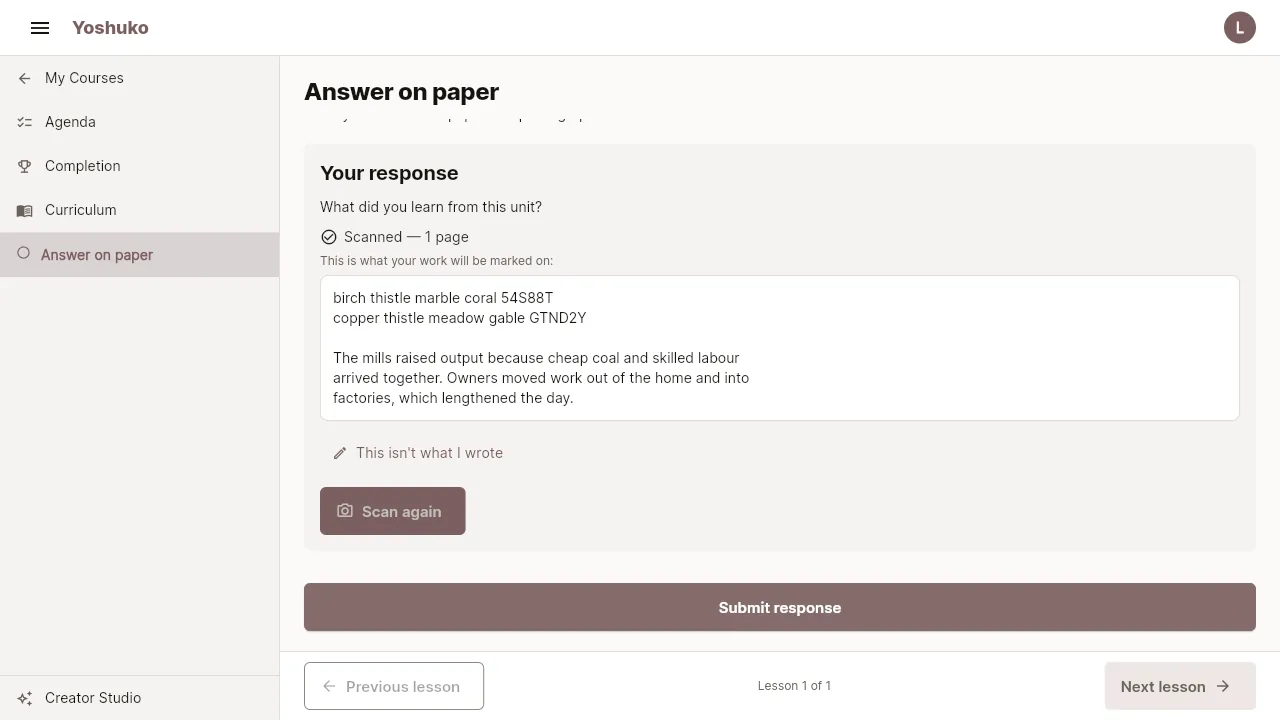
-
文字をよく確認してください。何か間違っている場合は、これは私が書いたものではありません を押してください。
- ボックス内の文字を修正し、
Save correction(または キャンセル)を押してください。
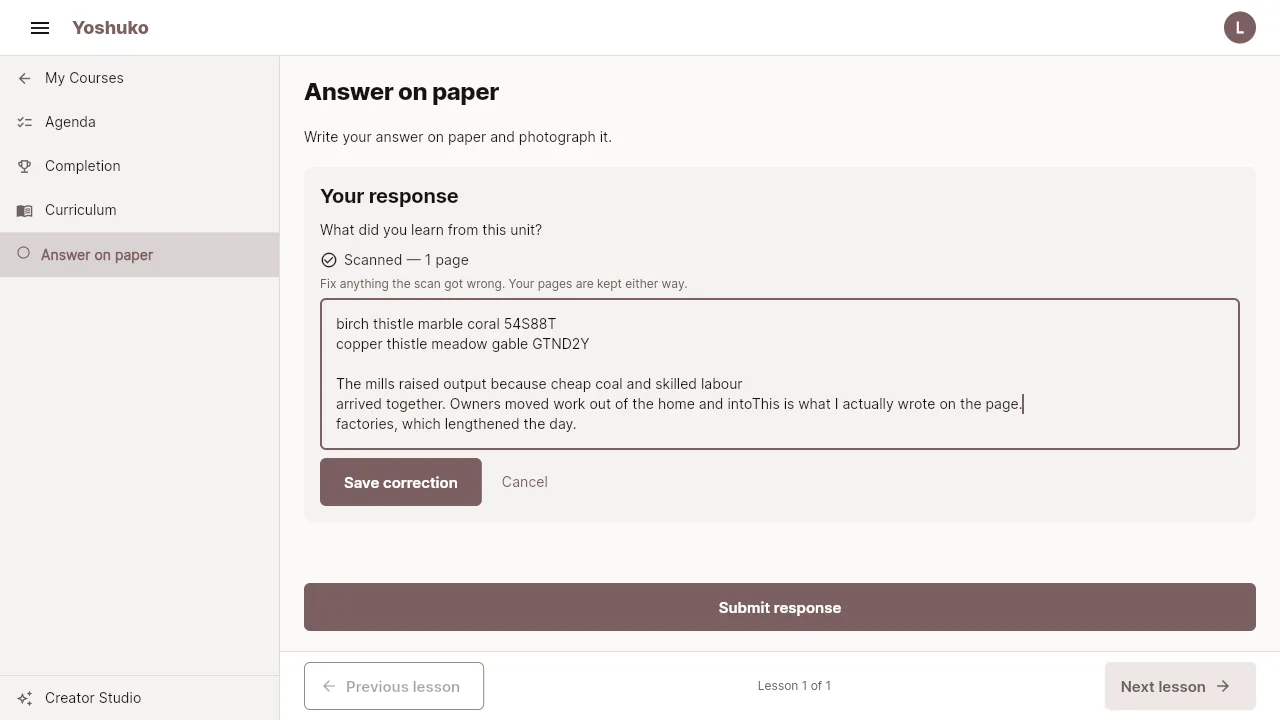
スキャンしたページはどちらの場合も保存されるので、先生が実際に書いた内容を確認できます。ページを置き換えるには Scan again を押してください。
何か問題が発生した場合
| 見る内容 | その意味 | どうするか |
|---|---|---|
Write a response before submitting. |
答えのボックスが空です | 答えを入力し、送信してください。 |
| この評価で試行回数はすべて使われています | 試行回数が残っていません | 最後の保存された結果が有効です。間違っていると思われる場合は先生に連絡してください。 |
Could not submit your response. |
あなたの答えが送信されませんでした | 接続を確認し、Submit response をもう一度押してください。 |
| ページの保存に失敗しました。接続を確認して再度試してください | スキャンした内容がアップロードできませんでした | あなたの作業をスキャン をもう一度押してください。 |
Your correction could not be saved. |
変更された文字が保存されませんでした | Save correction をもう一度試してください。 |